Stores with large catalogs often have inconsistent metadata - some products have custom titles, others use defaults, some descriptions are detailed while others are empty. Risify's Meta Tags dashboard lists all items in one view, so you can identify gaps without opening products individually.
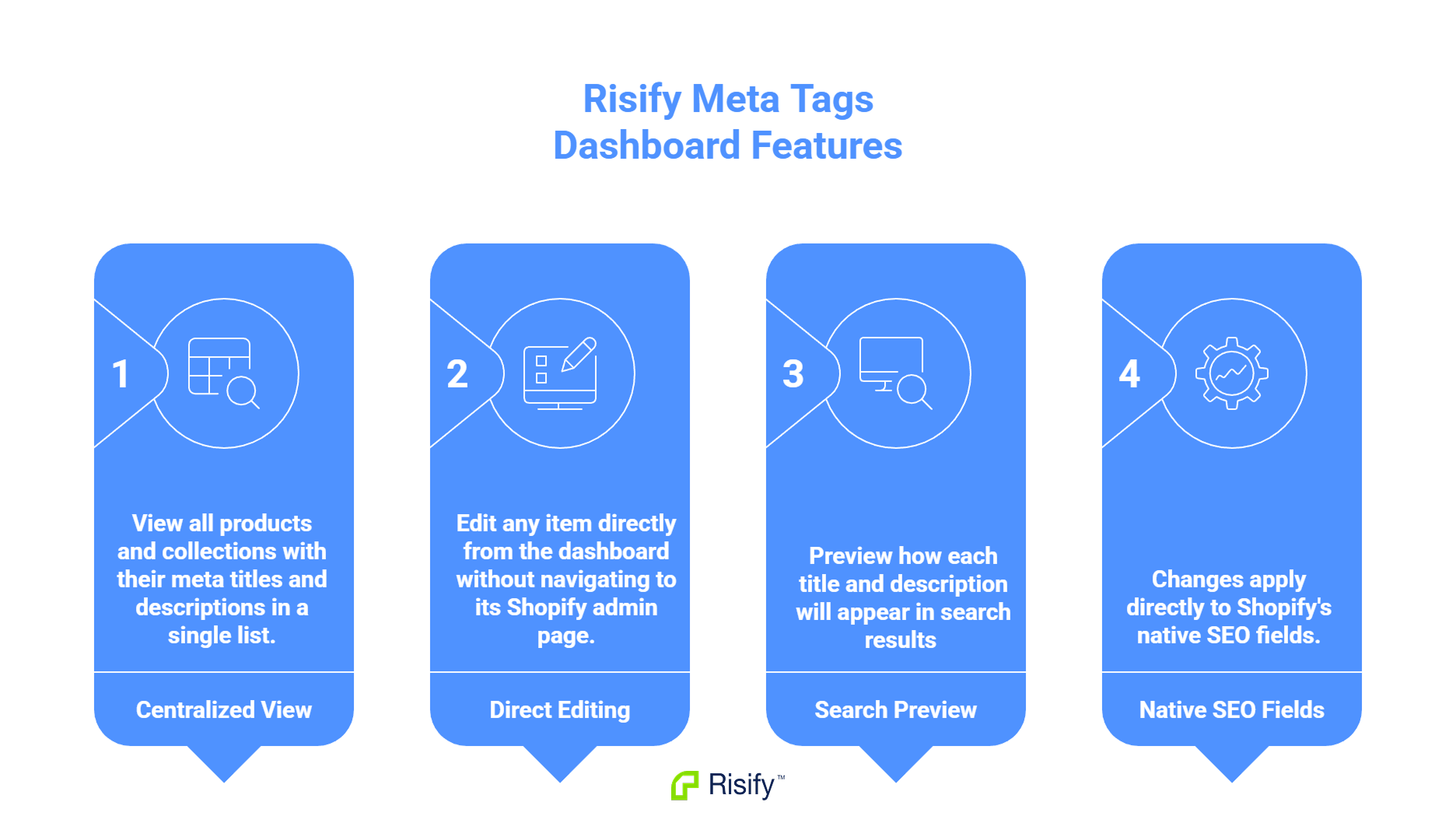
- View all products and collections with their meta titles and descriptions in a single list.
- Edit any item directly from the dashboard without navigating to its Shopify admin page.
- Preview how each title and description will appear in search results before saving.
- Changes apply directly to Shopify's native SEO fields.
- No theme modifications or additional setup required.
Why Large Catalogs Have Inconsistent Metadata
Products get added at different times, by different people, with different levels of attention to SEO. Older products may have no custom metadata at all. Newer products might have been optimized individually. Some descriptions follow a format, others do not.
How This Happens
Several patterns lead to inconsistency:
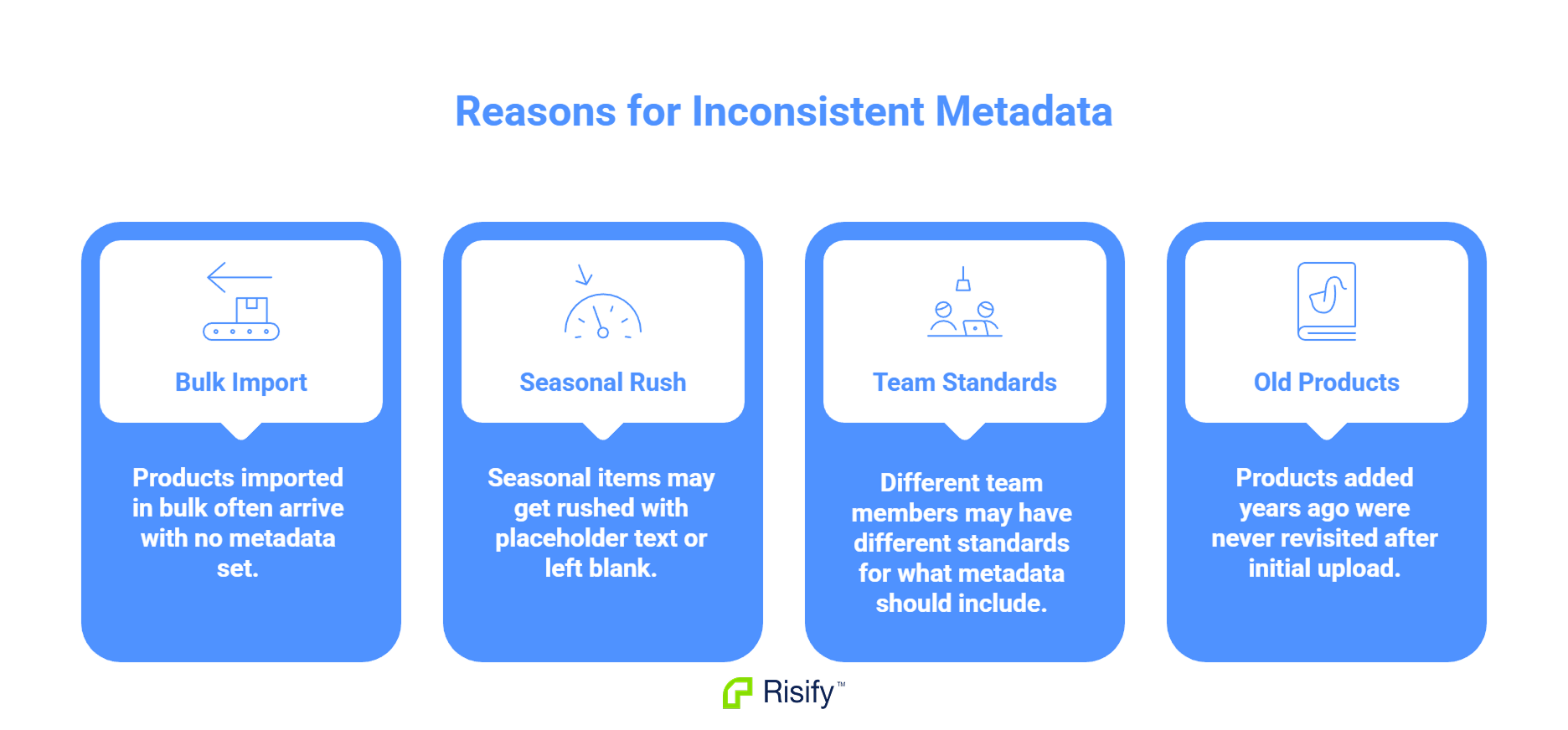
- Products imported in bulk often arrive with no metadata set.
- Seasonal items may get rushed with placeholder text or left blank.
- Different team members may have different standards for what metadata should include.
- Products added years ago were never revisited after initial upload.
Over months and years, the catalog becomes a patchwork. Some pages have carefully written titles and descriptions. Others have whatever Shopify generated by default.
The Visibility Problem
In Shopify, checking metadata requires opening each product or collection individually. With hundreds of items, auditing the full catalog is impractical. You do not know what state your metadata is in until you look at each page one by one.
Viewing All Metadata in One Dashboard
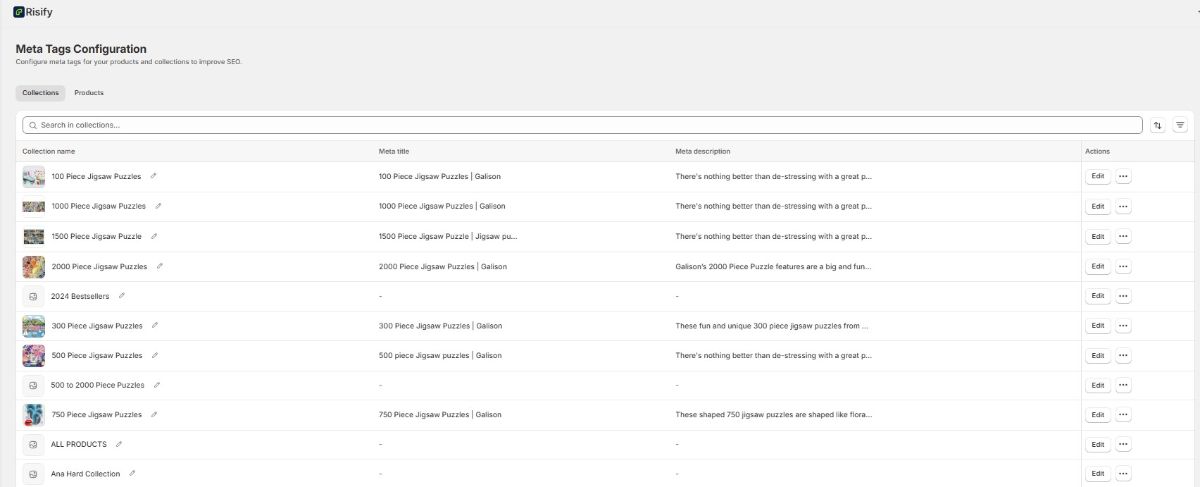
Risify's Meta Tags dashboard lists all your collections and products with their current meta titles and descriptions visible in a single view.
What You See
The dashboard has two tabs: Collections and Products. Each tab shows a list of items with their existing metadata displayed. You can scan the list to see:
- Which items have custom titles and descriptions
- Which items are using Shopify defaults
- Which items have missing or empty fields
Items that need attention are identifiable at a glance without clicking into each one.
Editing From the Dashboard
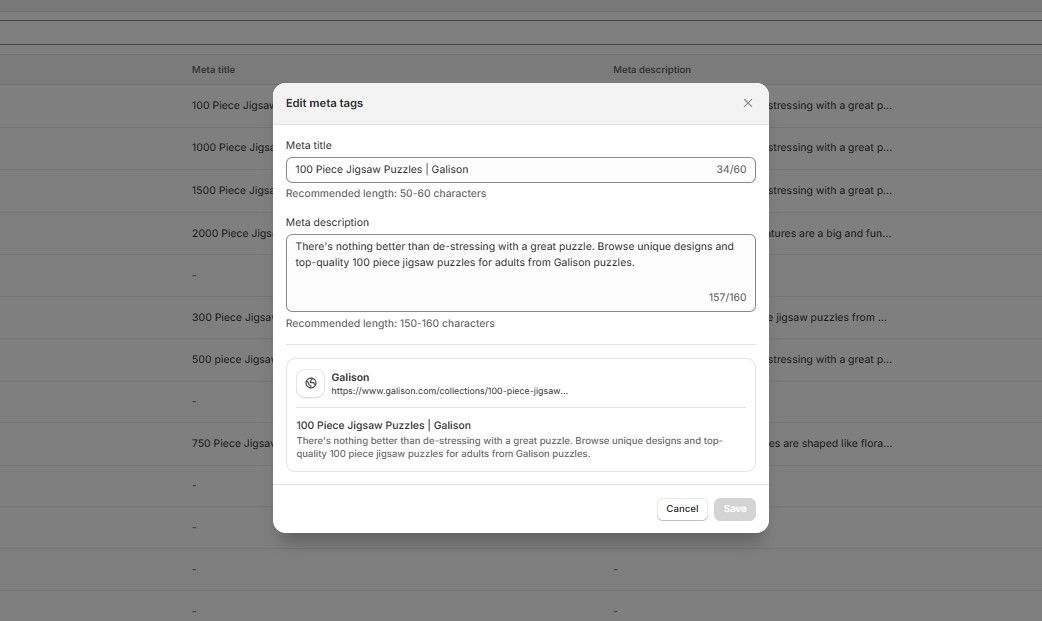
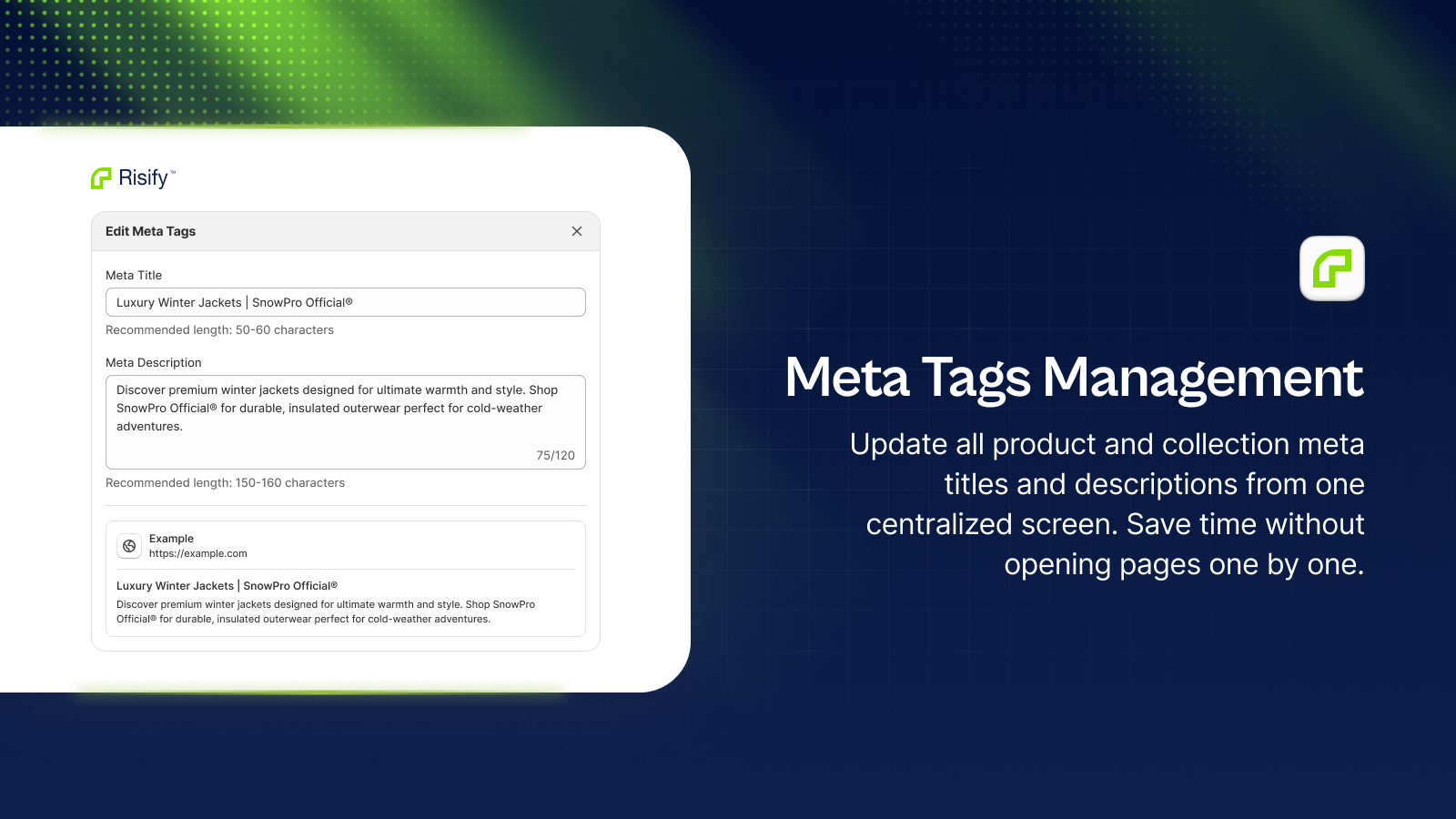
To edit any item, click the Edit button in the Actions column. A pop-up appears with:
- Meta Title field: Recommended length is 50-60 characters.
- Meta Description field: Recommended length is 150-160 characters.
- Live preview: Shows how your title and description will appear in Google search results.
When you save, the changes apply directly to Shopify's native SEO fields. No additional steps are needed - the metadata is live immediately.
Fixing Gaps Without Opening Each Product
The dashboard turns metadata cleanup from a scattered task into a focused workflow. Instead of navigating through Shopify admin page by page, you work through a single list.
A Practical Approach
Start with collections. You likely have fewer collections than products, and collection pages often rank for high-value category terms. Fixing these first provides immediate impact.
Move to products next. As you scan the list, you may notice patterns - all products from a certain import date have no descriptions, or all products in a specific category use the same placeholder text. These patterns help you prioritize what to fix first.
Maintaining Consistency
Once you establish a format for your metadata, the dashboard helps you apply it consistently. You can see at a glance whether new products follow the standard or need updates.
Checking the dashboard periodically as your catalog grows prevents the inconsistency problem from returning.
Manage Your Metadata with Risify
Risify's Meta Tags dashboard gives you visibility into your catalog's metadata without opening each product individually. You can identify gaps, fix inconsistencies, and maintain standards as your catalog grows.