Risify Breadcrumbs display a consistent navigation path on every product and collection page in your store. The path you define appears for visitors and outputs as valid structured data for Google - regardless of how someone arrives at the page.
This article focuses on what changes after implementation: what your visitors experience, what Google sees, and how the two stay synchronized. Detailed setup instructions are available in the our setup documentation.
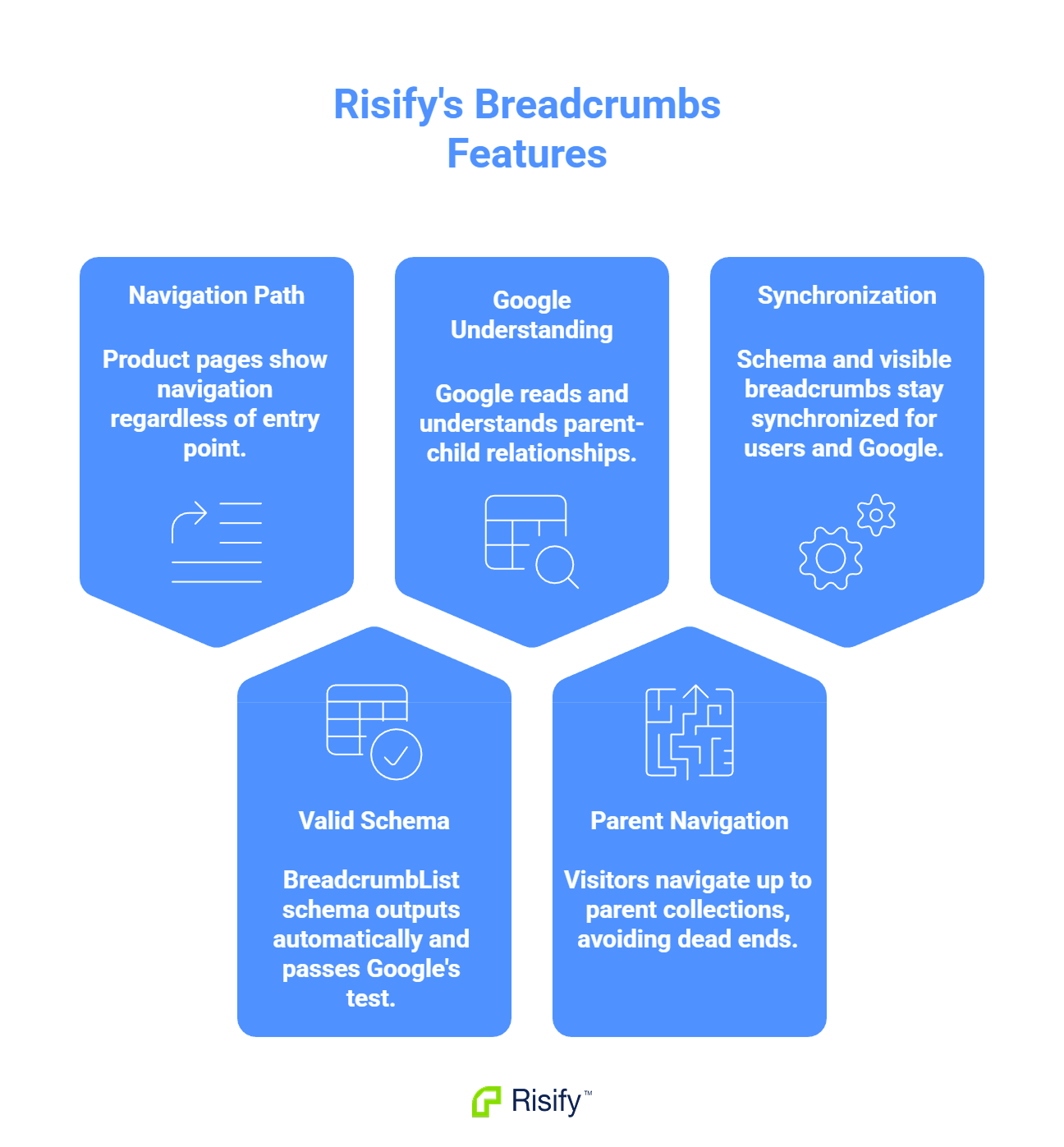
- Every product page displays a navigation path regardless of whether visitors arrive from Google, a direct link, or a collection.
- Valid BreadcrumbList schema outputs automatically and passes Google's Rich Results Test.
- Google can read your collection hierarchy and understand parent-child relationships between categories.
- Visitors can navigate up to parent collections instead of hitting dead ends.
- Schema and visible breadcrumbs stay synchronized - what users see matches what Google reads.
Consistent Navigation on Every Page
After implementing Risify Breadcrumbs, every product and collection page displays the path you defined. This happens whether the visitor clicked through from a collection, landed from a Google search, or pasted a direct link into their browser.
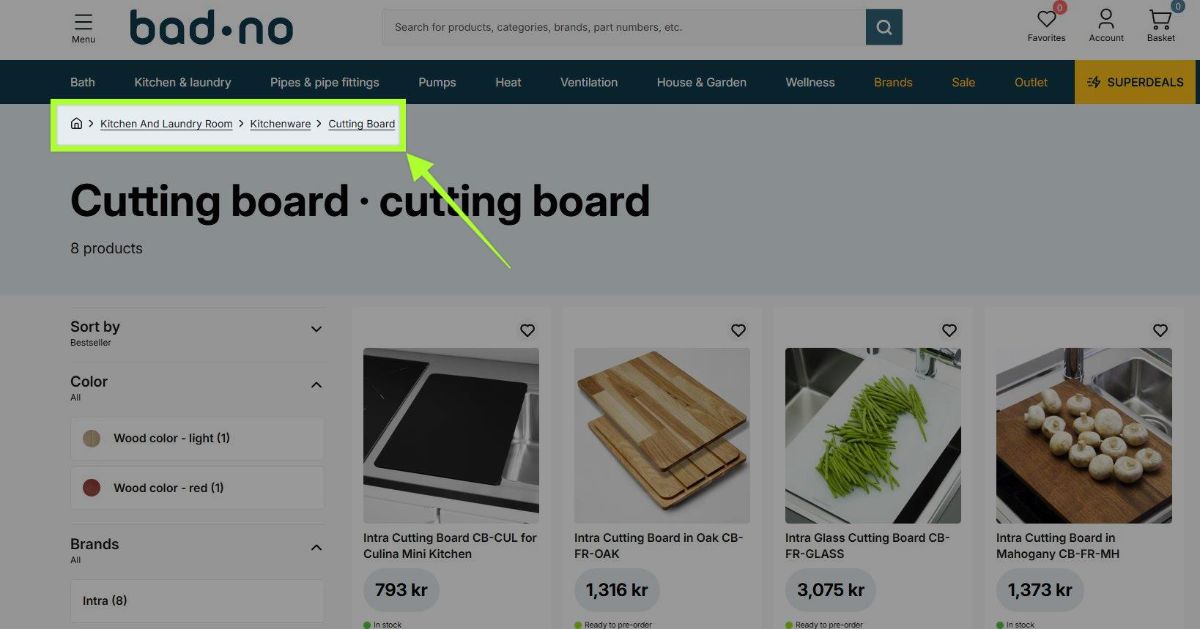
The navigation path is predictable across your entire store:
- No pages where the breadcrumb is missing.
- No generic fallbacks like "Home > Products" when context is unavailable.
- No variation based on how the visitor arrived.
This consistency exists because Risify stores a static path for each product and collection rather than relying on referrer URLs or session history. The breadcrumb you define is the breadcrumb that displays - every time, for every visitor.
Valid Schema That Google Can Read
Risify outputs BreadcrumbList schema on every page where you defined a path. This structured data is generated automatically from the same path definition that creates your visible breadcrumb.
What This Means for Google
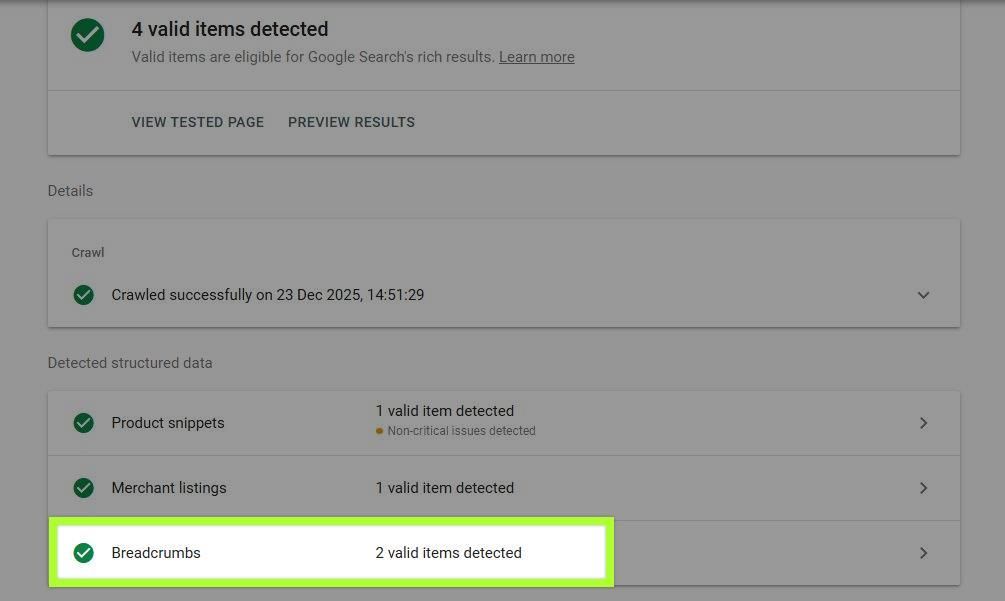
Google can read and validate your breadcrumb structure. The schema contains each level of your defined path, matching exactly what visitors see on the page. This allows Google to understand your site hierarchy and potentially display breadcrumb trails in search results.
What the Schema Contains
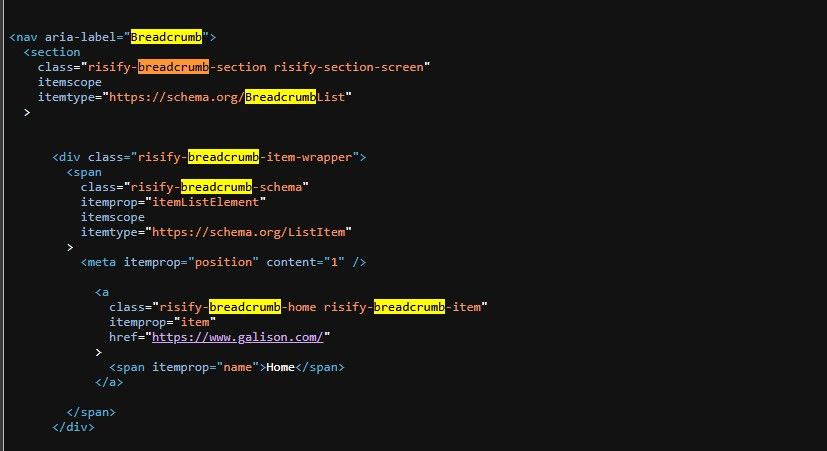
The BreadcrumbList schema includes each level of your defined path as a separate item with its own URL. For a product with the path Home > Furniture > Living Room > Sofas > Corner Sofas, the schema lists five items in order, each pointing to the correct page.
Google uses this data to understand your page's position in your site hierarchy and may display the breadcrumb trail beneath your page title in search results.
Hierarchy Signals for Search Engines
The breadcrumb paths you define communicate your collection hierarchy to Google explicitly.
Consider a path you might define for a product: Home > Furniture > Living Room > Sofas > Corner Sofas
This tells Google that Corner Sofas is a subset of Sofas, which belongs under Living Room, which falls under Furniture. The relationship is stated directly in structured data rather than implied through naming or navigation menus.
What This Changes
Google no longer sees your collection pages as disconnected entities at the same level. Your catalog structure becomes visible through the BreadcrumbList schema on every page.
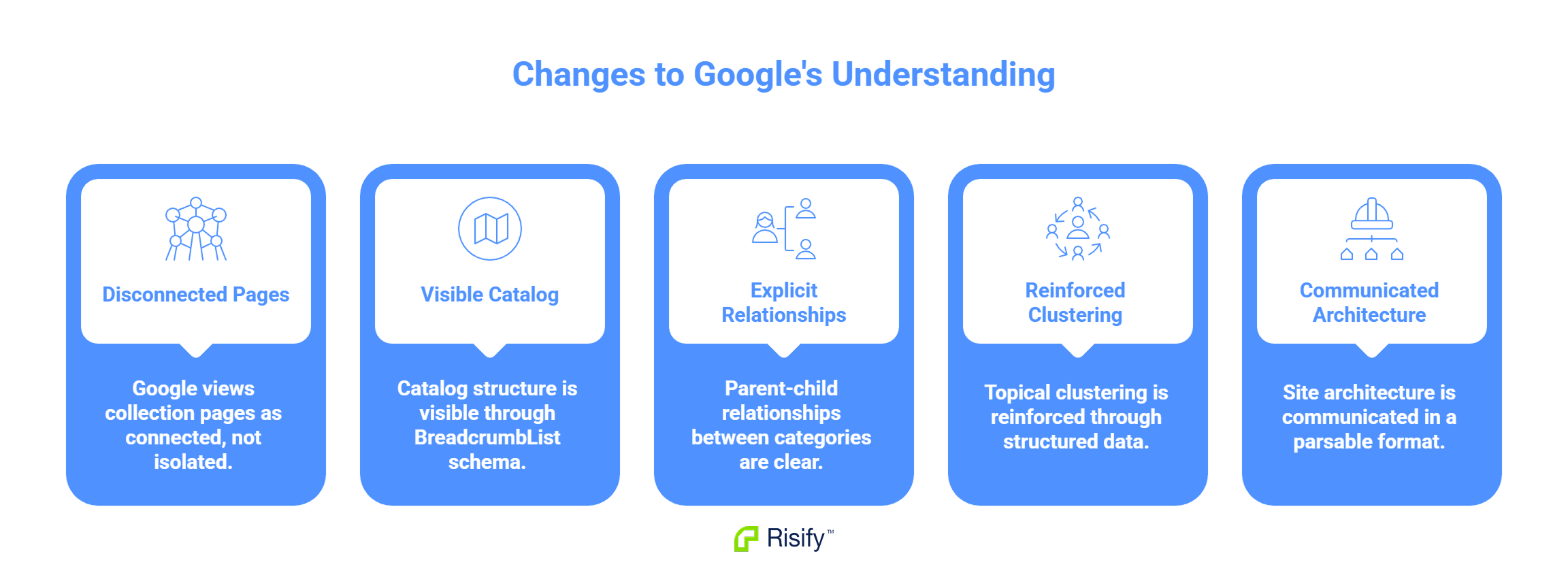
- Parent-child relationships between categories are explicit.
- Topical clustering is reinforced through structured data.
- Your site architecture is communicated in a format Google can parse and use.
This is the explicit hierarchy signal that Shopify's flat collection system does not provide natively.
Visitor Navigation Behavior
Breadcrumbs change how visitors move through your store after landing on a product page.
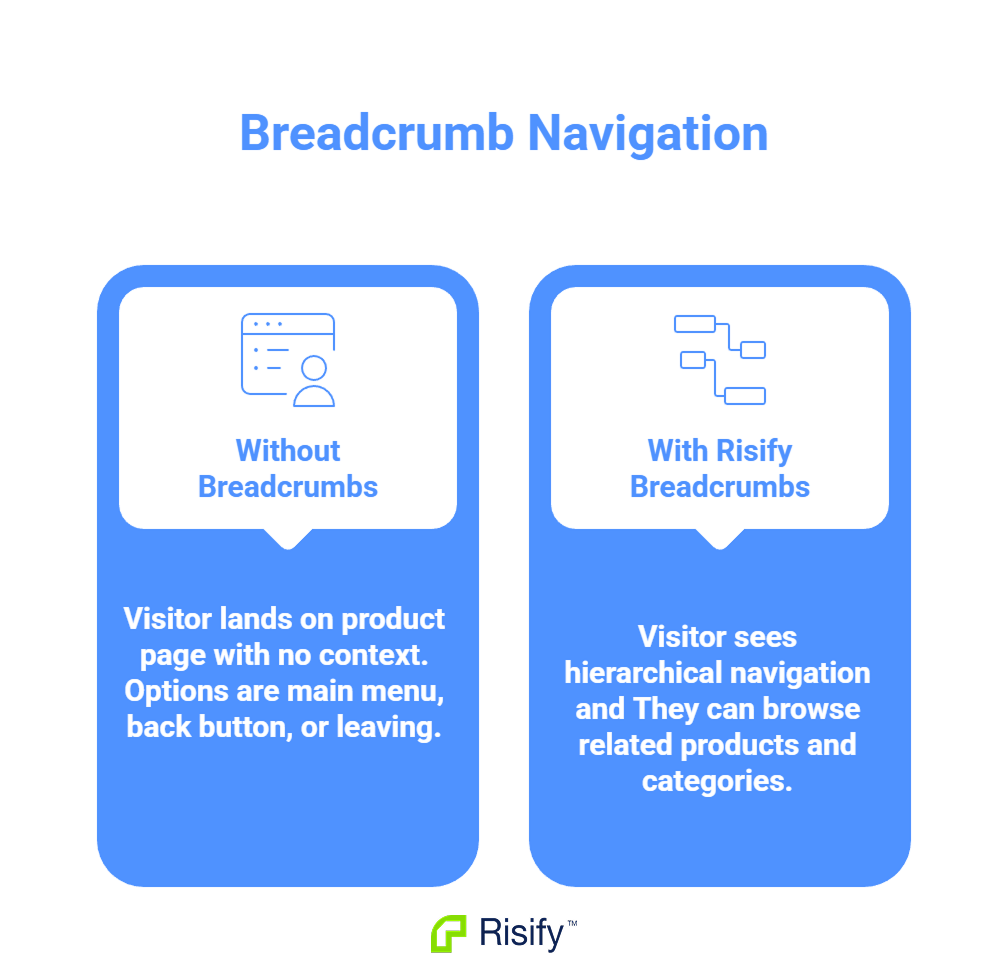
Without Breadcrumbs
A visitor who lands on "Grey Corner Sofa" from Google sees the product page with no context about where it fits in your collections. Their options are the main menu, the back button, or leaving.
With Risify Breadcrumbs
The same visitor sees: Home > Furniture > Living Room > Sofas > Corner Sofas
Each level is clickable. They can:
- Click "Sofas" to browse other sofa options.
- Click "Living Room" to explore the broader category.
- Click "Furniture" to see your full furniture selection.
- Click "Home" to return to your homepage.
The product page is no longer a dead end. Visitors have clear paths to continue browsing, which reduces bounce rate from organic landing pages and increases the chance of discovering additional products.
What Stays Synchronized
Risify outputs both the visible breadcrumb and the BreadcrumbList schema from the same defined path. This means what visitors see on the page matches exactly what Google reads in the structured data.
Why This Matters
Some breadcrumb solutions create mismatches. The visible breadcrumb might show one path while the schema outputs something different or incomplete. This can happen when the visual breadcrumb is rendered dynamically but the schema is hardcoded, or vice versa.
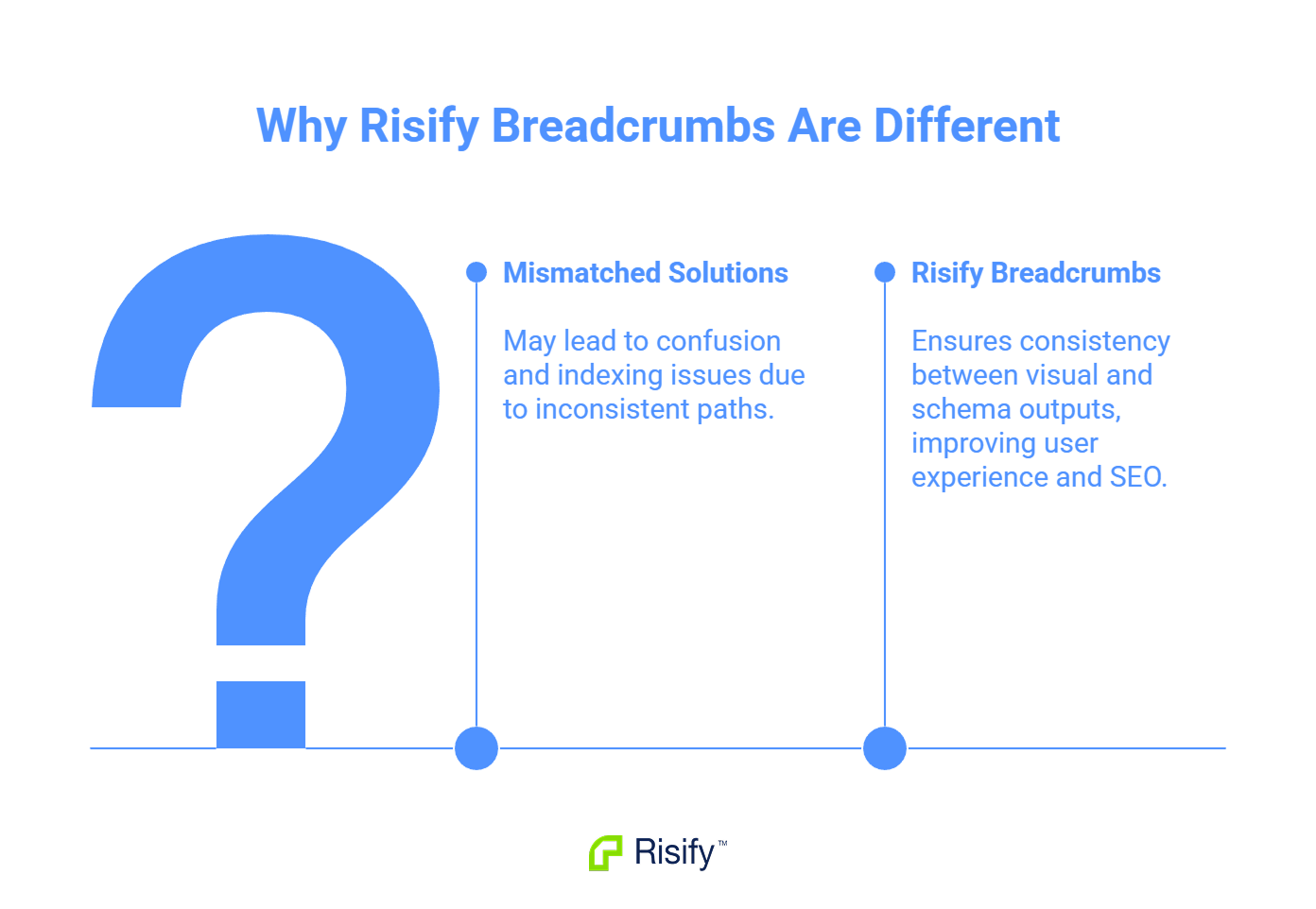
With Risify, both outputs come from the same source - the path you defined in the admin. If you update a path, both the visible breadcrumb and the schema update together. There is no drift between what users experience and what search engines index.
- One definition controls both outputs.
- Updates apply everywhere automatically.
- No manual synchronization required.
Get Started with Risify Breadcrumbs
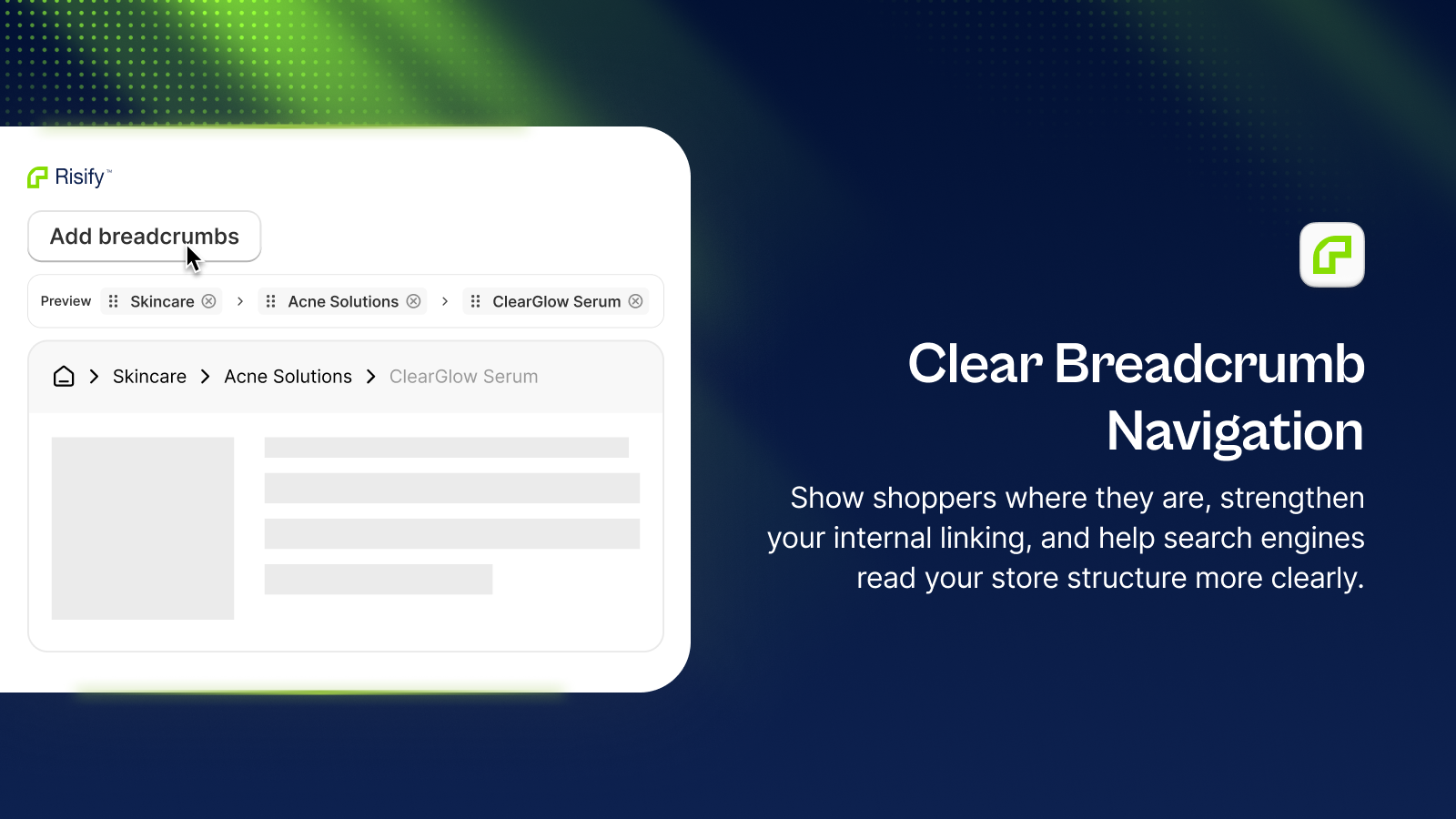
Risify Breadcrumbs deliver consistent navigation for visitors, valid structured data for Google, and explicit hierarchy signals that Shopify does not provide natively. The paths you define appear on every page and output as schema that search engines can read and use.
Install Risify from the Shopify App Store to set up your breadcrumbs.