If you have tested your Shopify store's breadcrumbs by clicking through collections, everything probably looks fine. But if you paste a direct product URL into a new browser tab, the breadcrumb often vanishes.
This is not a theme bug or a setting you missed - it is how Shopify's default breadcrumb system works.
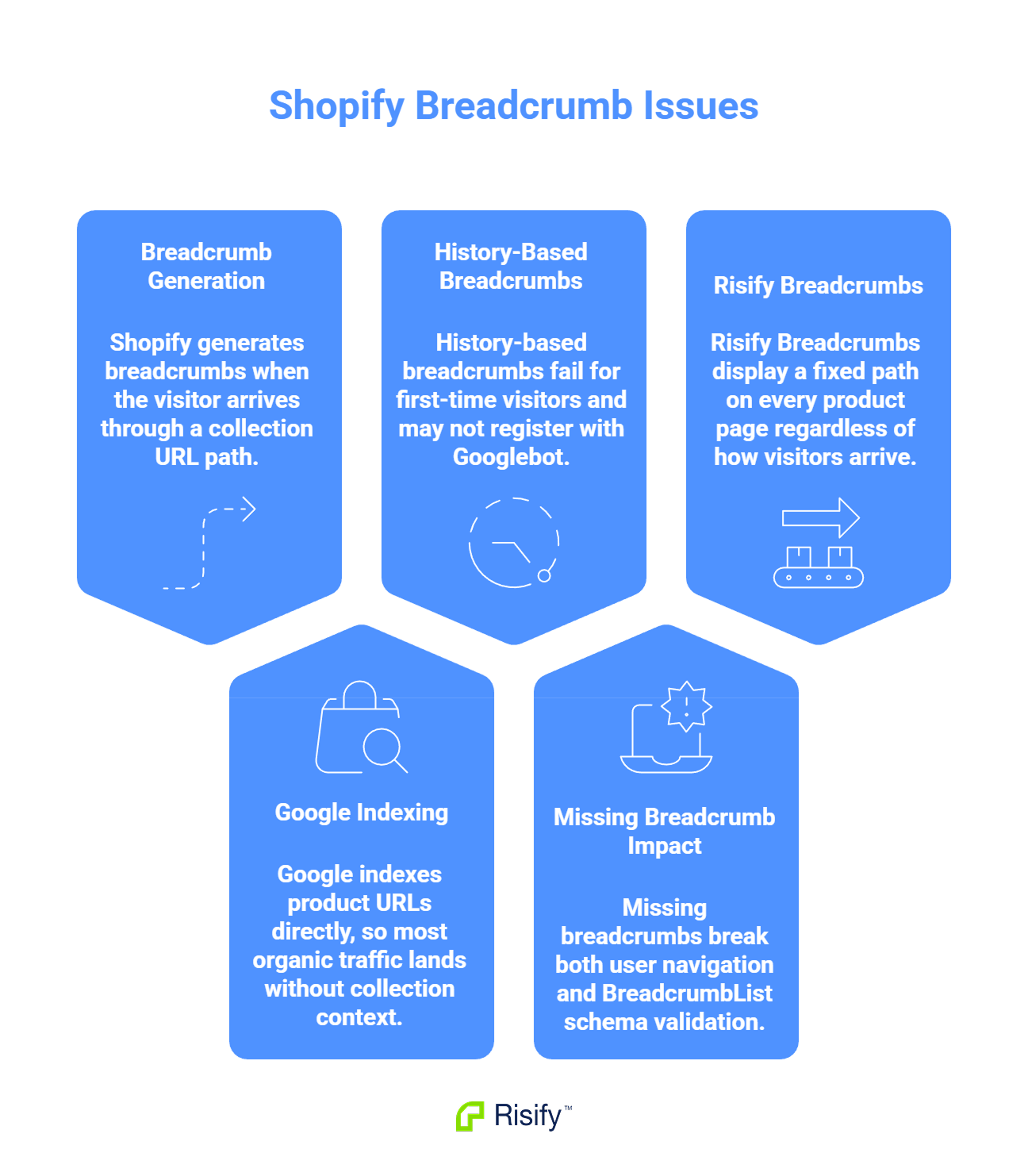
- Shopify only generates breadcrumbs when the visitor arrives through a collection URL path.
- Google indexes product URLs directly, so most organic traffic lands without collection context.
- History-based breadcrumbs fail for first-time visitors and may not register with Googlebot.
- Missing breadcrumbs break both user navigation and BreadcrumbList schema validation.
- Risify Breadcrumbs display a fixed path on every product page regardless of how visitors arrive.
How Shopify Generates Breadcrumbs
Shopify's breadcrumb system reads the URL path to decide what to display. When a visitor clicks from a collection page to a product, the URL includes the collection handle in the path.
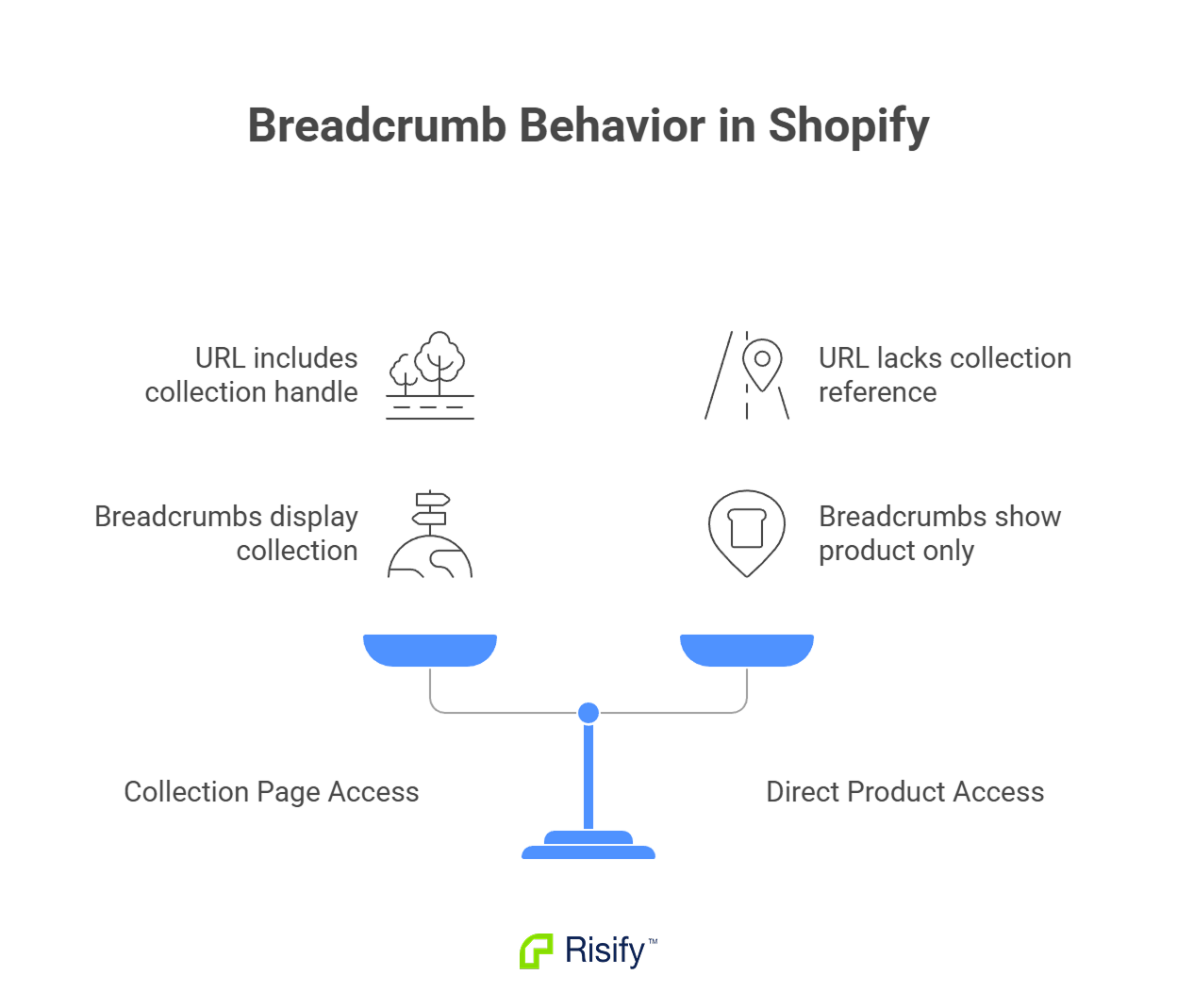
A visitor who clicks through the Living Room collection lands on: /collections/living-room/products/grey-sofa
Shopify reads "living-room" from this path and builds the breadcrumb: Home > Living Room > Grey Sofa
When the same product is accessed directly, the URL contains no collection reference: /products/grey-sofa
Shopify has nothing to read, so the breadcrumb section stays empty or shows only the product name with no parent path.
- The product itself has not changed - only the URL used to reach it.
- Shopify does not store a default collection assignment that breadcrumbs can fall back on.
- This behavior is consistent across most Shopify themes, including Dawn and other official themes.
A single product can show a full breadcrumb trail or no breadcrumb at all depending entirely on how the visitor arrived.
Why Organic Traffic Triggers the Problem
Google does not index your collection-based URLs for product pages. When Googlebot crawls your store, it finds /products/grey-sofa and adds that to its index. The collection path version either gets ignored, canonicalized to the shorter URL, or never discovered at all.
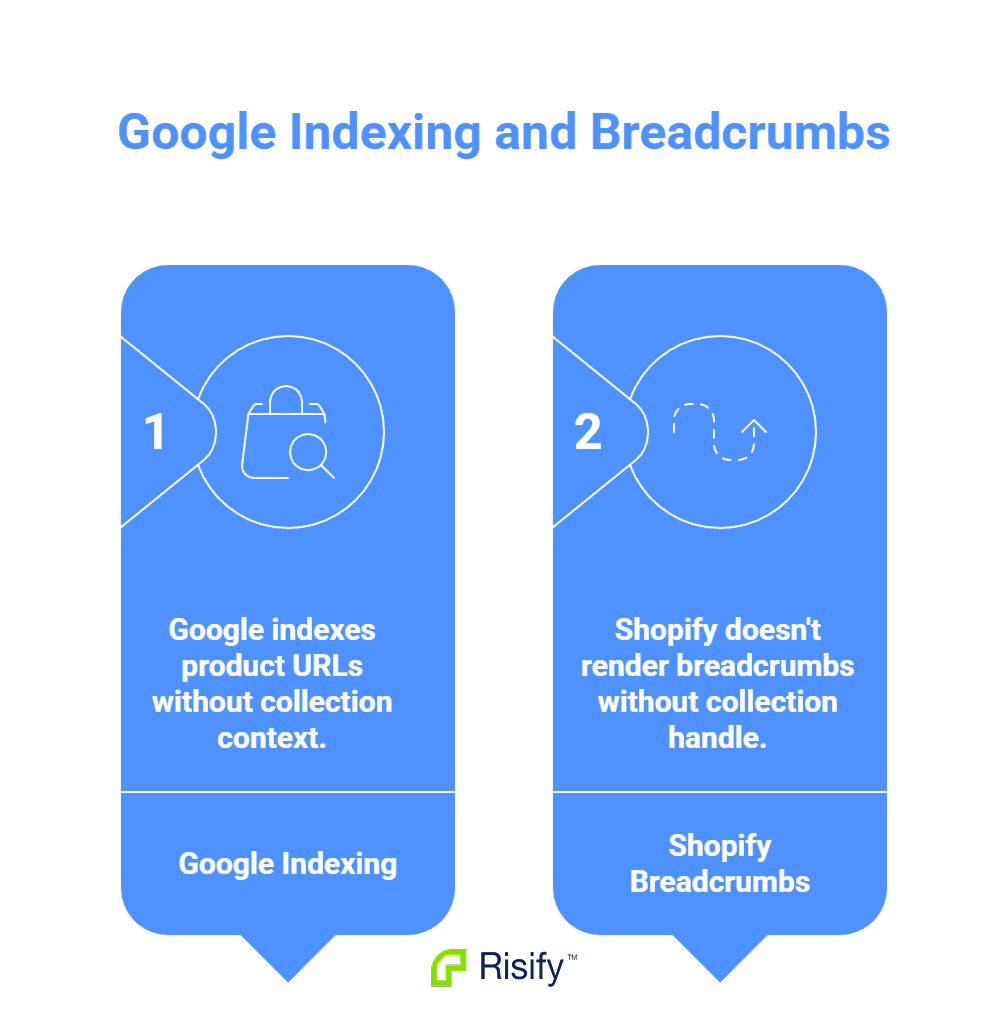
When someone searches for your product and clicks through from Google, they land on the indexed URL - the one without collection context. Shopify sees no collection handle, so no breadcrumb renders.
- Your product pages that rank in Google are the pages most likely to have missing breadcrumbs.
- The higher your organic traffic, the more visitors experience this problem.
- Paid traffic from Google Ads linking directly to products has the same issue.
So, the pages you want to perform best in search are structurally disadvantaged by default.
The History-Based Breadcrumbs
Some Shopify themes try to work around this by using session history. The logic tracks where the visitor came from during their session and reconstructs a breadcrumb based on that navigation path.
If someone browsed through your store manually: Home > Living Room > Sofas > Grey Corner Sofa
The theme stores that sequence and displays it as the breadcrumb on the product page. This seems like a reasonable solution, but it fails in the two situations that matter most.
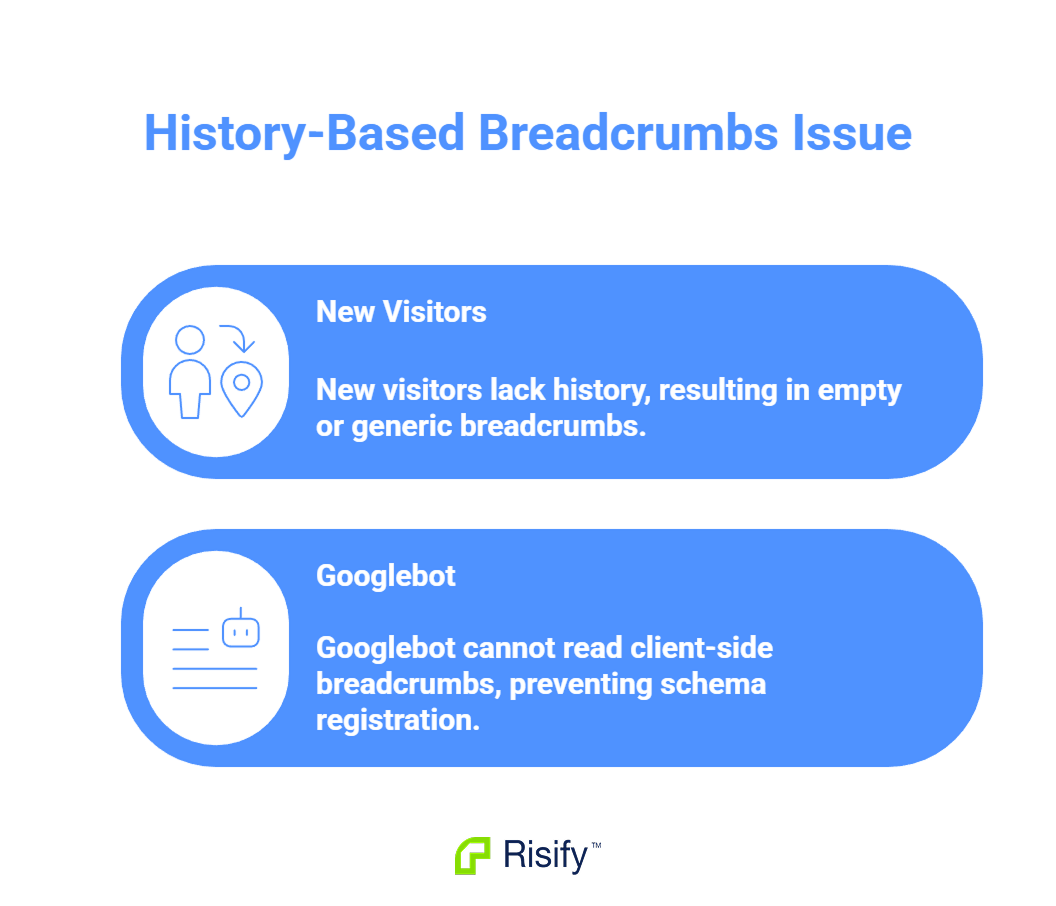
New visitors have no history to reconstruct. Someone arriving from Google, an email link, or a shared URL has no prior session. The theme has nothing to work with, so the breadcrumb is either empty or falls back to something generic like Home > Products.
Googlebot has no session history to read. If the breadcrumb is built client-side after page load, the initial HTML that Google crawls contains no BreadcrumbList schema. The structured data never registers, even if the breadcrumb appears visually to human visitors. Google's Rich Results
Tests will often show no breadcrumb data for these pages.
- Session-based breadcrumbs only help returning visitors who navigated manually through your store.
The result is a solution that looks functional during internal testing but breaks for the traffic sources you care about most.
What Breaks When Breadcrumbs Disappear
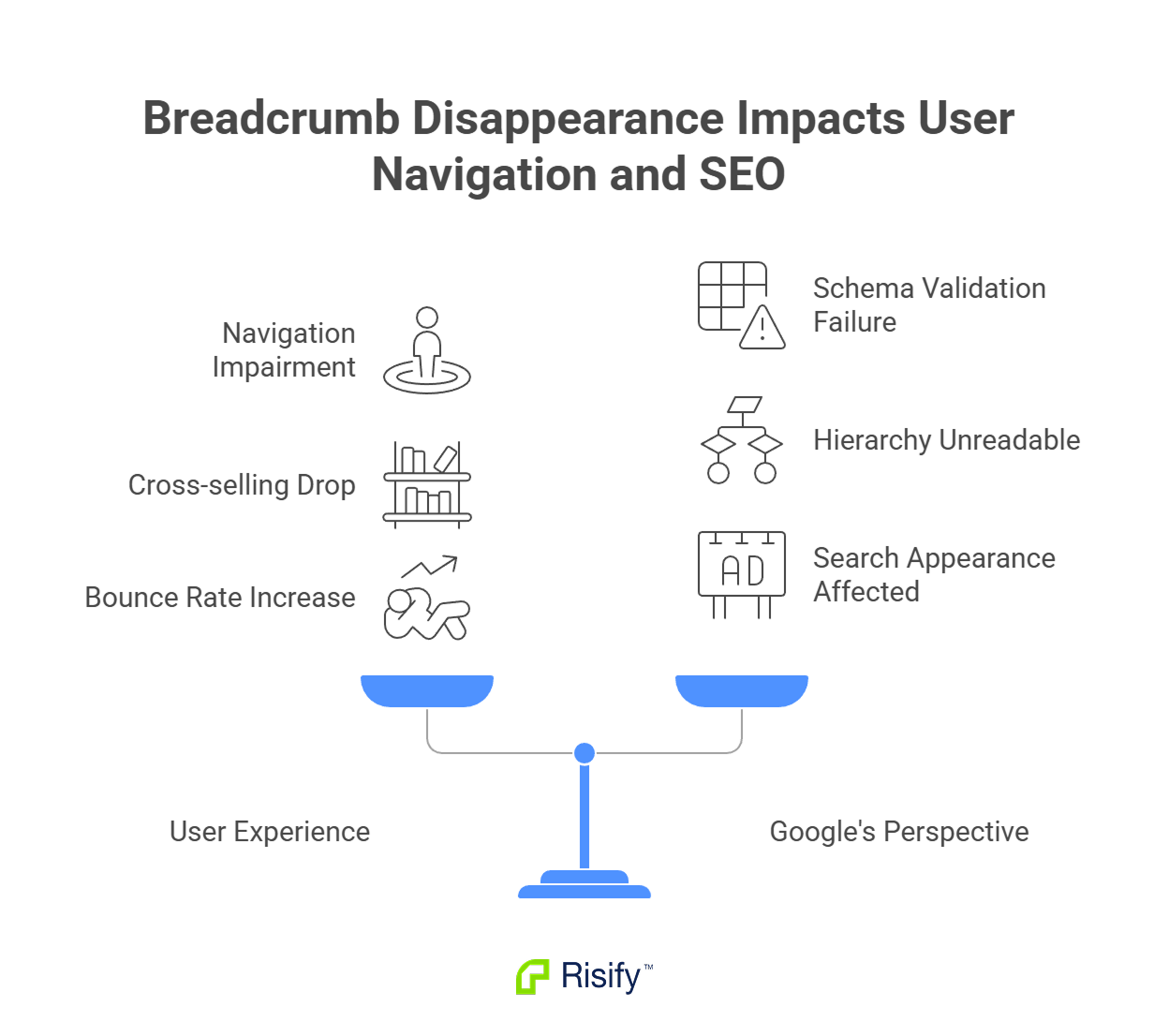
The impact splits into two categories: what your visitors experience and what Google sees.
User Navigation
A customer who lands on "Grey Corner Sofa" from a Google search has no visible path to browse other sofas or explore the broader Living Room category. The page becomes a dead end. The only navigation options are the main menu or the back button.
- Visitors cannot move up to the parent collection without starting over.
- Cross-selling and category discovery drop because there is no contextual path.
- Bounce rate increases when users cannot find related products easily.
Schema Validation
BreadcrumbList schema requires a valid hierarchical path. If the breadcrumb does not render, one of two things happens: the structured data block is missing entirely, or it outputs with errors because the path is incomplete.
Google cannot read your site hierarchy from these pages. This affects how your store appears in search results and removes the breadcrumb trail that sometimes displays beneath your page title in Google.
How Risify Users Avoid This
Risify defines a static breadcrumb path per product, so the breadcrumb renders on every page load regardless of entry point. The schema outputs correctly every time, and visitors always see where they are in your catalog.
How to Check If Your Store Has This Problem
You need two checks: one to confirm whether breadcrumb markup exists in your HTML, and one to confirm whether Google can actually read it.
Step 1: Check the Page Source
Open an incognito browser window and paste a direct product URL: https://yourstore.com/products/product-handle
Right-click anywhere on the page and select "View Page Source" (or press Ctrl+U). Use Ctrl+F to search for "BreadcrumbList" in the HTML.
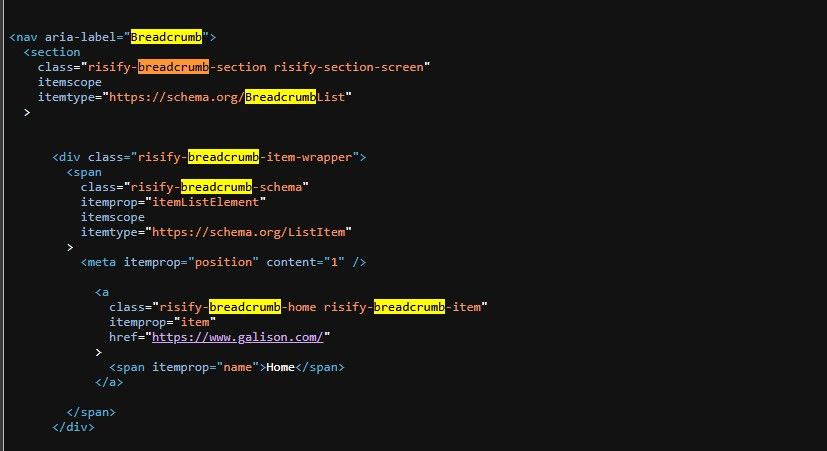
- If you find it, the markup exists in the initial page load.
- If you do not find it, the schema is either missing or injected later via JavaScript.
Step 2: Run Google's Rich Results Test
Go to Google's Rich Results Test and enter the same product URL. This tool simulates how Googlebot crawls the page and reports whether it can read BreadcrumbList schema.
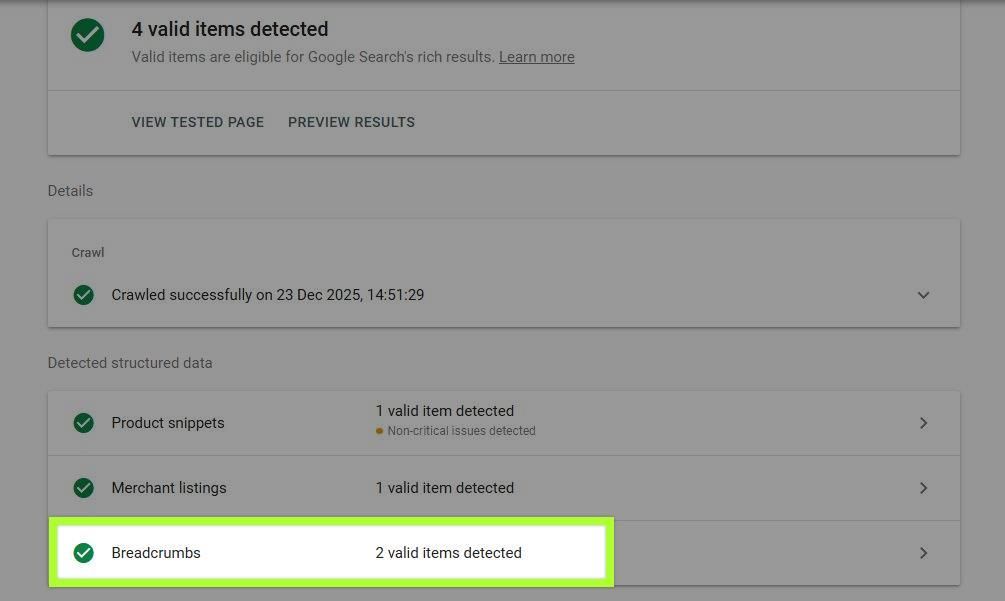
- If the test shows valid BreadcrumbList data, Google can read your breadcrumbs.
- If the test shows no breadcrumb data or errors, Google cannot read them during crawling.
Why You Need Both Steps
Running both checks confirms that your breadcrumbs are complete. Step 1 tells you whether schema markup exists on the page. Step 2 tells you whether Google can read and validate that markup.
If Step 1 shows no BreadcrumbList, the schema is missing entirely. If Step 1 shows it but Step 2 reports errors, the schema exists but has structural problems that prevent validation. Both situations need fixing.
How Risify Handles It
Risify Breadcrumbs covers all three requirements automatically. You define the breadcrumb path once per product or collection inside the Risify admin by selecting collections and arranging them in order.
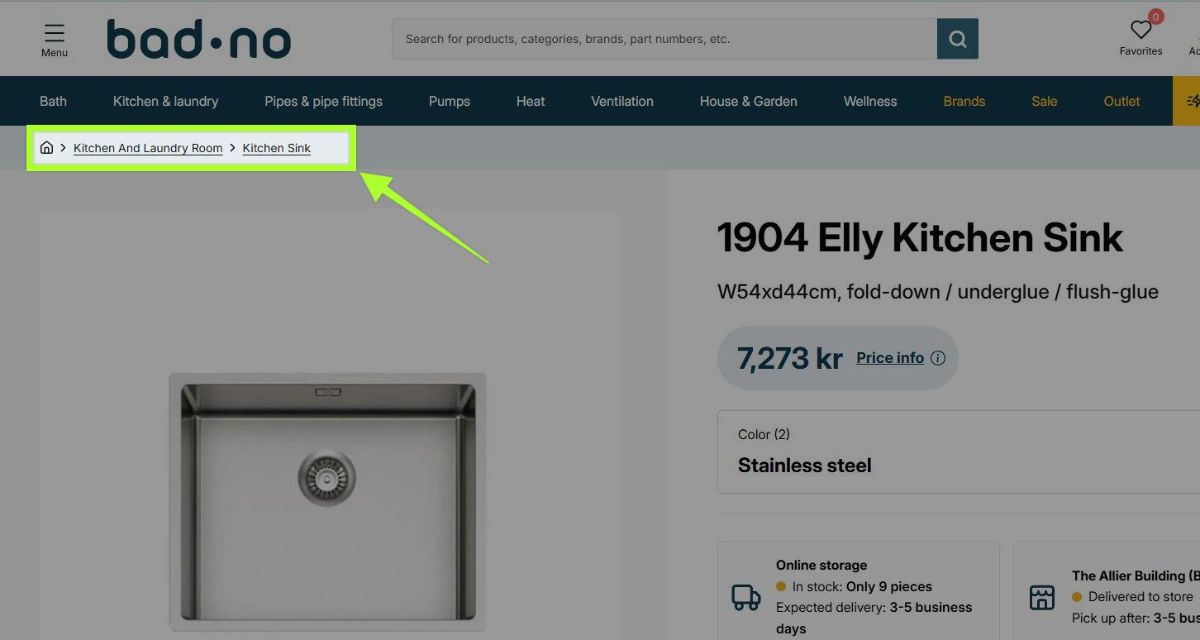
The app then handles two outputs:
- The visible breadcrumb that appears on your storefront.
- Valid BreadcrumbList schema in the page source that Google can read.
No theme code changes are needed. The breadcrumb displays consistently whether visitors arrive from a collection, a Google search, or a direct link.
Fix Your Breadcrumbs with Risify
Shopify's default breadcrumb behavior ties navigation to the referrer URL, which breaks for the majority of organic traffic. Visitors land on product pages with no path back to parent categories, and Google cannot read your site hierarchy from those pages.
Risify Breadcrumbs solve this by displaying a fixed navigation path on every product and collection page, with valid schema that Google can index.
Install Risify from the Shopify App Store to fix your breadcrumbs today.