

Start in Risify → AI & Search Visibility with a prompt that matters to your store. Read the answer and its sources, then choose a relevant collection or product page to review.
This guide connects that review to the tools you already have: short and long descriptions, FAQs, collection links, breadcrumbs, meta tags, and structured data. Each step explains what information to improve, where to work on it, and what to check on the storefront.
Together, these improvements can help search systems find relevant pages and understand what you sell. They can support your store’s visibility in AI search, alongside making it more useful to shoppers, although they cannot guarantee a mention or citation.
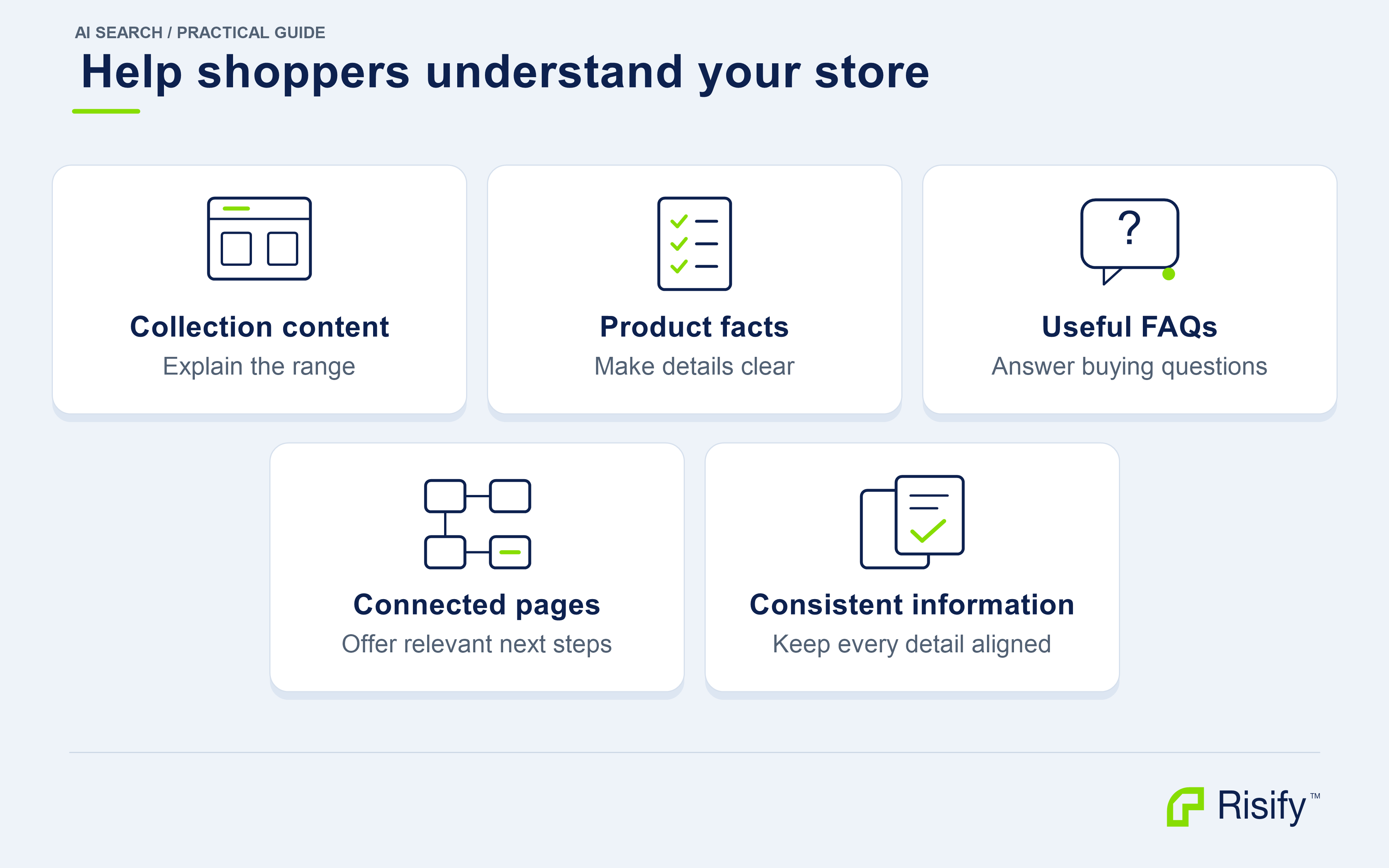
We will use Galison’s 100 Piece Jigsaw Puzzles collection to show concrete examples of collection content and navigation, alongside examples from clothing and furniture.
You can follow along with one relevant collection from your own store.
Which prompt and pages should you start with?
Choose a prompt that reflects a real reason someone would buy your products.
For a clothing store, an example could be: Where can I buy a warm hoodie for winter?
A collection can help this shopper explore suitable options. Individual product pages can provide the details needed to choose a particular item.
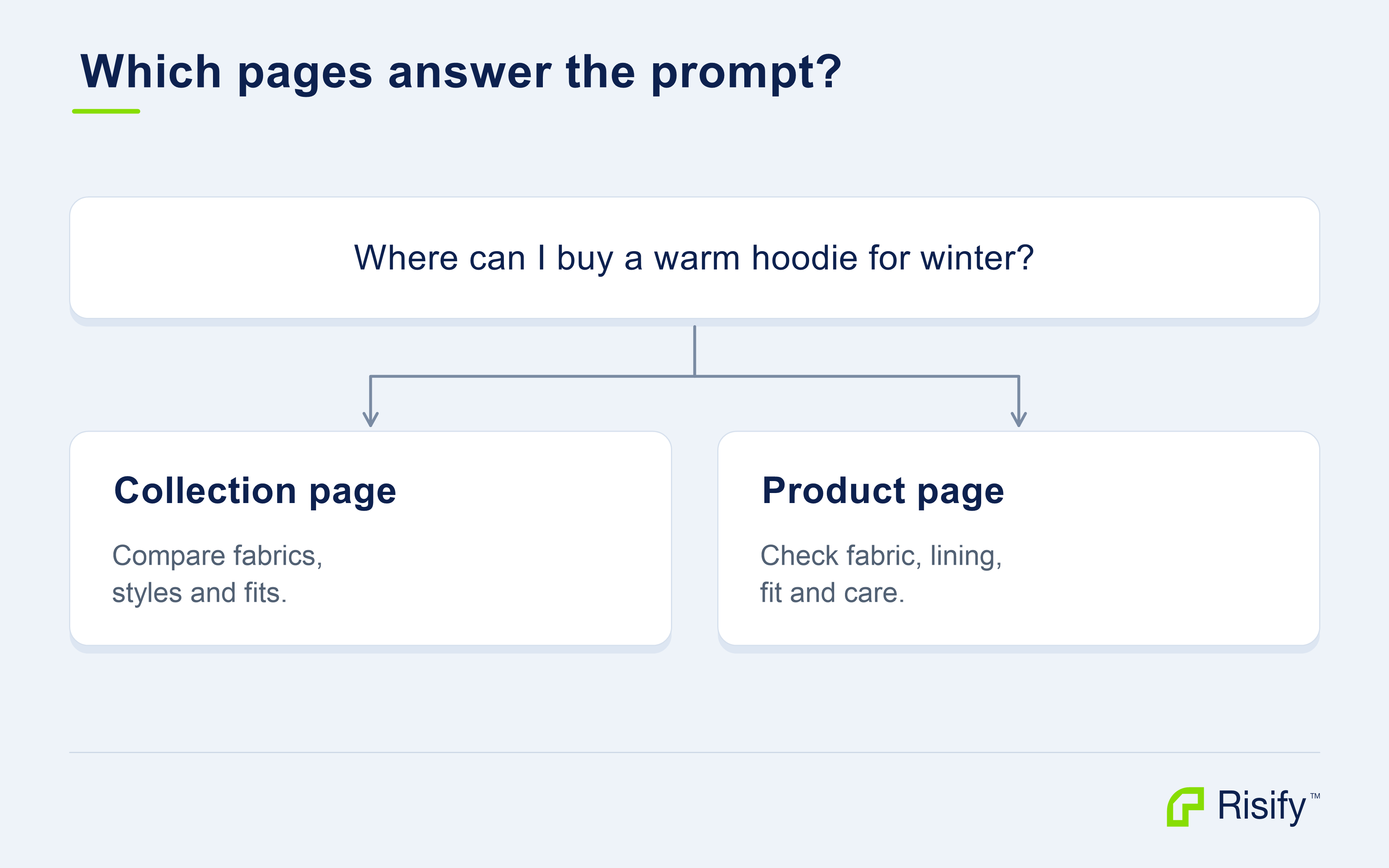
Open your chosen prompt in AI & Search Visibility and read the answers and sources. Notice the needs being discussed and the types of pages being cited.
Then open the pages in your store that address those needs. Write down the shopper’s main requirement and check what the live pages already explain. Use that review to decide whether a description, FAQ, or navigation change would help.
Brand prompts may involve a wider set of pages. A shopper comparing brands might need information about their design approach, materials, product range, and customer experience. Review the pages that support those differences, alongside relevant independent sources.
If you use AI Agent to help draft content, first review your Growth Profile. Keep the brand positioning and target audience current, and provide verified product information for the task. The profile supplies context for content you generate with Risify.
Check the draft against your actual products before publishing it through the relevant fields and sections.
Which related questions should your content answer?
A shopping prompt often contains several smaller decisions.
Someone choosing a winter hoodie may want to know about its fabric, lining, fit, care requirements, and alternative styles.
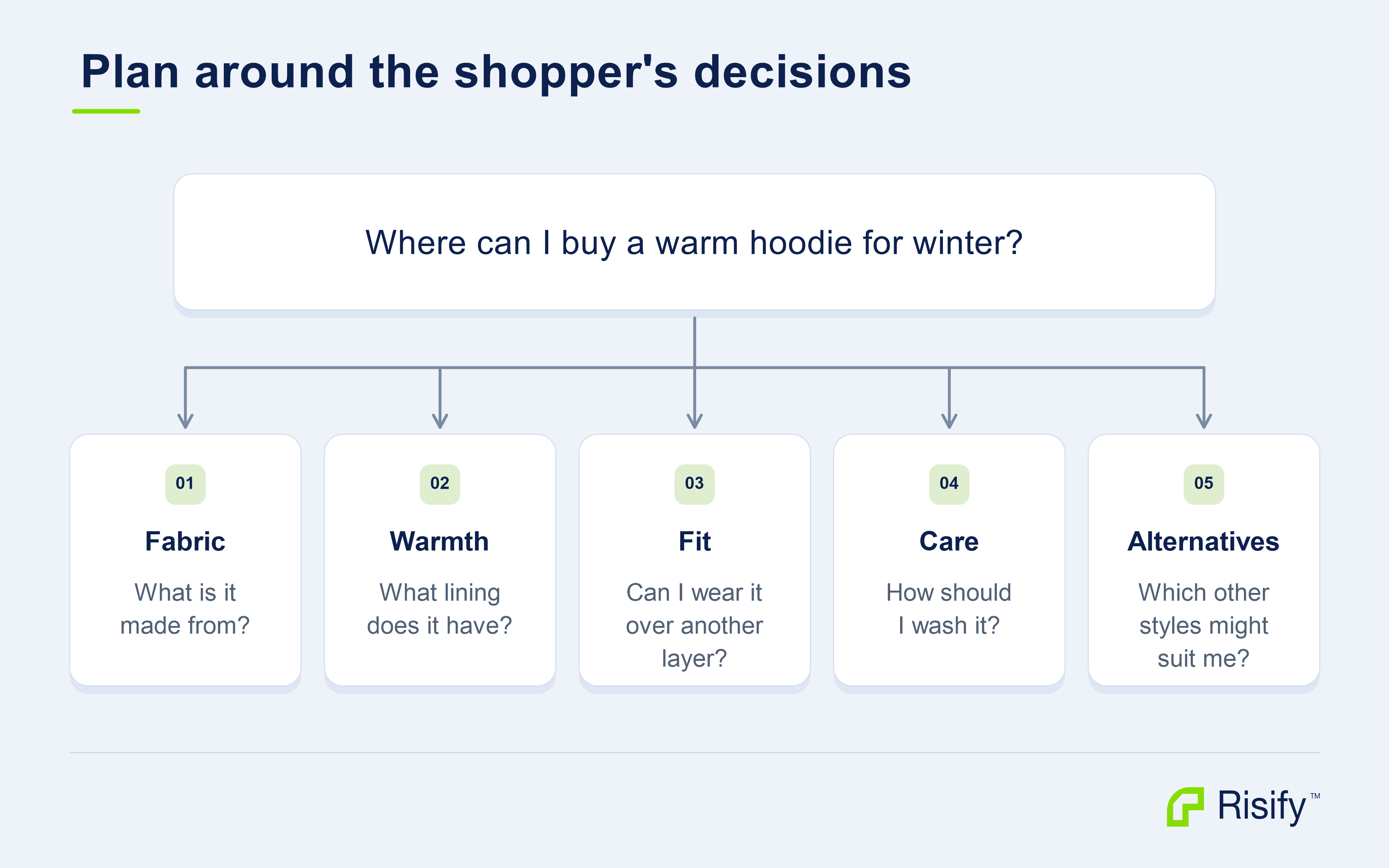
Use the short description for the collection’s scope and suitability, and the long description for differences within the range. Keep exact specifications on the relevant product pages. Use FAQs for specific questions that help someone choose or use the products.
Google describes query fan-out as exploring related searches to answer a broader query. For content planning, the useful principle is to cover connected customer needs. You do not need a separate page for every possible variation. Google’s guidance
Choose your questions using customer conversations, product reviews, support requests, and your own knowledge of the category.
What should your short description explain?
The introduction above the product grid should help shoppers recognize whether they are in the right place.
Explain what the collection contains, who it suits, and which characteristics distinguish the range. Galison’s introduction connects its shaped mini puzzles with adult gifting, desk use, and travel.
The shopper receives useful context before browsing the products.
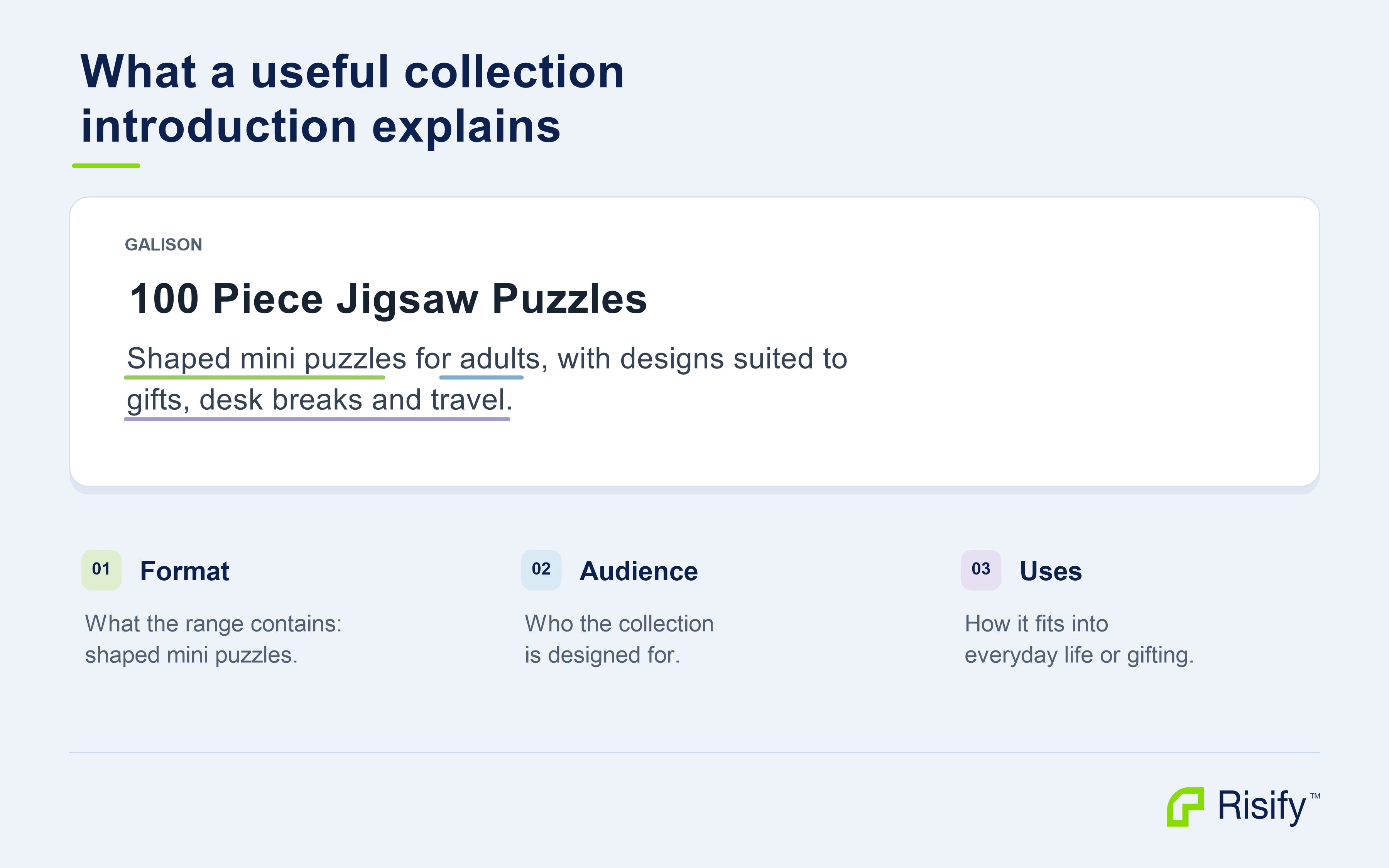
For your own collection, begin with facts that apply across the range. Explain any differences that matter rather than making a broad claim about every product.
Words such as “premium” or “perfect” need supporting information. Tell shoppers what the products are made from, what they are designed for, or what makes the selection distinctive.
In your store: Open the collection in Shopify and edit the Risify short description metafield. Use it to give shoppers the context they need before browsing the range: what it contains, who it suits, and which details distinguish it.
After saving, check the live page on desktop and mobile. Confirm that the theme displays the field you edited and that shoppers can still reach the products easily.
When does a collection need a long description?
A long description earns its place when it helps someone compare or choose.
It can explain differences between formats, materials, use cases, or features. It can also cover category-specific care, compatibility, or gifting considerations.
Galison’s below-grid description organizes information around design groups, the shaped-puzzle experience, and gifting.
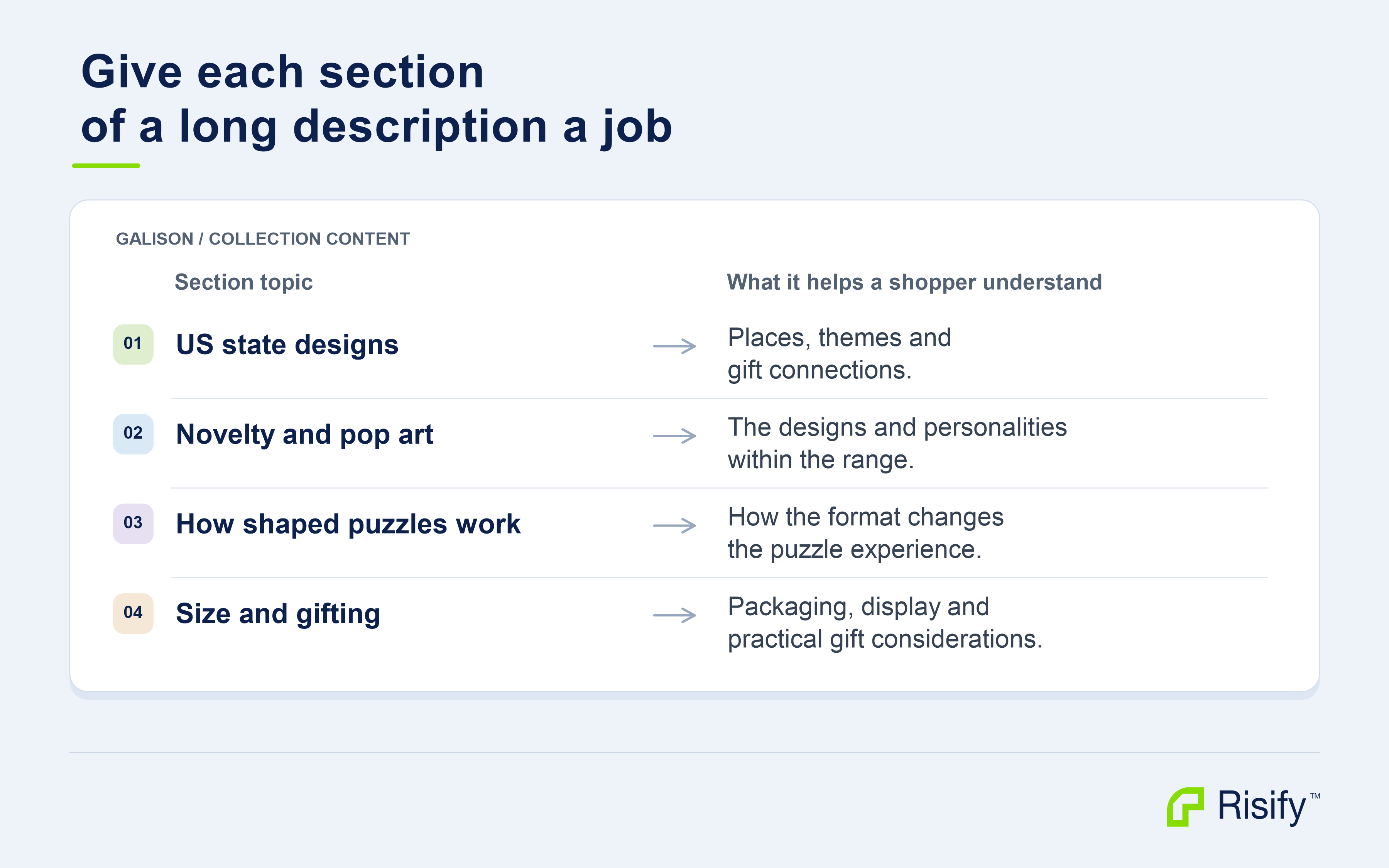
Give each section a clear question to answer. For clothing, that might involve fit and layering. For furniture, it might involve room dimensions and materials.
The heading should make the subject clear, and the paragraph should explain something useful about choosing or using the products.
Connect each feature to something the shopper needs to understand. A shaped outline affects how a puzzle is assembled. A hoodie’s fit matters when layering. Sofa dimensions help someone judge whether it fits their room.
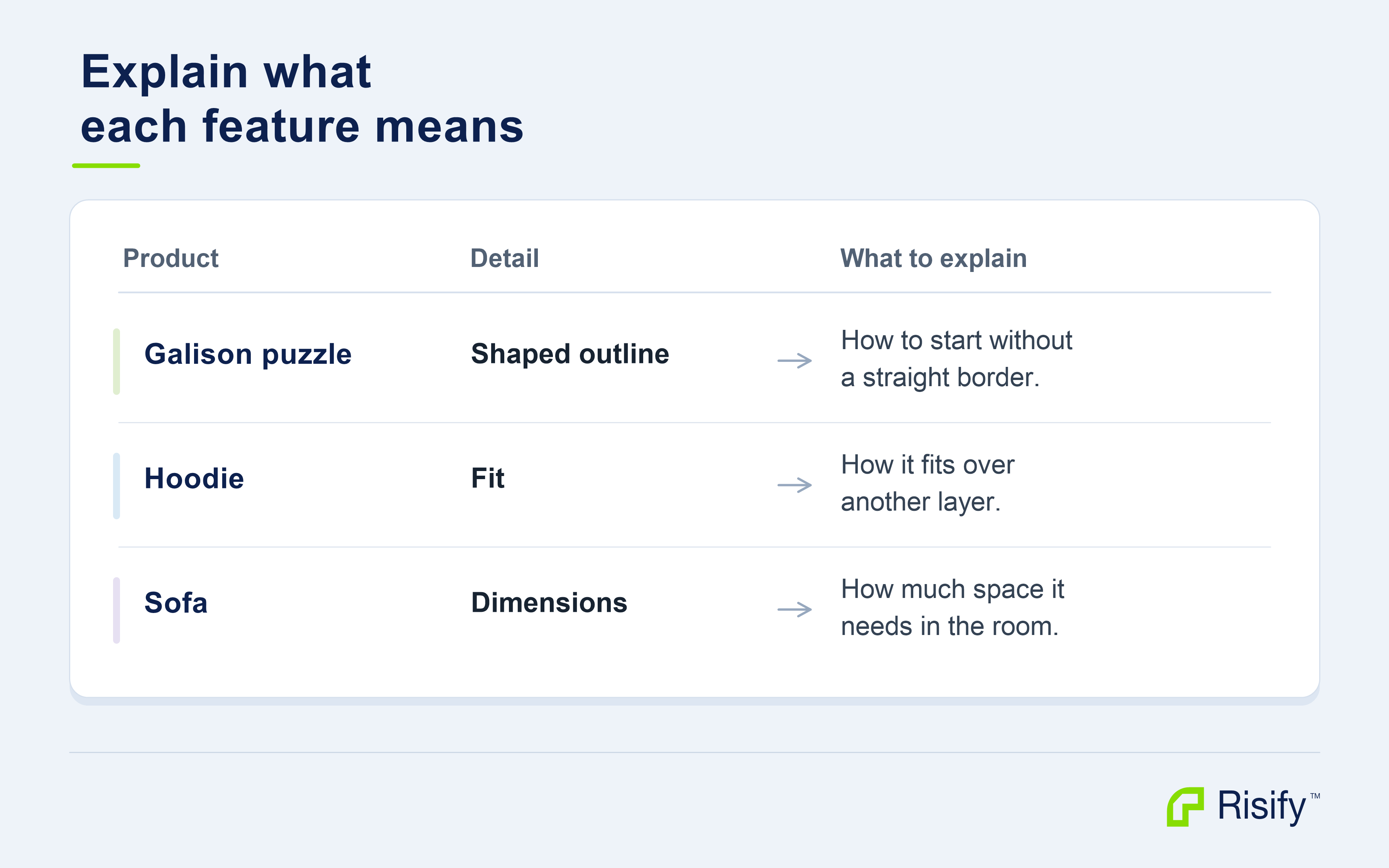
Use category terms naturally. Explain the features and distinctions shoppers need, without repeating the same phrase throughout the page.
There is no ideal page length for generative AI search. Let the subject and the shopper’s needs determine how much detail to include. Google’s content guidance
In your store: Edit the collection’s Risify long description metafield in Shopify. Add the comparisons and explanations that help shoppers choose between the available products. Keep the content aligned with the current assortment.
After saving, open the collection and check the section that displays the long description. Confirm that it adds useful detail to the introduction and that any links lead to the intended products or collections.
Which product details support the collection content?
Collection content helps shoppers explore. Product information helps them confirm a choice.
Review the products most relevant to your prompt. Depending on the category, useful facts may include measurements, materials, fit, compatibility, included items, or care requirements.
Galison’s Wendy Gold Texas puzzle page provides finished dimensions, packaging dimensions, piece count, artist information, and a gifting detail.
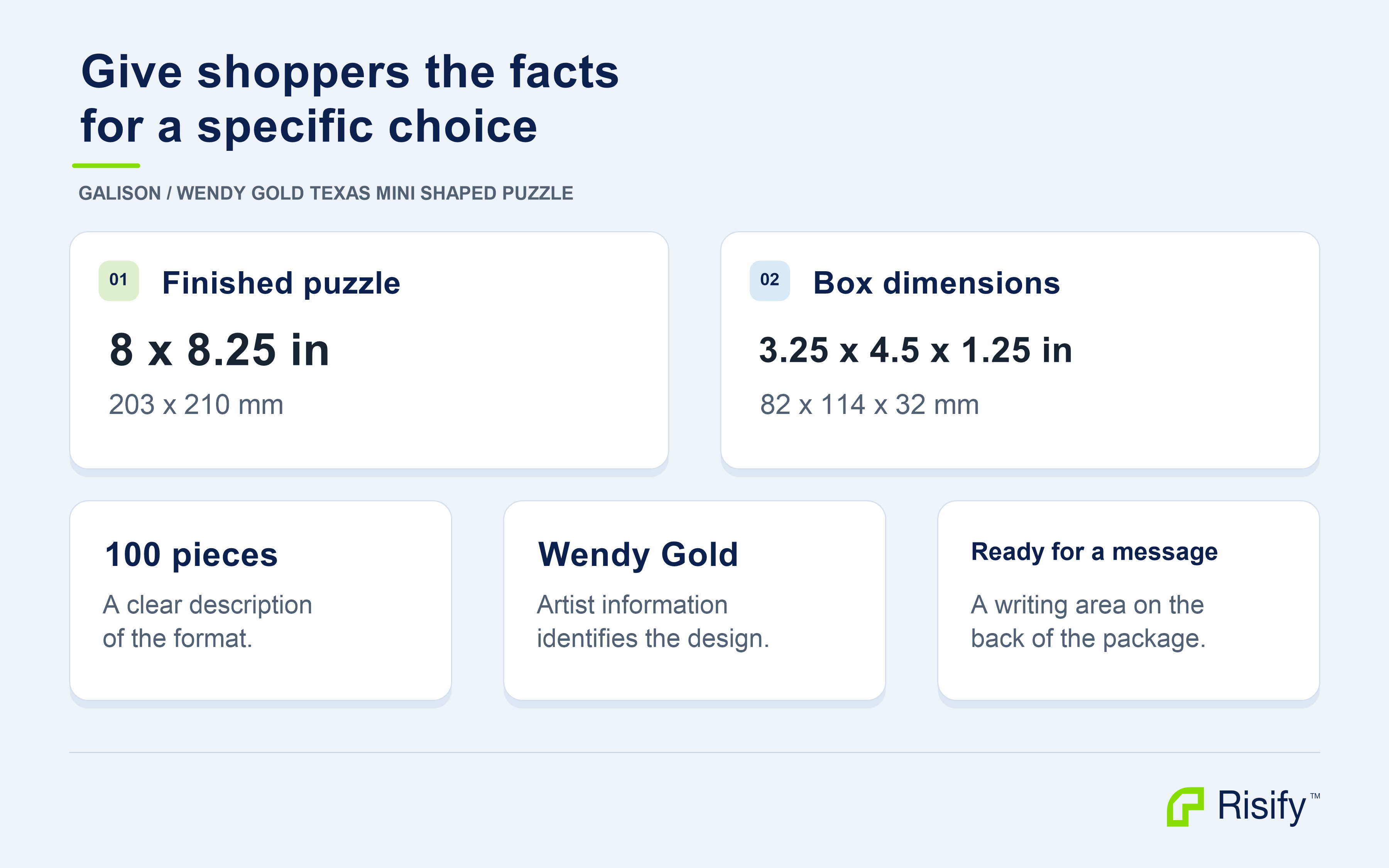
Work from specifications, supplier information, and verified product knowledge. Include measurement units and explain which part of the product a measurement describes.
In your store: Open the product in Shopify and update the description or Risify metafield connected to the relevant theme section. If you use both short and long descriptions, put the essential product summary in the short description and the supporting specifications or explanations in the long description.
Then open the live product page. Confirm that the details are visible and agree with the product or variant being shown.
A field saved in Shopify is only useful to visitors when the intended content appears on the storefront.
Which questions belong in your FAQs?
FAQs are useful for questions that arise while shoppers compare products or decide whether something suits them.
These often concern suitability, practical use, compatibility, or differences between options. For a hoodie, that might mean layering or washing instructions; for a sofa, assembly or access through a doorway.
Galison’s collection addresses adult suitability, gifting, display, and puzzle formats.
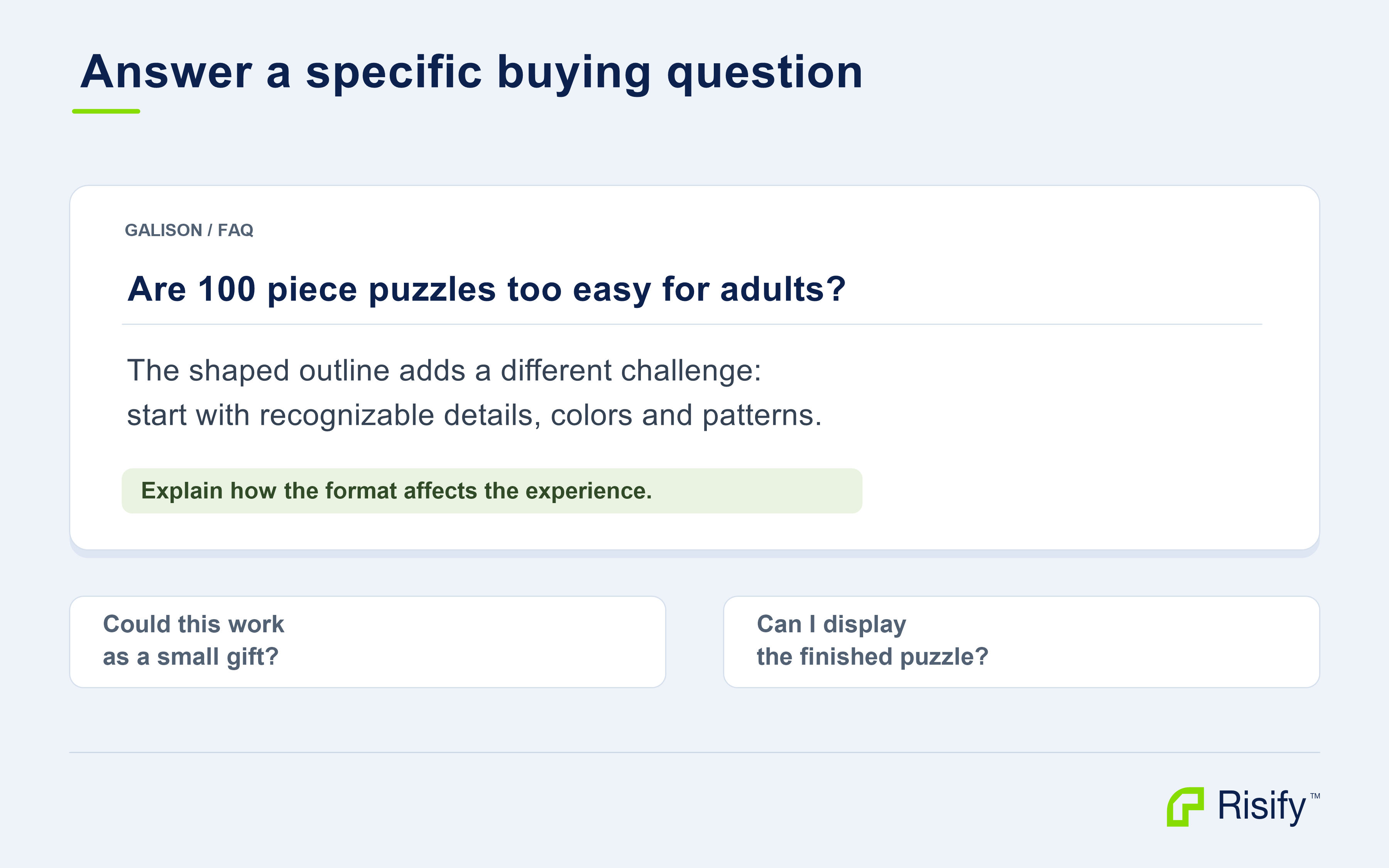
Before creating a new answer, open Risify → FAQs and check your existing entries. Editing or reusing an accurate answer can keep the information consistent across the pages where it applies.
Reuse an answer when it applies to the selected pages. Write a separate answer when the details differ. Keep product-specific information with the relevant product, and assign category-wide explanations to the appropriate collections.
Start with a direct answer, then add the context needed to make it accurate. A published answer about fit, care, or compatibility makes those details explicit on the page, where a shopper or an assistant retrieving it can find them.
In Risify: Edit an existing FAQ or create an entry, then assign it to the relevant products or collections. The assignment connects the answer to the pages where shoppers need it. For initial setup, add the FAQ section to the appropriate Shopify theme template. FAQ setup guide
Check the live page and expand the answer. If you reuse an FAQ, review its assignments to make sure the wording remains accurate everywhere it appears. The number of FAQs should follow the useful questions you can answer.
Which collections should you link to?
Think about the next choice a shopper might want to make. They may want a different format, a related theme, a narrower selection, or another level of difficulty. Each destination should help them continue that decision.
Galison’s Similar and Discover areas offer routes through piece counts, themes, and other collections.
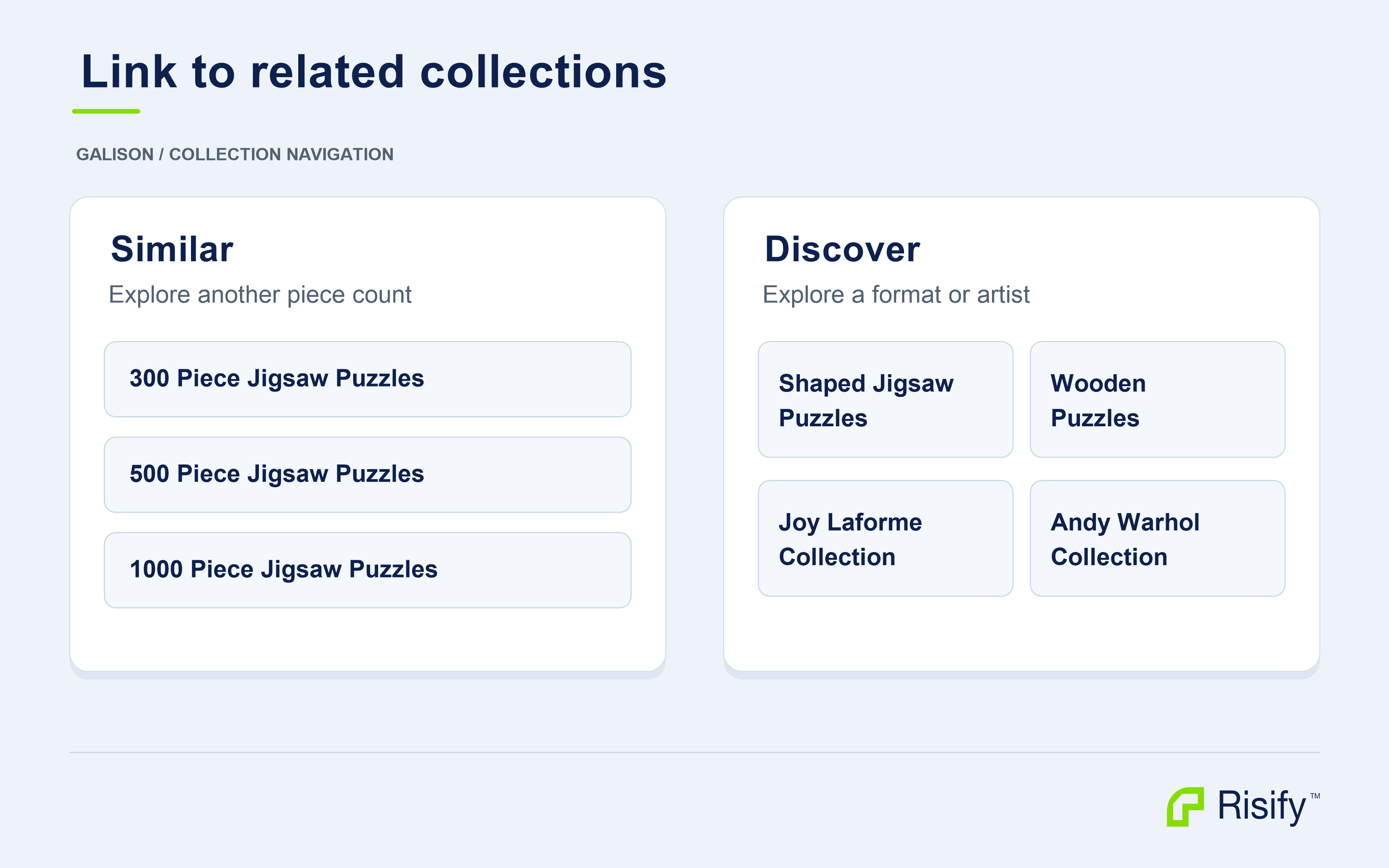
Use Similar and Discover to give shoppers relevant routes beyond the collection they are viewing. For a hoodie range, that could mean other fits or zip-up styles you sell. Decide why each destination belongs,
use descriptive labels, and place the most useful choices first.
These connections also support discovery: Google uses links to find pages and descriptive link text to understand their subject. Risify’s navigation features give you a way to build those connections between relevant collections. Google’s link guidance
In Risify: Open Navigation → Collections, find the collection, and edit its Similar or Discover suggestions. Select the destinations, arrange their order, and save.
If the corresponding section is not already displayed, add it to the collection template in Shopify’s Theme Editor. The Similar guide and Discover guide cover setup.
Links can also belong naturally within an explanation. Galison’s longer description includes a contextual route to its Mini Jigsaw Puzzles collection.
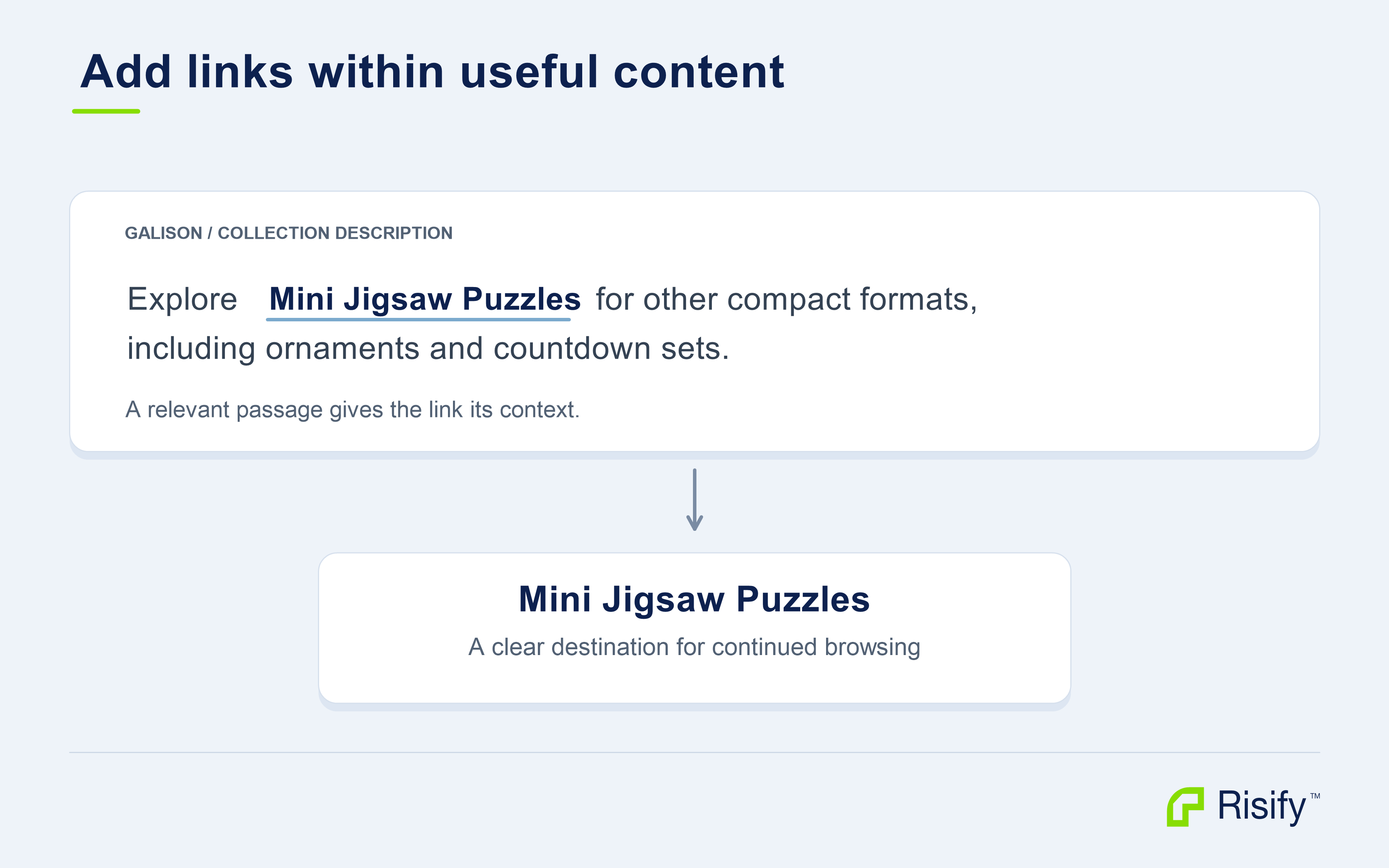
Check the published links yourself. Each label should lead to the expected page and give the shopper a useful continuation.
Does your breadcrumb show where each product belongs?
A breadcrumb helps someone move from a specific product back into the relevant part of the catalog.
Galison’s Texas puzzle page includes both Jigsaw Puzzles and 100 Piece Jigsaw Puzzles in its
breadcrumb path.
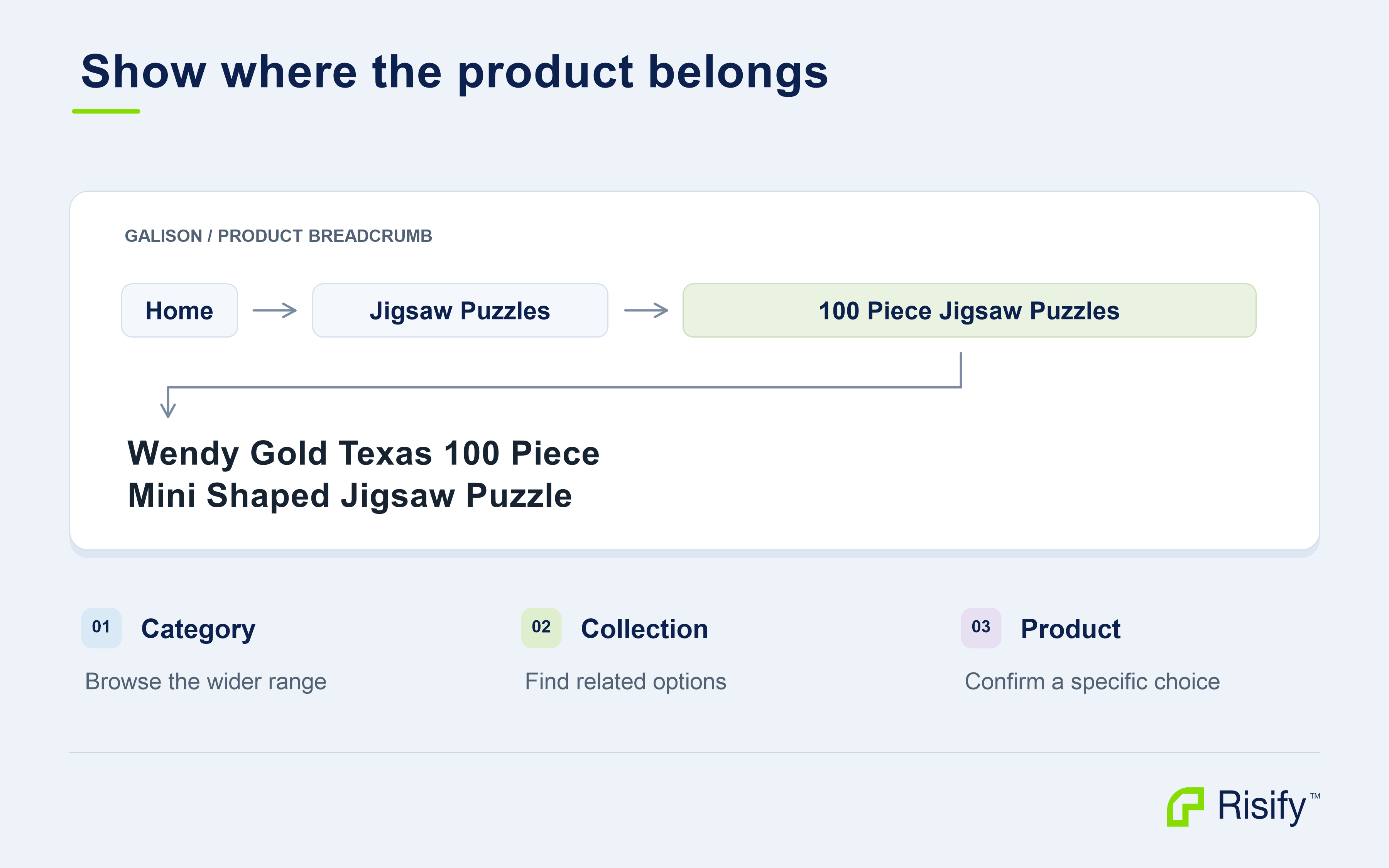
Use Breadcrumbs to give a visitor who lands directly on a product a route back to the relevant collection. Review the paths for your chosen collection and representative products, and select the collections that describe their place in your catalog.
In Risify: Open Navigation, select the relevant collection or product, and use Edit Breadcrumb to arrange its path. Complete the theme placement if the section is not already visible. Breadcrumb setup guide
Open the product’s direct URL in a new tab. Confirm that the breadcrumb appears and that its collection links work.
Do your meta tags and structured data match the page?
Once the page content is clear, review the information that describes it elsewhere.
The page title, meta description, visible content, and structured data should provide consistent information about the same product or collection.
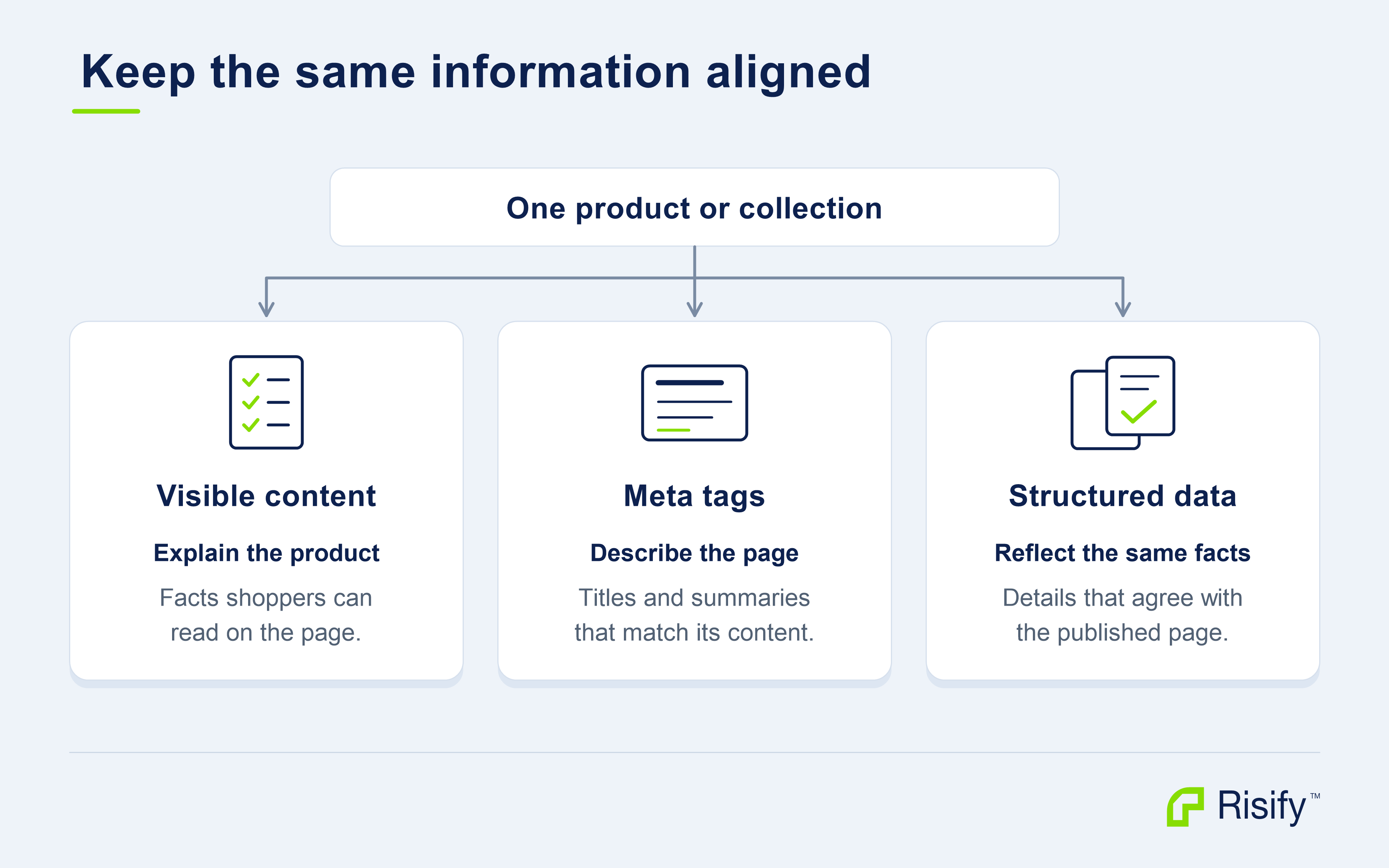
In Risify → Meta Tags: Review the title and meta description for the pages you changed. Give each page a clear label and a useful preview of its content. A title should identify the product or collection; the description should reflect the information visitors will find there.
In Risify → Structured Data: Review the relevant configuration so the supported markup describes the same product details and page relationships as the storefront. Check the published output after making changes.
For supported markup such as product and breadcrumb data, test the published URL with Google’s Rich Results Test and review any errors.
If your theme or another app also supplies structured data, check that the information is consistent.
Google recommends matching structured data to visible content and does not require special schema for its AI features. Google’s AI features guidance
How do you verify the changes and follow the results?
Finish by reviewing the published collection and a representative product on desktop and mobile.
Confirm that the descriptions are visible, product details are accurate, FAQs appear on the intended pages, and navigation links lead to the right destinations.
Open AI & Search Audit and review any findings relevant to the pages you are working on. Use the findings to decide which checks or fixes to follow up, alongside your live-page review. For Google indexing, inspect the selected URLs in Search Console.
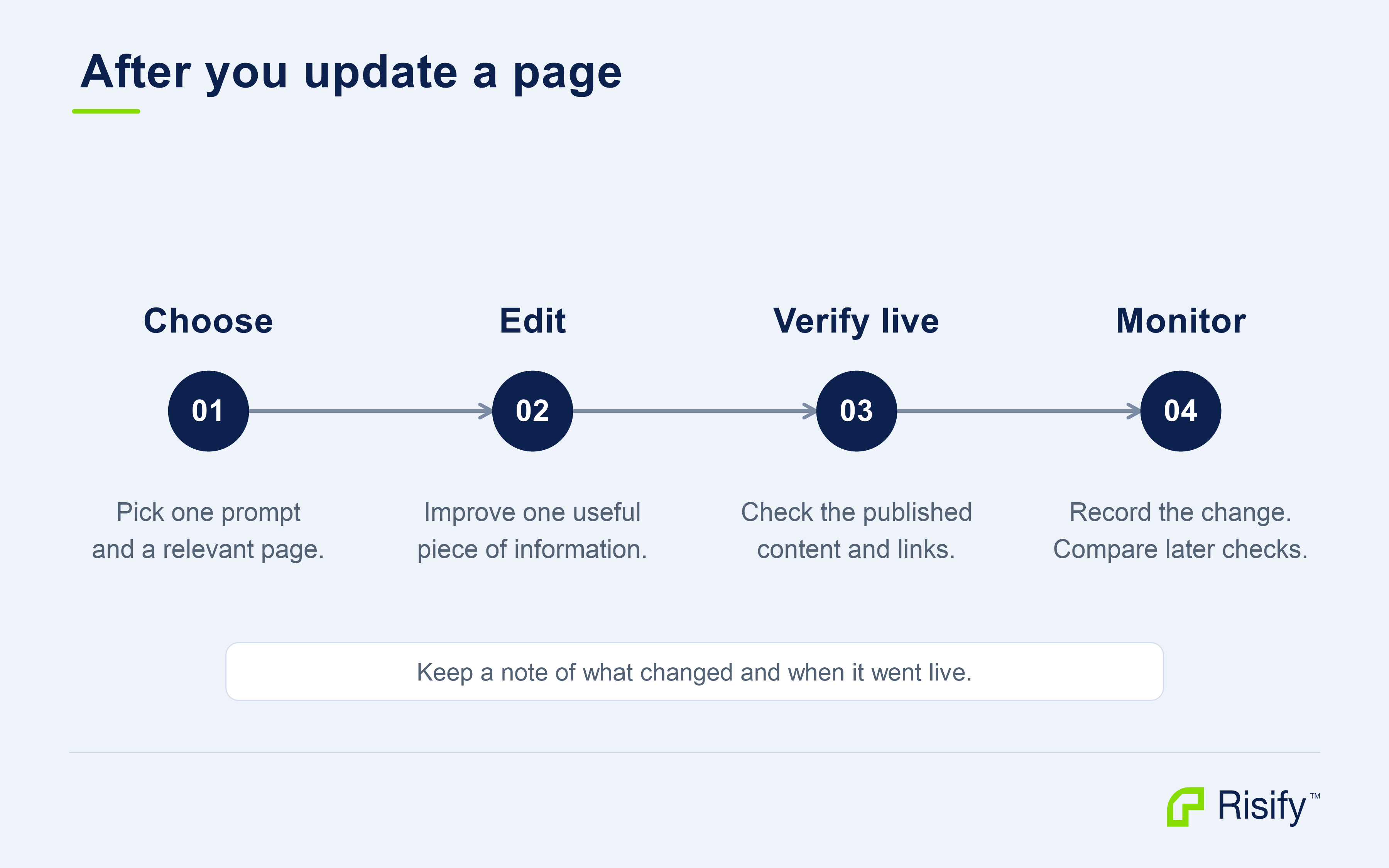
Keep a simple record of the pages you changed, what you edited, and when the changes went live.
Then return to the same prompts in AI & Search Visibility. Across subsequent checks, review whether the store is mentioned or cited, which URLs appear, and how the answers describe the store.
Compare multiple completed runs under the same monitoring settings. A single answer cannot establish the effect of an edit.
Follow search traffic and shopping outcomes through your existing analytics too. This gives you a broader view of whether the work is helping people discover and use your store.
What should you do first?
Open one relevant prompt in AI & Search Visibility and choose a collection or product page that addresses the shopper’s need. Check the live page, its existing FAQs, and its navigation before deciding what to change.
Choose the tool that matches the improvement: a Risify description metafield for product or collection information, FAQs for a recurring question, or Navigation for a useful collection link or breadcrumb path.
Review Meta Tags and Structured Data when the information they describe needs to change too.
Save the change, verify it on the storefront, and record what went live and when. Then return to the same prompt in AI & Search Visibility and follow subsequent completed checks.
This gives you a repeatable way to move from a visibility result to a useful store improvement and back to monitoring.