

Does your Shopify store have the navigation, internal links, and content shoppers need to find the right products?
Your store may have gaps such as:
- Product pages with no links to their collections or relevant alternatives.
- Missing breadcrumbs or collection pages that offer no clear next step.
- Product and collection pages without descriptions or answers to common questions.
These gaps can make your catalog harder to explore and give search engines less context about your pages. Internal links, accessible text, and structured data that matches visible content also support Google’s AI search experiences. Google Search Central
Risify’s free Shopify Store Structure Checker helps you identify these issues, see which pages are affected, and understand what to fix.
Key Takeaways
- Run 16 checks across a sample of up to 15 pages.
- Check how your product and collection pages connect.
- Get affected URLs and practical instructions for each finding.
- Prioritize warnings before working through additional suggestions.
- Use the report without providing an email address.
How to Check Your Shopify Store Structure for Free
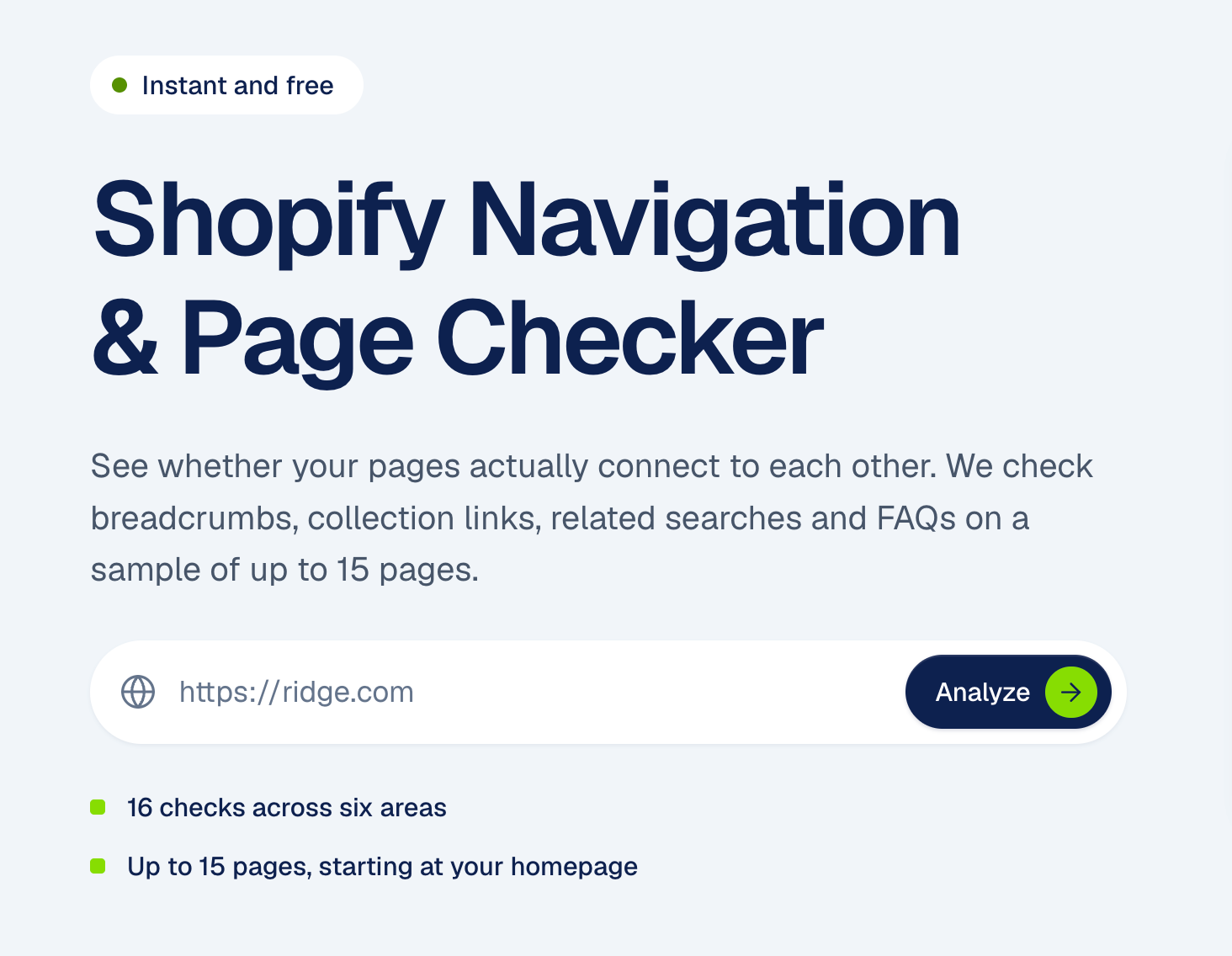
Start with the Shopify Store Structure Checker. Enter your store’s URL and select Analyze.
The checker starts at your homepage and follows links up to three levels deep. It examines a sample of up to 15 pages: your homepage, seven product pages, and seven collection pages. If those links do not lead to enough products or collections, it adds pages from your sitemap.
The audit runs 16 checks covering breadcrumbs, collection structure, product and collection dead ends, collection descriptions, and FAQs.
Your report includes:
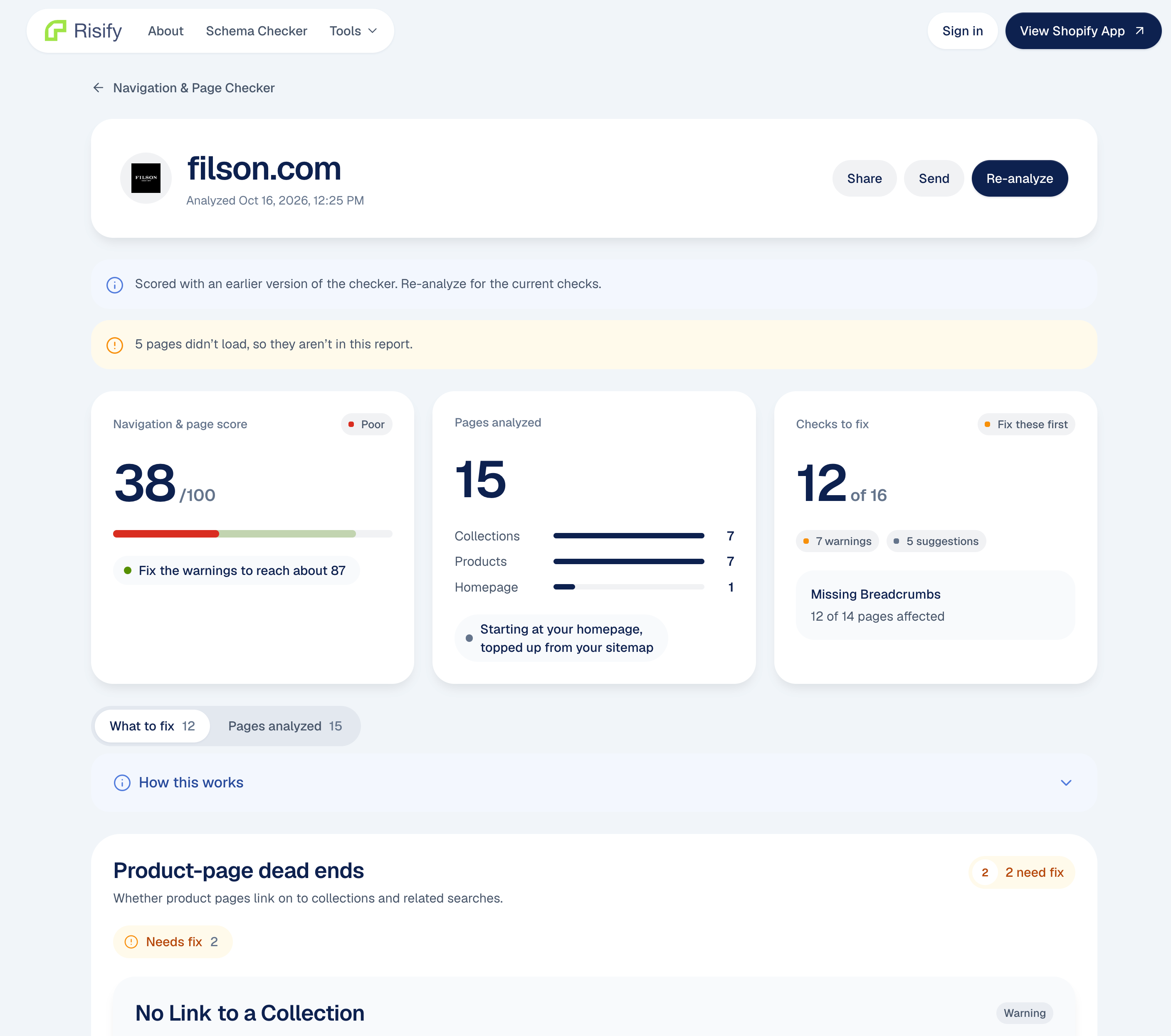
- A Store Structure Score summarizing the assessment.
- A What to Fix tab with findings grouped by issue.
- A Pages Analyzed tab showing the URLs included.
The findings apply to the pages examined. Pages that could not be loaded are excluded, and the report tells you when that happened.
Check your Shopify store for free →
How to Find Missing Internal Links on Shopify Product Pages
Open the Product-page dead ends section of your report. This checks whether product pages provide paths to collections and related browsing options.
The No Link to a Collection finding identifies products without a collection link in their page content or breadcrumb. Header, footer, and menu links are excluded from this check because they do not establish the same connection between the individual product and its category.
Expand Show details to see the affected URLs and the evidence behind the finding.
For example, the Filson report dated October 16, 2026 flagged six of seven sampled product pages for missing collection links. Its expanded finding lists those pages alongside a product page that passed, making the difference easy to inspect. View the example report
The section also checks for related searches or similar collections. These give shoppers additional ways to explore the catalog from a product page.
When reviewing a flagged product, look for a relevant collection breadcrumb or an on-page collection link. Choose a destination that describes the product’s place in the catalog, rather than adding an unrelated category simply to satisfy the check.
How to Connect Shopify Collection Pages and Fix Navigation Dead Ends
Collection pages should help shoppers move between relevant parts of your catalog.
The checker examines this through two report sections:
- Collection structure: whether the homepage links to collections and whether collections link to one another.
- Collection-page dead ends: whether visitors have useful places to go beyond the product grid.
A collection can contain plenty of product links while offering no route to another category, buying guide, blog post, or related search. The report flags that distinction.
Open an affected collection and review the browsing options within its content. Useful additions might include links to a parent category, relevant subcollections, or another collection shoppers commonly compare.
For a jackets collection, for example, links to rain jackets, insulated jackets, and a jacket buying guide could provide useful next steps. The destinations should fit the collection and the decisions shoppers are making.
Use the affected-page list to identify where these connections are missing, then check whether the same collection template is used elsewhere in your store. For implementation steps, see how to add related searches to Shopify collection pages.
How to Check and Fix Shopify Breadcrumb Navigation
Breadcrumbs show where a page sits within your catalog and give visitors a route back to broader categories.
A product trail might look like this:
Home → Clothing → Jackets → Product
In the Breadcrumbs section, review whether:
- A breadcrumb trail is visible on the page.
- Product trails include an appropriate collection level.
- Parent levels are clickable links to your store.
- Trails follow a consistent structure across products.
- Breadcrumb structured data matches the visible path.
These checks distinguish several problems that can otherwise look similar. A page may contain breadcrumb structured data without displaying a trail to shoppers. Another may display category names as plain text, leaving visitors unable to follow them.
Expand each finding to see which condition applies to the affected pages.
When making changes, check your product and collection templates. Enable or add a visible breadcrumb, use relevant collection paths, and make sure the structured data describes the same hierarchy. Risify’s store structure and navigation features include hierarchical breadcrumbs with matching BreadcrumbList schema.
How to Identify Missing Content on Product and Collection Pages
Navigation helps people reach a page. The page’s content should then explain what it offers and answer questions that help them choose.
The checker evaluates collection descriptions and FAQ coverage separately.
For collection descriptions, it looks for text longer than 100 words. Pages with no detected description or a shorter description are flagged for review.
That is the tool’s threshold; it does not measure writing quality. Review whether the description explains what the collection contains, who it is for, and how its products differ. Also confirm that your theme displays the text on the collection page.
For FAQs, the checker looks for visible questions and answers on product and collection pages. FAQ structured data alone does not satisfy the visible-content checks.
Open the listed pages and consider the questions customers need answered there. Product FAQs might address fit, materials, compatibility, or care. Collection FAQs can help shoppers compare product types or choose between options.
Where FAQ structured data exists, it should match the questions and answers visitors can read. Risify’s FAQ management feature lets you manage those questions centrally and display them on product and collection pages with corresponding schema.
The report identifies gaps in coverage and consistency. Reviewing the accuracy and usefulness of the answers remains part of your content work.
Which Shopify Store Structure Issues Should You Fix First?
Start with the most serious findings and inspect the affected pages before making changes.
The report orders groups by the severity of their failed checks and the proportion of checks needing attention. Within each finding, you can review the evidence, understand why it matters, and follow the suggested fix.
Use this sequence:
- Address critical findings and warnings. Start with missing or weak paths through the catalog, such as products without collection links or breadcrumbs visitors cannot follow.
- Look for shared template issues. If several affected pages use the same template, one template change may address the problem across those pages. Check alternate templates separately.
- Work through suggestions. Add relevant browsing options and supporting content where they improve the page.
The evidence labels help you review the findings. Verified means the result was read directly from links or structured data. Likely means it was inferred from detected page elements, so the listed pages deserve a closer look.
Your score is out of 100: up to 60 points relate to coverage and 40 to implementation quality. It summarizes the sampled store structure. Any projected score shows the estimated effect of resolving the relevant findings within the checker’s scoring system.
Each finding includes practical guidance. You can make changes directly in your Shopify theme, and the report points to relevant Risify features where they can help.
When reviewing changes, check the report timestamp. An audit from the previous 24 hours may be reused.
Run your free Shopify Store Structure Check →
Enter your store URL to see which pages need attention and where to start.