Risify's Schema (JSON-LD) feature gives you centralized control over the structured data that appears across your Shopify store.
Instead of editing code files or installing multiple apps for different schema types, you configure everything from one settings page, then activate it with a single theme block.
This guide explains how the Risify schema feature works, which schema types you can enable, and how to verify that your structured data is reaching Google correctly.
How Does the Schema Feature Work?
The Schema (JSON-LD) feature uses a two-step process:
- Configure your settings in the Risify app
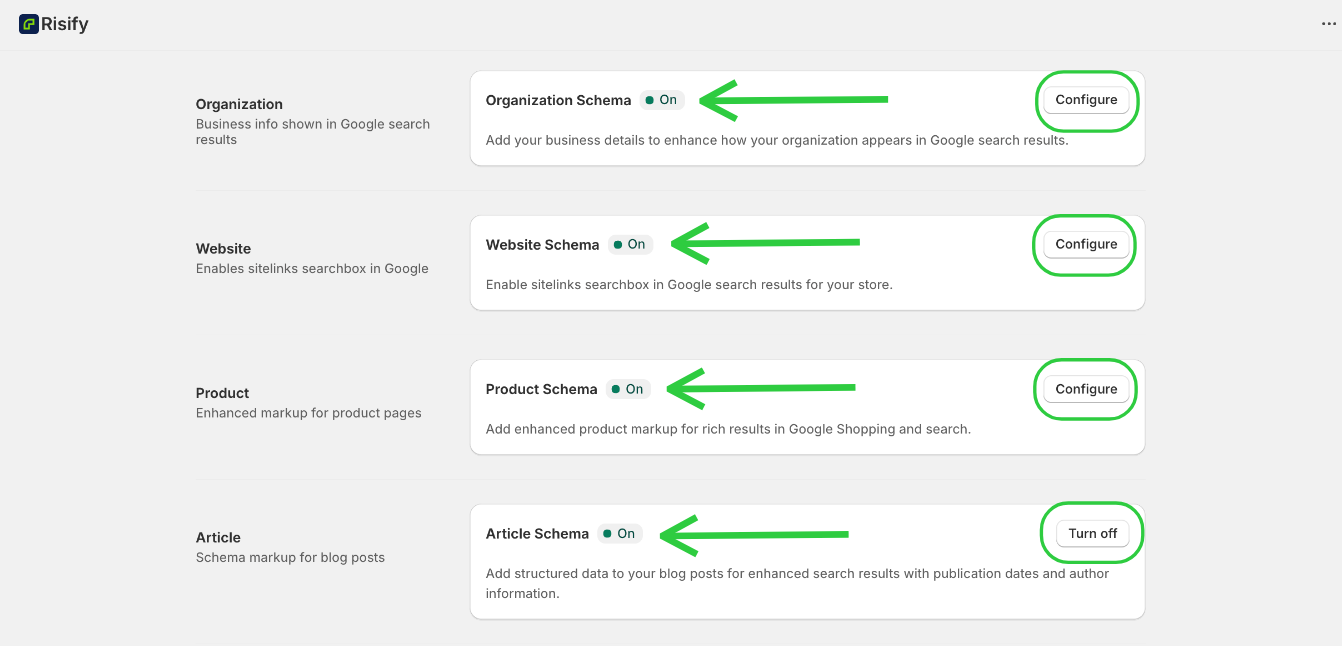
- Then activate the schemas in your Shopify theme.
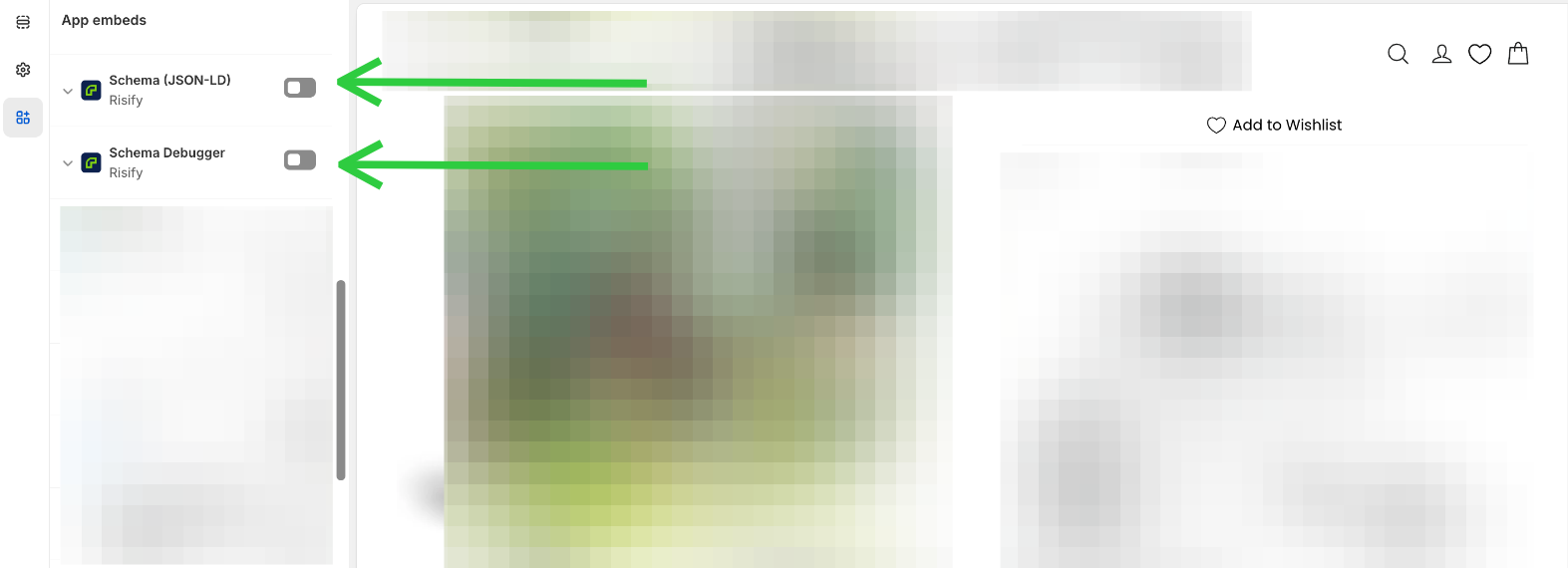
Once you toggle a schema type on and fill in the required information (like business details for Organization schema or product attributes for Product schema), the app generates the JSON-LD code automatically. Nothing appears on your site until you add the "Schema (JSON-LD)" to your theme.
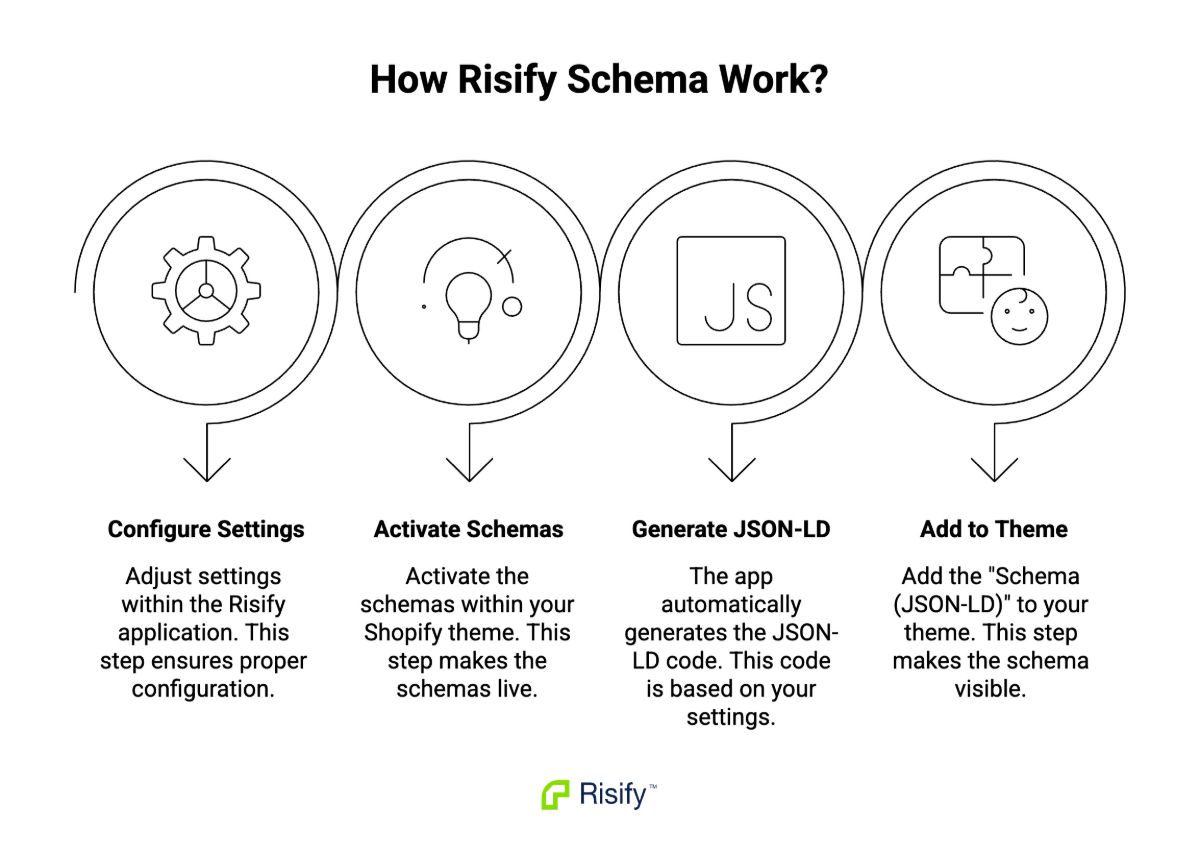
This approach keeps your schema management centralized while giving you control over when schemas become active.
You can adjust settings, test configurations, and make changes without affecting your live site until you're ready to deploy the theme block.
⚠️ Important Note: Do not enable Debug Mode at this stage. Debug Mode should only be turned on after your schemas are fully configured and active, and only for testing purposes. We cover the Schema Debugger in detail below.
This approach keeps your schema management centralized while giving you control over when schemas become active.
You can adjust settings, test configurations, and make changes without affecting your live site until you're ready to deploy the theme block.
What Schema Types Can You Configure With Risify App?
Risify supports six schema types, each serving a specific purpose in how your store appears in Google search results.
1) Organization Schema
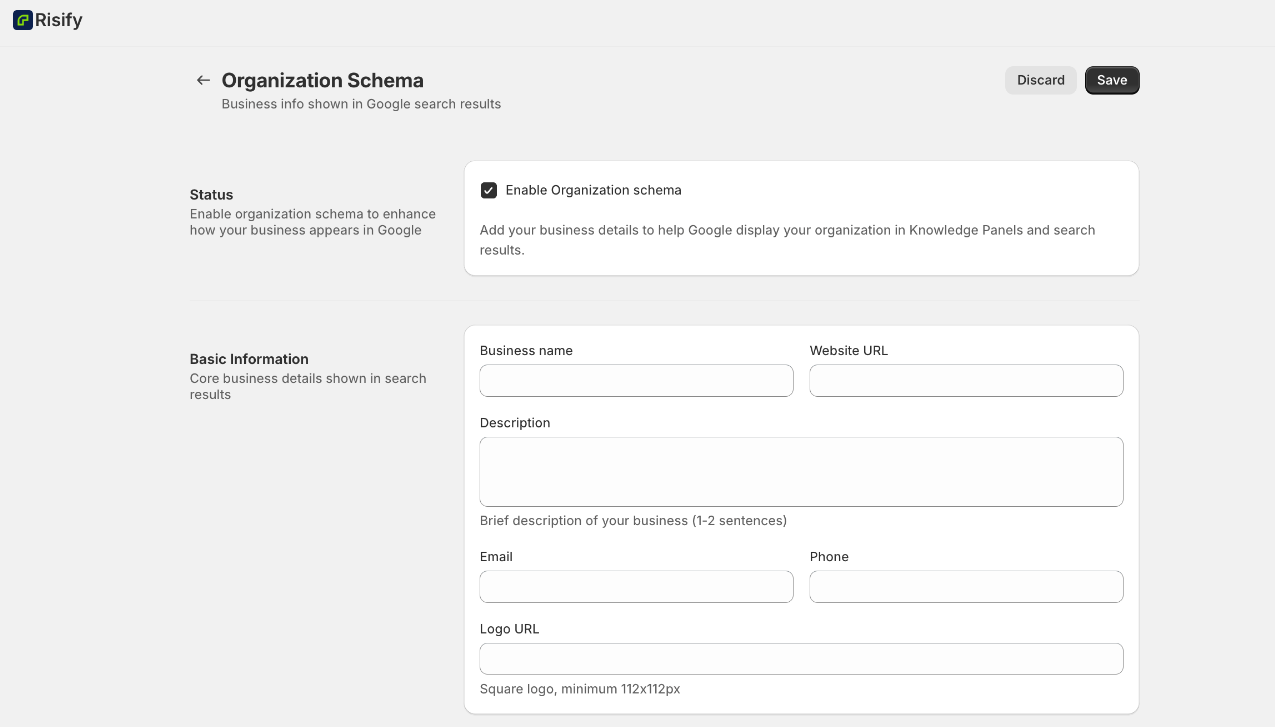
Organization Schema adds your business identity and contact details to your store. When you fill in your business name, logo, contact information, and social media profiles, Google can display this information directly in search results.
This helps establish your store's credibility and gives potential customers a clear understanding of your business before they visit your site.
2) Website Schema
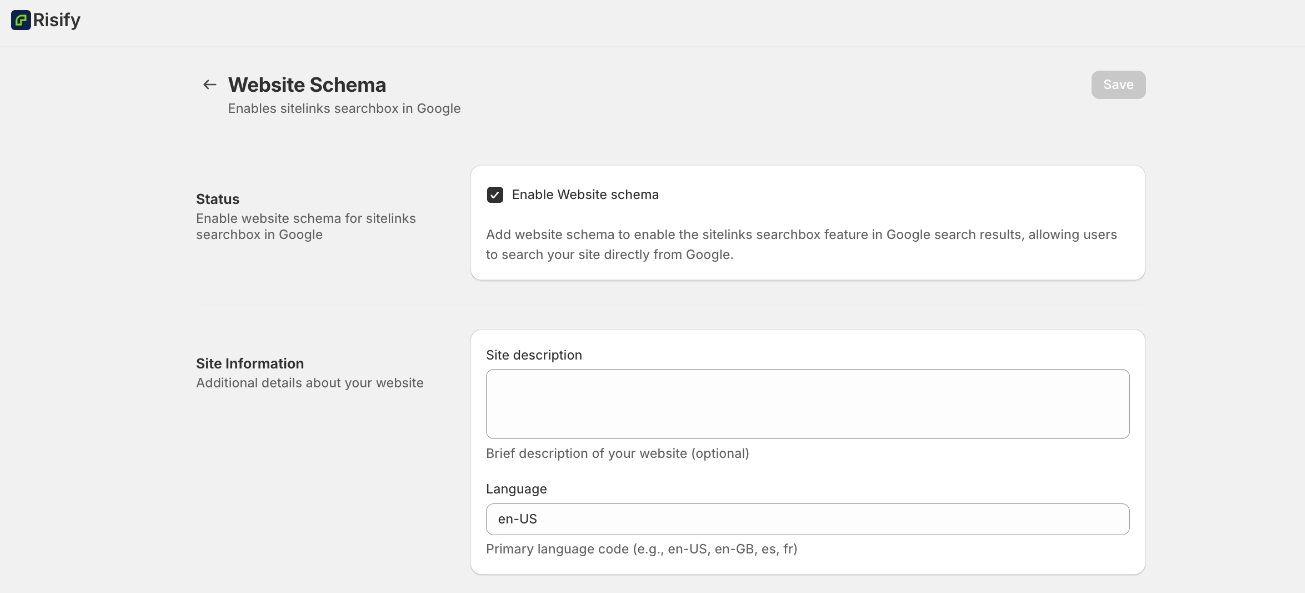
Website Schema enables the sitelinks searchbox feature in Google search results. When active, users see a search box directly in your Google listing, allowing them to search your store without visiting it first.
This makes your store listing more interactive and prominent in search results, and can improve click-through rates by giving users a faster path to what they're looking for.
3) Product Schema
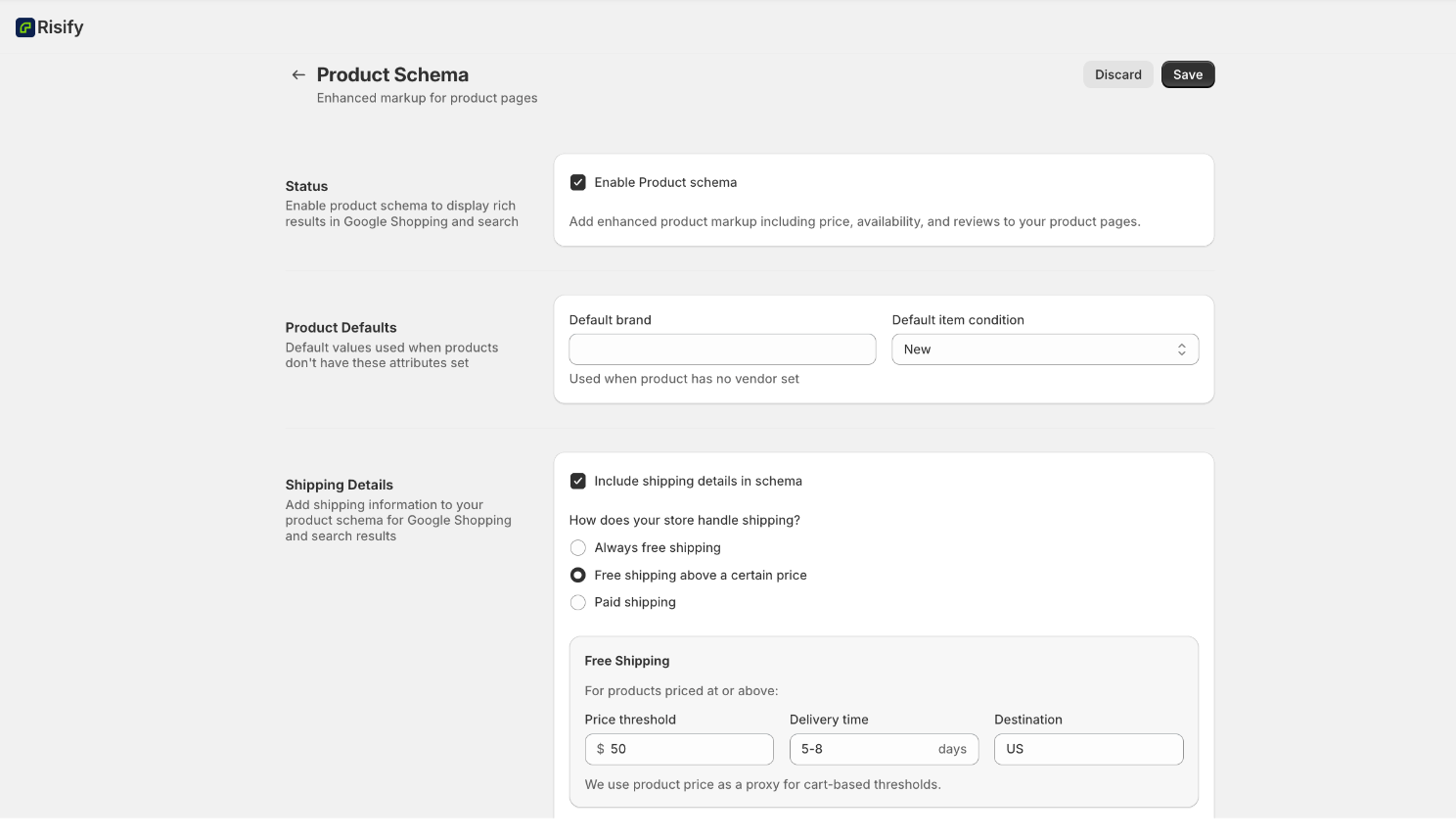
Product Schema adds enhanced markup to individual product pages. This enables rich results in Google Shopping and organic search, showing details like pricing, availability, stock status, and customer reviews directly in search results.
Shoppers can evaluate your products before clicking through to your site, which often leads to higher-quality traffic since users already know key details when they arrive.
4) Article Schema

Article Schema adds structured data to your blog posts. Google uses this information to display publication dates, author names, and article metadata in search results.
Blog content with proper Article Schema often appears with enhanced formatting, including featured snippets and improved visibility in Google's news and article sections.
5) Breadcrumb Schema

Breadcrumb Schema shows navigation paths in Google search results. Instead of just seeing a URL, users see the full path (Home > Collection > Product) that shows exactly where a page sits in your site hierarchy.
This helps users understand your store structure at a glance and can improve click-through rates by giving searchers more context about the page they're about to visit.
Learn more about Risify breadcrumbs here.
6) FAQ Schema

FAQ Schema enables FAQ rich results for pages containing question-and-answer content. When properly implemented, your FAQs can appear as expandable questions directly in search results, taking up more visual space and increasing visibility.
This is particularly effective for informational queries where shoppers are researching before making a purchase decision.
Learn more about Risify Centralized FAQ's here.
7. Multilanguage Support
Configure languages for translatable schema fields. Translations are shown based on the visitor’s locale in Shopify Markets. You set a default language and can add additional languages from a wide range of supported options.
How to Set Up Schema Markup in Risify
Setting up schema markup requires configuration in two places: the Risify app and your Shopify theme.
Step 1: Configure Settings in the Risify App
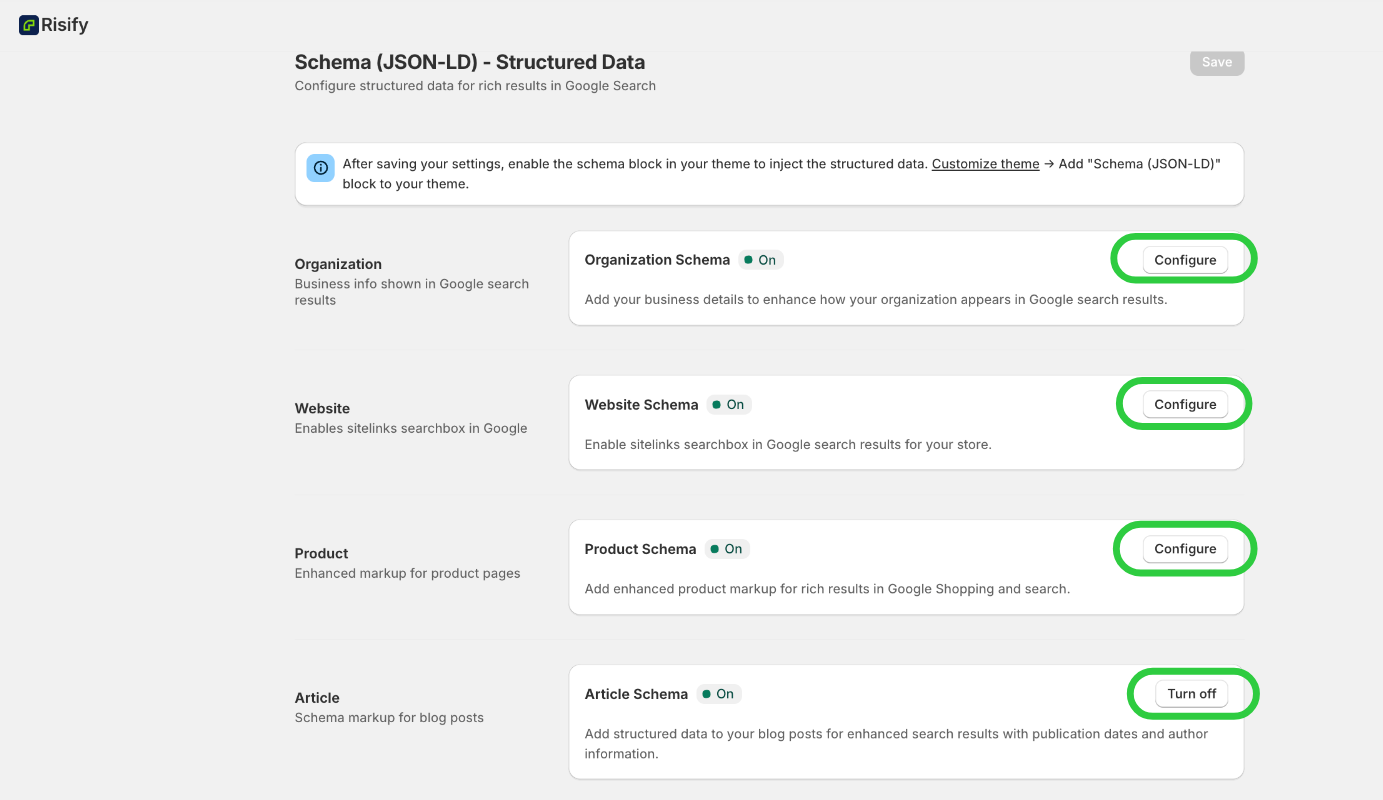
Open the Schema (JSON-LD) settings page in Risify. You'll see toggles for each schema type along with configuration fields for the information Google needs.
Turn on the schema types you want to use. For most stores, we recommend enabling Organization, Website, Product, Article, Breadcrumb, and FAQ schemas.
Fill in the required information for each schema type you've enabled. Organization Schema needs your business name, logo URL, and contact details. Product Schema pulls from your existing product data but may require additional attributes. FAQ Schema works automatically if you're using Risify's centralized FAQ system.
Save your settings once everything is configured.
Step 2: Add the Schema Block to Your Theme
After saving your settings in Risify, navigate to your Shopify theme editor. Click "Customize theme" to open the editor.
Add the "Schema (JSON-LD)" block to your theme. The block should be added to your theme's main layout so it appears across all pages. Risify generates the appropriate schema for each page type automatically.
Save and publish your theme changes. Your schemas are now active on your live site.
Step 3: Verify Implementation
Once the block is active, your structured data begins appearing in your site's HTML. Use the Schema Debugger (covered in the next section) to confirm the schemas are generating correctly, then verify with Google's tools to ensure proper implementation.
How to Use the Risify Schema Debugger
The Schema Debugger is a testing tool that shows you exactly what JSON-LD code Risify generates on your storefront.
What Debug Mode Shows
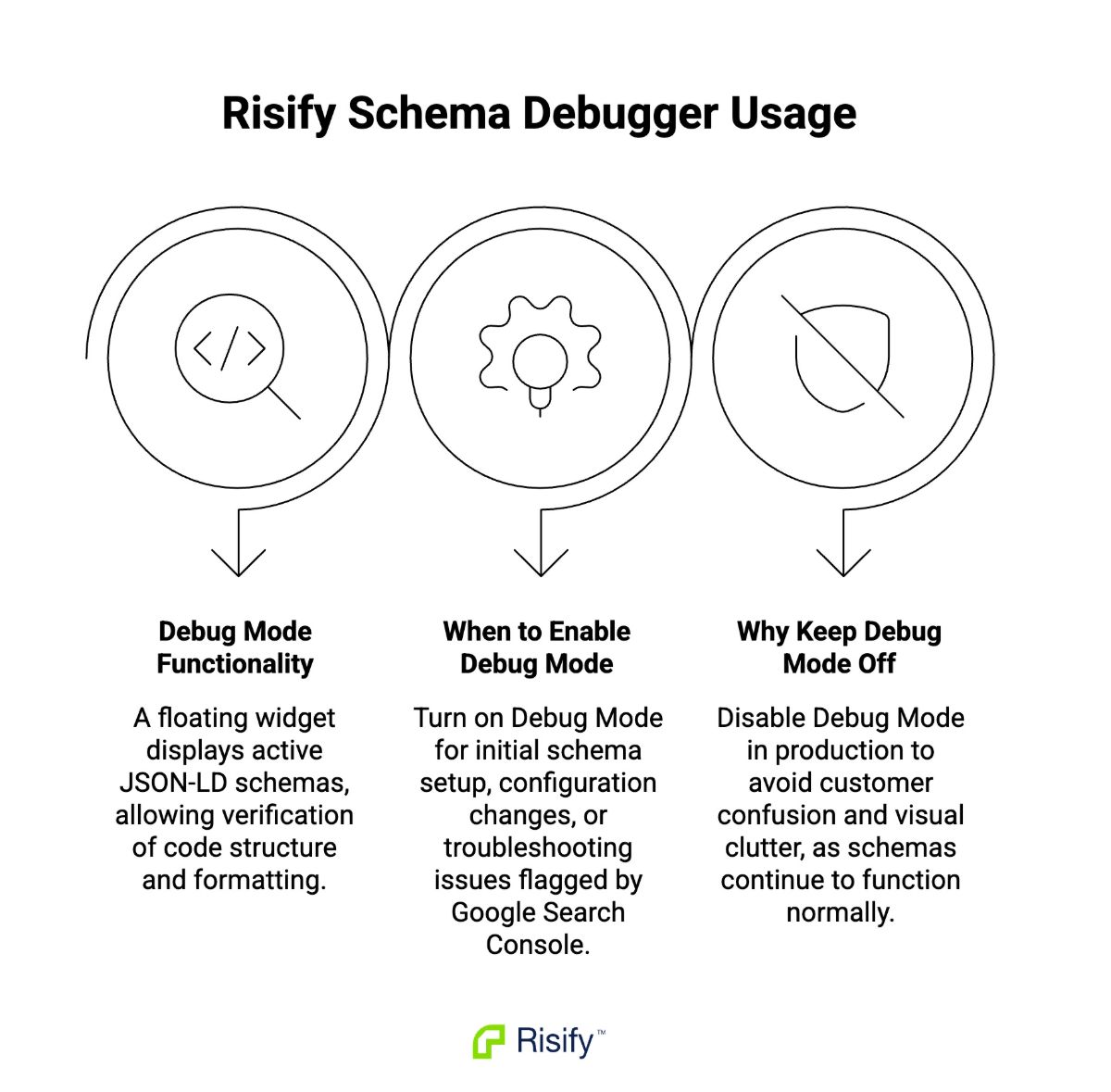
When you enable Debug Mode in the Risify app settings, a floating widget appears on your storefront. This widget displays all the JSON-LD schemas currently active on the page you're viewing. You can expand each schema type to see the complete code structure, verify that all required fields are populated, and check for formatting issues.
The debugger also lets you copy the JSON-LD code directly, which is useful when you want to test it in Google's Rich Results Test tool without having to view page source or inspect elements.
When to Turn It On
Debug Mode is meant for testing and verification only. Turn it on when you're initially setting up your schemas, making changes to your configuration, or troubleshooting issues flagged by Google Search Console.
The widget is visible to anyone who visits your store while Debug Mode is active, so you'll want to use it strategically during setup or maintenance windows.
Why to Keep It Off in Production
Once you've verified that your schemas are generating correctly, turn Debug Mode off in both the Risify app settings and your theme. The floating widget can confuse customers and creates unnecessary visual clutter on your storefront. Your schemas continue working normally with Debug Mode disabled, the debugger only controls the visibility of the testing widget, not the schemas themselves.
How to Verify Your Schema Implementation
After activating your schemas, you should verify that Google can read and validate your structured data correctly.
Option 1) Google Rich Results Test
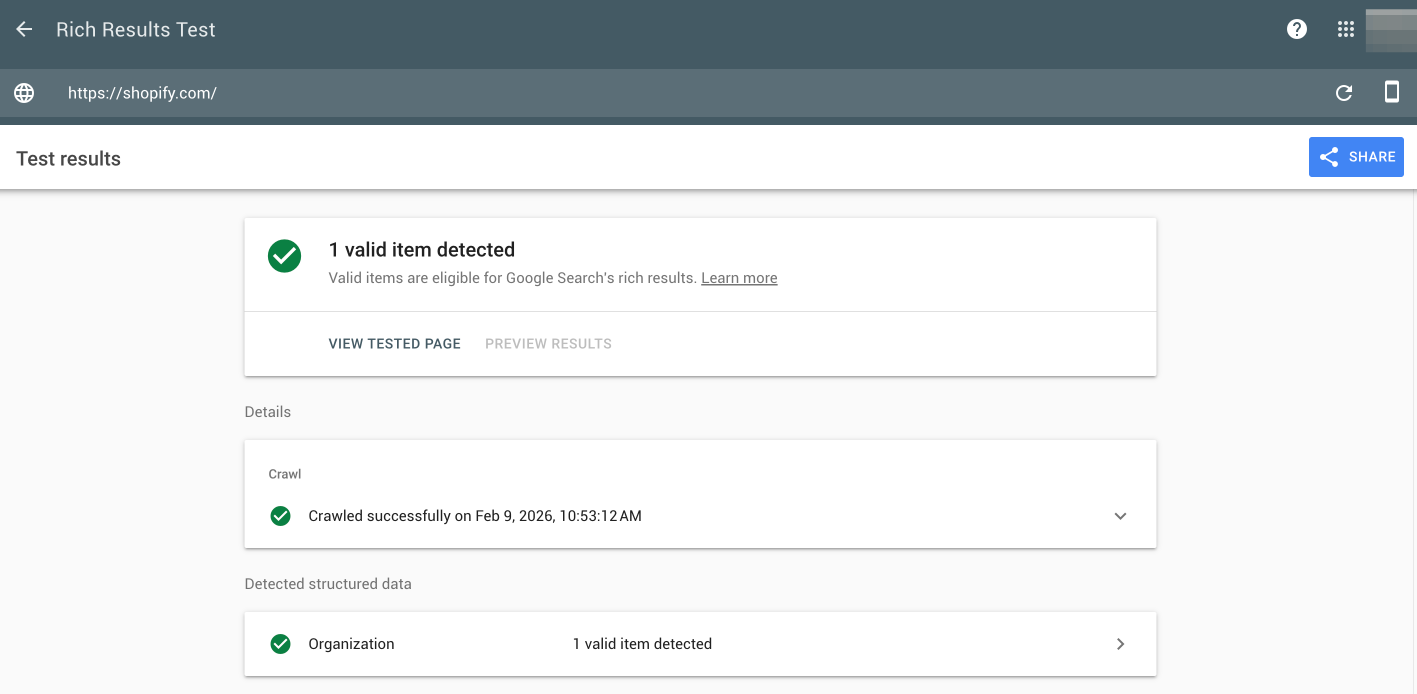
Google's Rich Results Test is the fastest way to check individual pages. Paste any URL from your store into the tool, and Google will show which schema types it detects, whether they're valid, and if any errors or warnings exist.
The test results show exactly what Google sees when it crawls your page. If a schema type you enabled in Risify doesn't appear in the results, check that the Schema block is active in your theme and that Debug Mode confirms the schema is generating on that page type.
Option 2) Google Search Console
Google Search Console provides site-wide schema validation through the Enhancements section. After your site has been crawled, Search Console shows how many pages have valid schema, which schema types are detected, and flags specific pages with errors or warnings.
Unlike the Rich Results Test, Search Console tracks your schema performance over time and alerts you if Google encounters new validation issues after updates to your store or theme.
Option 3) Contact Risify Support for Verification
If you're unsure whether your schemas are configured correctly, or if Google's tools show errors you can't resolve, contact Risify support.
The team can review your implementation, verify that all schema types are generating properly, and help troubleshoot any validation issues Google reports.
What to Look For In A Valid Schema
Valid schema should appear without critical errors in both testing tools.
Warnings are common and don't always prevent rich results from appearing, but errors typically block Google from using your structured data.
Pay attention to missing required fields, incorrect formatting, and mismatched data types, these are the most frequent causes of schema validation failures.
How Long Until Schema Changes Appear in Search?
Schema implementation doesn't produce immediate results in Google search. The timeline depends on how quickly Google crawls and processes your updated pages.
After you activate the Schema block in your theme, Google needs to recrawl your site to detect the new structured data. For most Shopify stores, this happens within a few days to a couple of weeks, depending on your site's crawl frequency and how often you publish new content.
Once Google indexes the updated pages, it takes additional time for rich results to appear in search listings. Google validates your schema, evaluates whether your content qualifies for rich results, and gradually rolls out enhanced search features. This process can take several weeks to a few months.
Stores that maintain consistent schema implementation and avoid frequent structural changes tend to see more reliable rich results over time. If you make updates to your schema configuration, expect the same timeline, Google needs to recrawl, revalidate, and reprocess the changes before they reflect in search results.
FAQ: Frequently Asked Questions About Risify Schema
Here are the commonly asked questions about Risify schema feature: