The Audit page is where you begin your store’s SEO analysis with Risify. It checks your store’s technical and on-page SEO structure and gives you clear, actionable insights about what needs improvement.
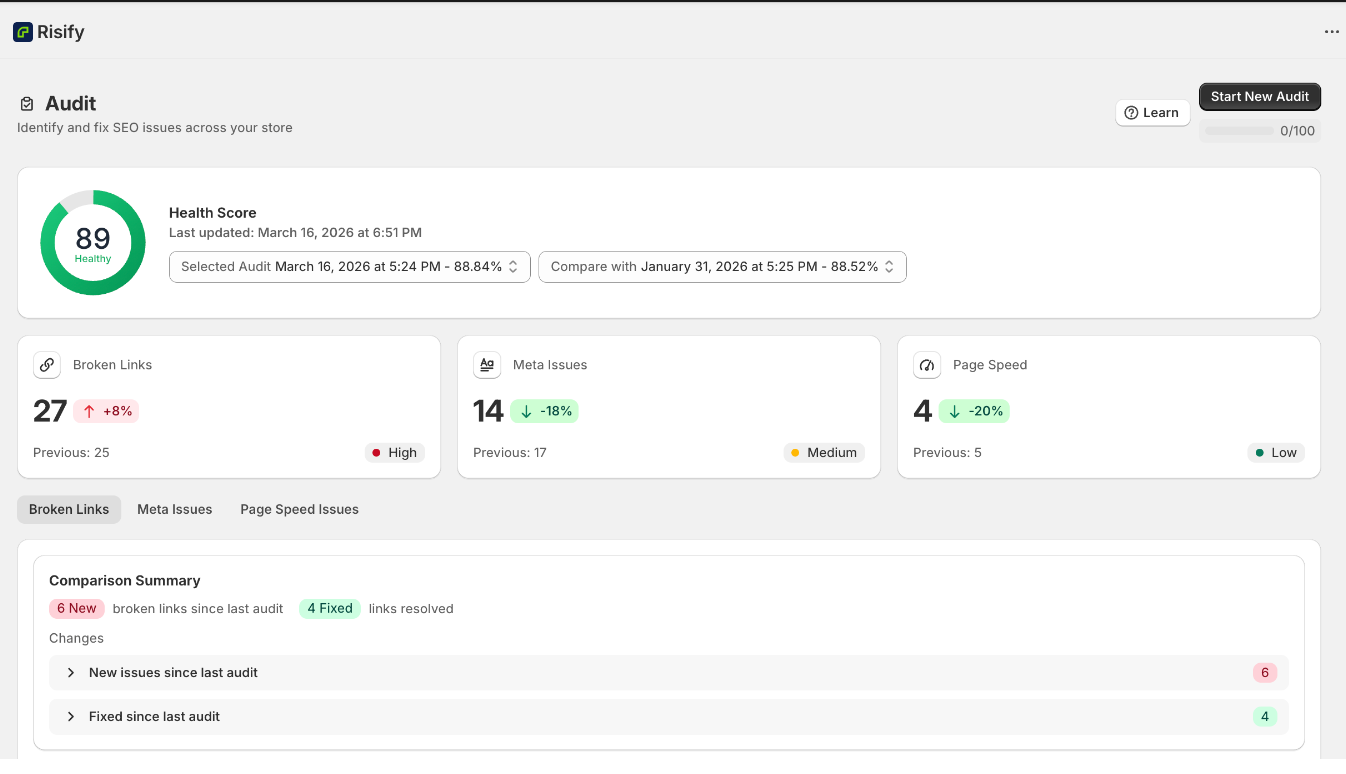
This guide walks you through how to run an audit, what each category means, and how to use the results to improve your store’s search performance.
👉 Curious how Risify SEO audits can help your store? Browse our SEO Audit resource library to learn best practices and get the most value from it!
What Is the Health Score?

Your Health Score is a single number that reflects how optimized your store is for search engines. It combines different SEO factors, technical setup, page speed, and on-page elements, into one overall metric.
A higher score means your store follows SEO best practices and has fewer issues. A lower score means there are areas that can be improved. The goal is to run audits regularly and see this number improve over time as you fix issues.
You can use the score to measure progress, compare results across audits, and identify where to focus your optimization efforts.
How to Run Your Audit With Risify
Follow these steps to run your first audit and understand the results.
Step 1: Start Your First Audit
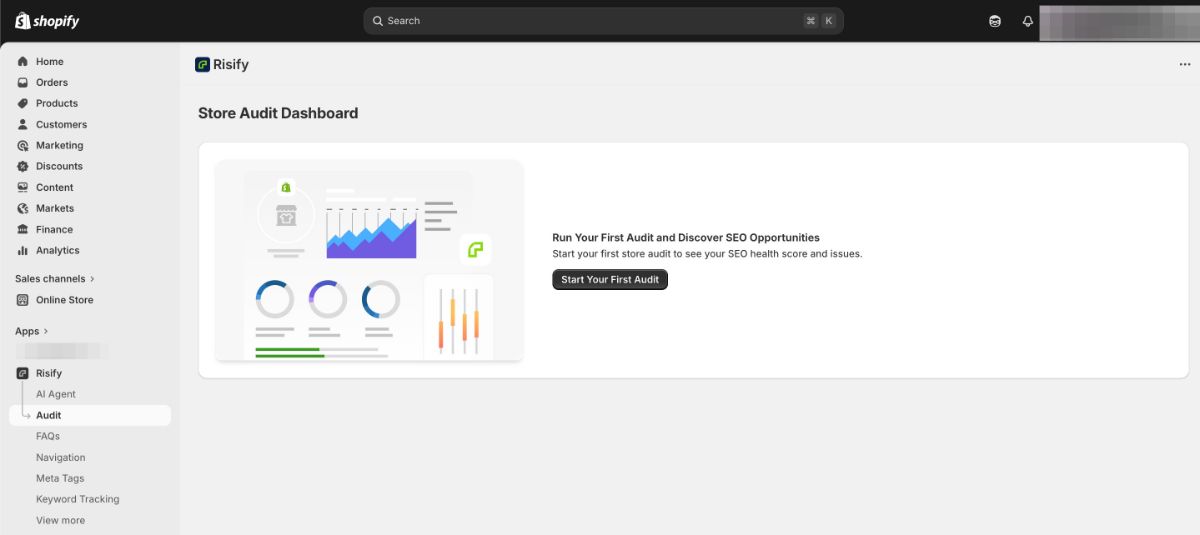
In your Shopify admin, go to Apps, open Risify, and click Audit from the left-hand menu.
When you first open the Audit page, you will see a welcome screen that says “Run Your First Audit and Discover SEO Opportunities.” Click Start Your First Audit. Risify will automatically review your store’s pages, links, and performance. Once finished, you will see your Health Score and detailed results for each issue category.
Step 2: Explore the Audit Categories
After your audit finishes, you will see three main categories below your score.
1. Broken Links
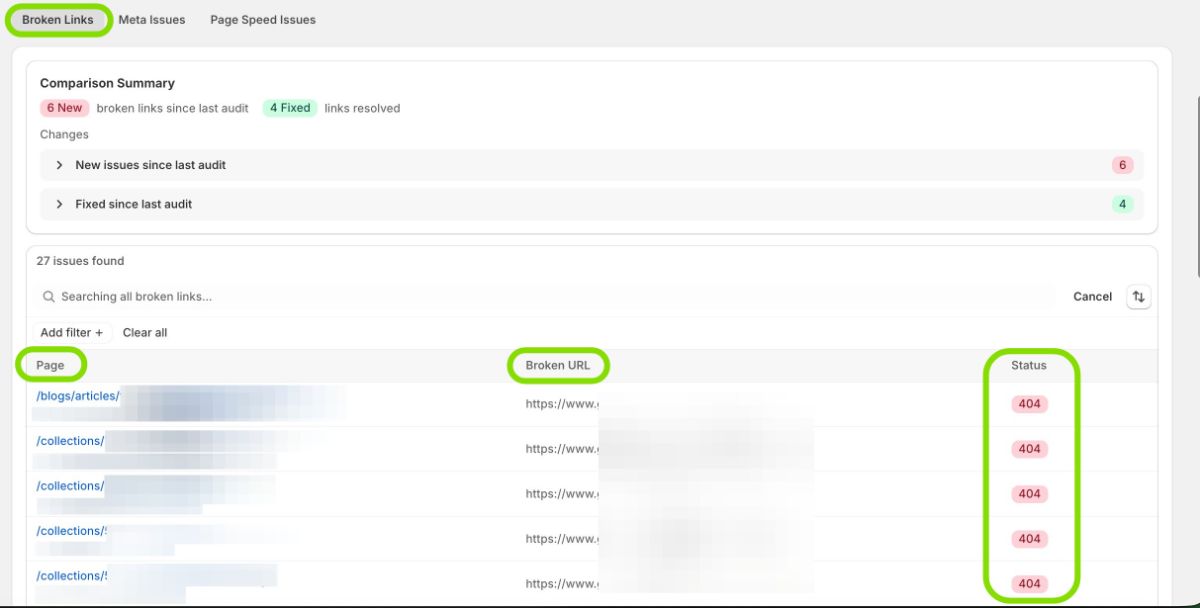
Risify scans your entire store to detect broken links, links that lead to pages that no longer exist or return an error (such as a 404 Page Not Found).
Broken links negatively affect user experience and SEO because they prevent both visitors and search engines from reaching your content.
For each broken link, Risify shows the severity of its impact (High, Medium, or Low) and a direct link to the affected page so you can fix or redirect it.
2. Meta Issues
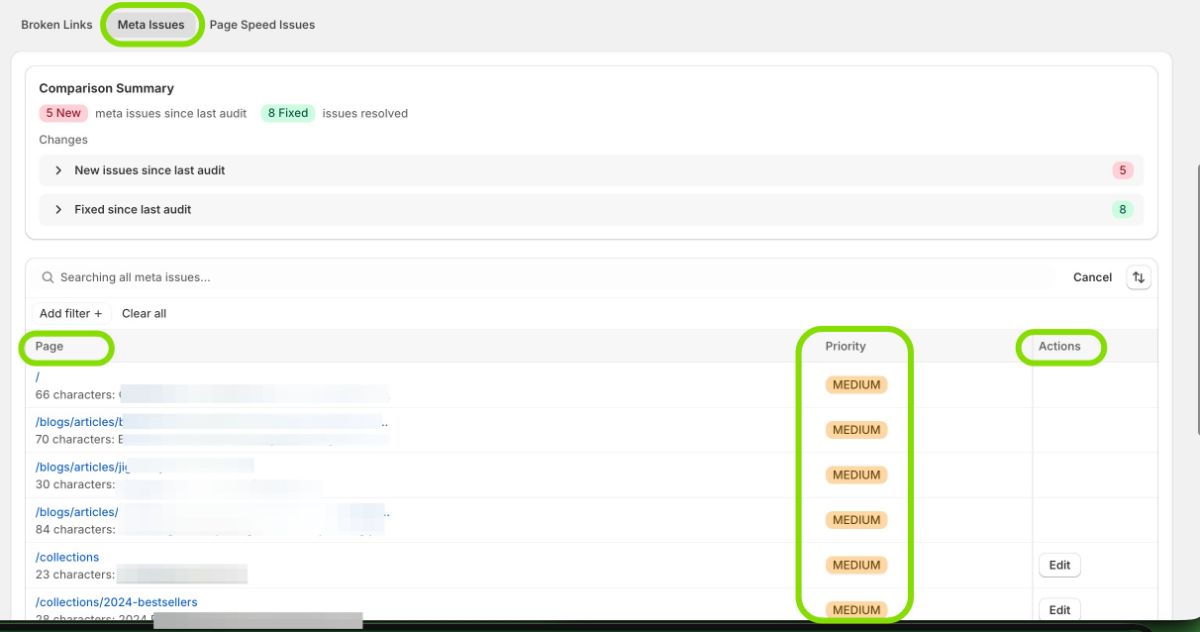
Your meta titles and meta descriptions are the text snippets that appear in Google search results. They tell search engines and users what each page is about.
Risify checks whether these are properly optimized and alerts you when they are missing or poorly structured. Common issues include missing meta title or description, title too short (less than 30 characters), and title or description too long (gets cut off in search results).
Fixing meta issues makes your store more search-friendly and improves click-through rates on Google.
Tip: You can also use Risify’s AI Generator to create meta titles and descriptions automatically. Click the Generate button in this section to use 1 AI credit per item.
3. Page Speed
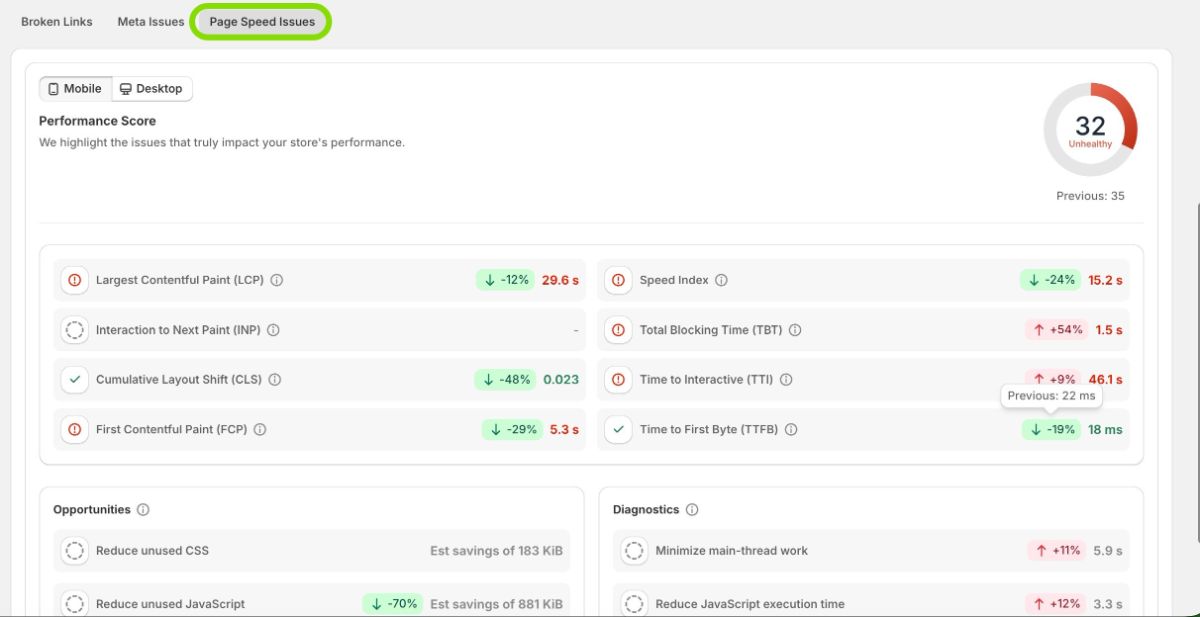
Page speed measures how fast your website loads for users. A slow site frustrates visitors and hurts SEO rankings. Risify tests your store’s loading speed for both Mobile and Desktop, providing detailed metrics.
The key metrics Risify reports include:
- Largest Contentful Paint (LCP): How long it takes for the main image or text block to become visible.
- First Contentful Paint (FCP): Time until the first visible content element appears.
- Cumulative Layout Shift (CLS): How much page elements move unexpectedly while loading.
- Interaction to Next Paint (INP): How responsive the page feels when users interact with it.
- Time to First Byte (TTFB): The time between the browser’s request and the first byte of your site’s response.
- Speed Index: How quickly content becomes visually complete during loading.
- Total Blocking Time (TBT): Duration during which the page cannot respond to user input.
- Time to Interactive (TTI): When the page becomes fully usable.
Risify also provides a Performance Score (overall load efficiency), Opportunities (specific suggestions to improve speed), and Diagnostics (technical checks like font loading behavior). You can switch between Mobile and Desktop tabs to compare results.
Step 3: Review and Improve Over Time
After reviewing your audit, take action on the issues shown. Once you have made fixes, click Start New Audit to re-scan your store. Each new scan updates your Health Score and lets you see how your improvements affect your SEO.
You can also view past audits by clicking the date dropdown. This shows all previous audit results so you can compare scores and track your progress over time.
Summary
Risify’s Audit gives you a clear starting point and a measurable path forward. Every scan turns complex technical checks into simple, actionable insights across three categories: broken links, meta issues, and page speed.
As you fix issues and rerun audits, your Health Score becomes a reliable indicator of real progress. Use the Audit Dashboard as your ongoing guide to a faster, cleaner, and more search-friendly store.