





Guide 2 identified the specific gaps in Shopify’s default setup and the priority order for fixing them. This guide walks through the practical steps for each fix - what to do, what to expect, and what to check when you’re done.
Every section below maps to an action you can take on your store. If you’ve already installed Risify, you can follow along inside the app as you read. If you haven’t, the steps still explain what needs to happen and why.
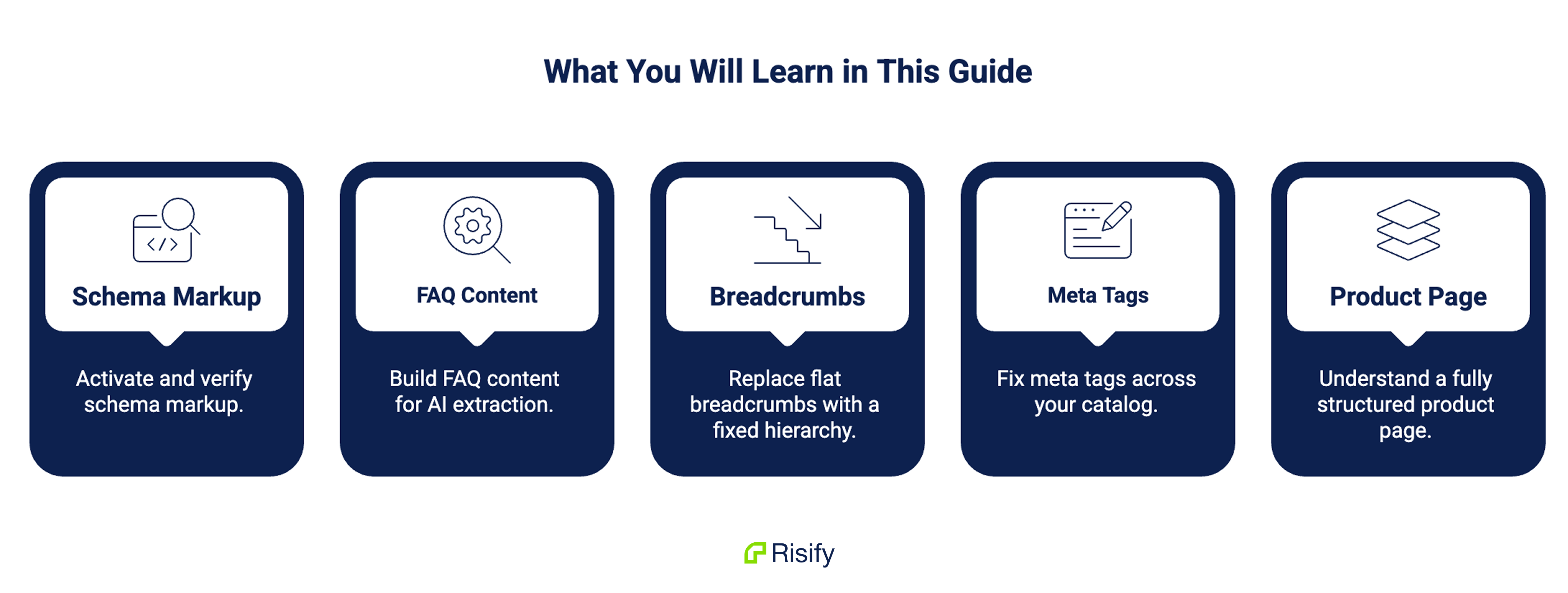
Five things you’ll learn in this guide:
- How to activate schema markup and verify it’s working correctly
- How to build FAQ content that AI systems extract and cite - at both product and collection level
- How to replace Shopify’s flat breadcrumbs with a fixed hierarchy
- How to fix meta tags across your catalog without editing products one by one
- What a fully structured product page looks like when all layers are active
Activating Schema Markup
Schema activation is the highest-impact fix because it affects every page on your store at once.
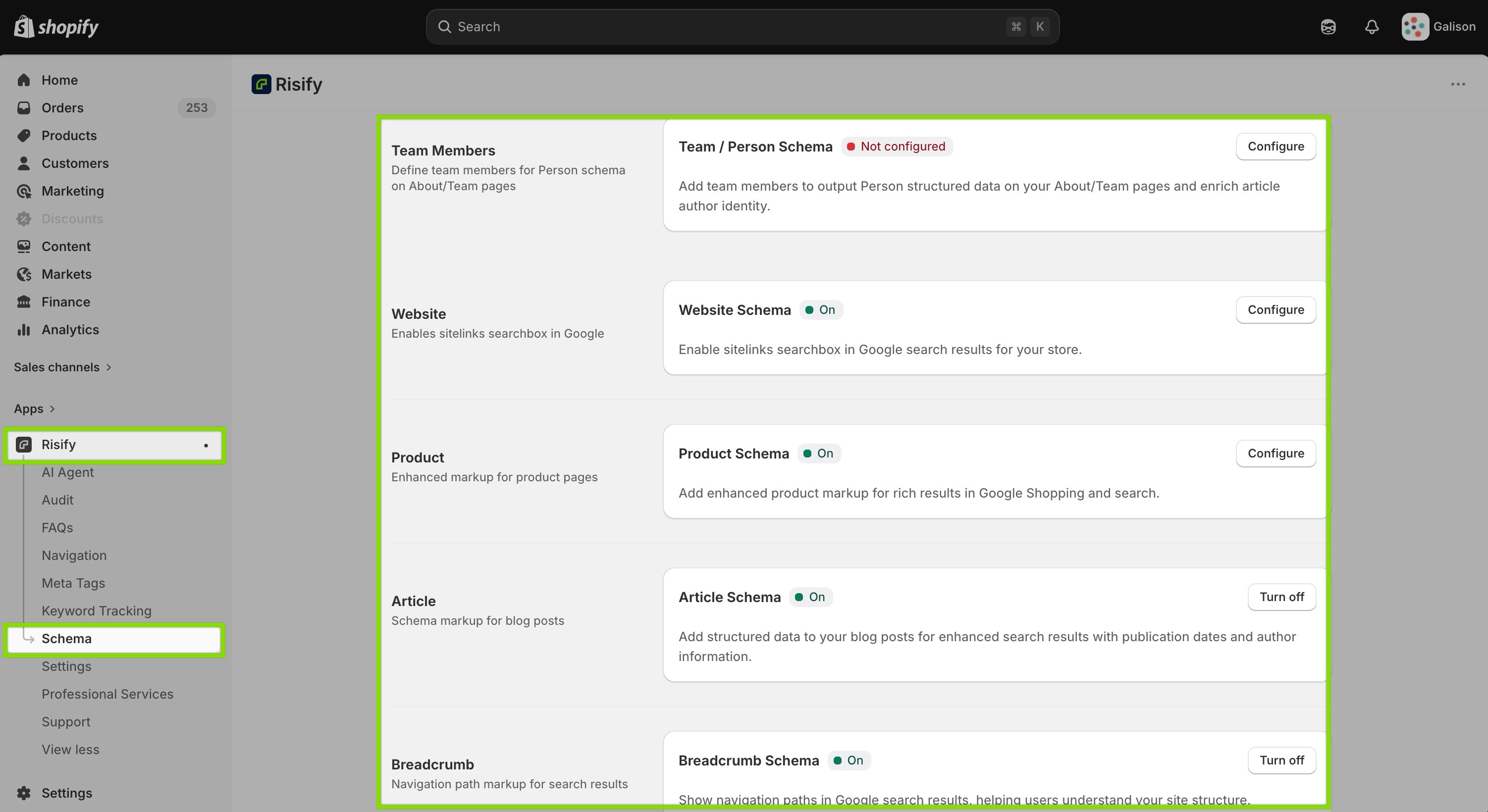
In Risify, open the Schema Markup dashboard. You’ll see toggle switches for each schema type. Turn on each type that applies to your store - for most stores, that’s all six.
After Activation: Verify with the SEO Audit
Activating schema types is step one. Step two is verifying they’re outputting correctly.
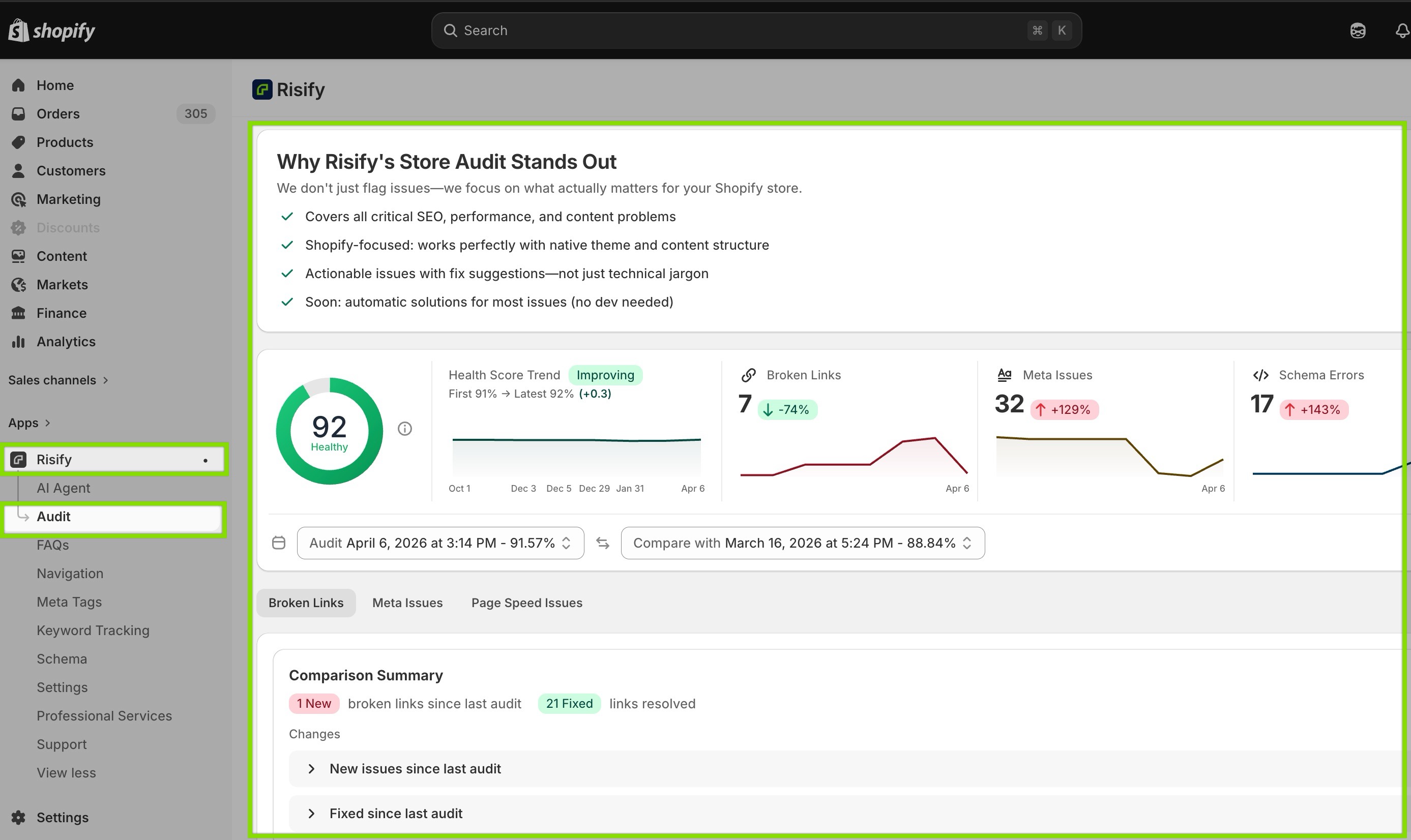
Risify’s SEO Audit scans your store for issues across multiple categories, including schema errors. Run an audit after activation to check for:
- Missing required fields (e.g., Product schema without a price value)
- Validation errors that would fail Google’s requirements
- Conflicts with schema injected by other apps or your theme
Schema issues appear alongside other SEO problems like broken links and missing meta tags. If the audit flags schema conflicts - say your theme already adds its own Product schema - you can identify the competing source and disable it.
For a more detailed look at individual pages, enable the Schema Debugger in Risify’s Schema settings. This floats a widget on your storefront showing the exact JSON-LD being generated on each page you visit.
Filling In Missing Product Fields
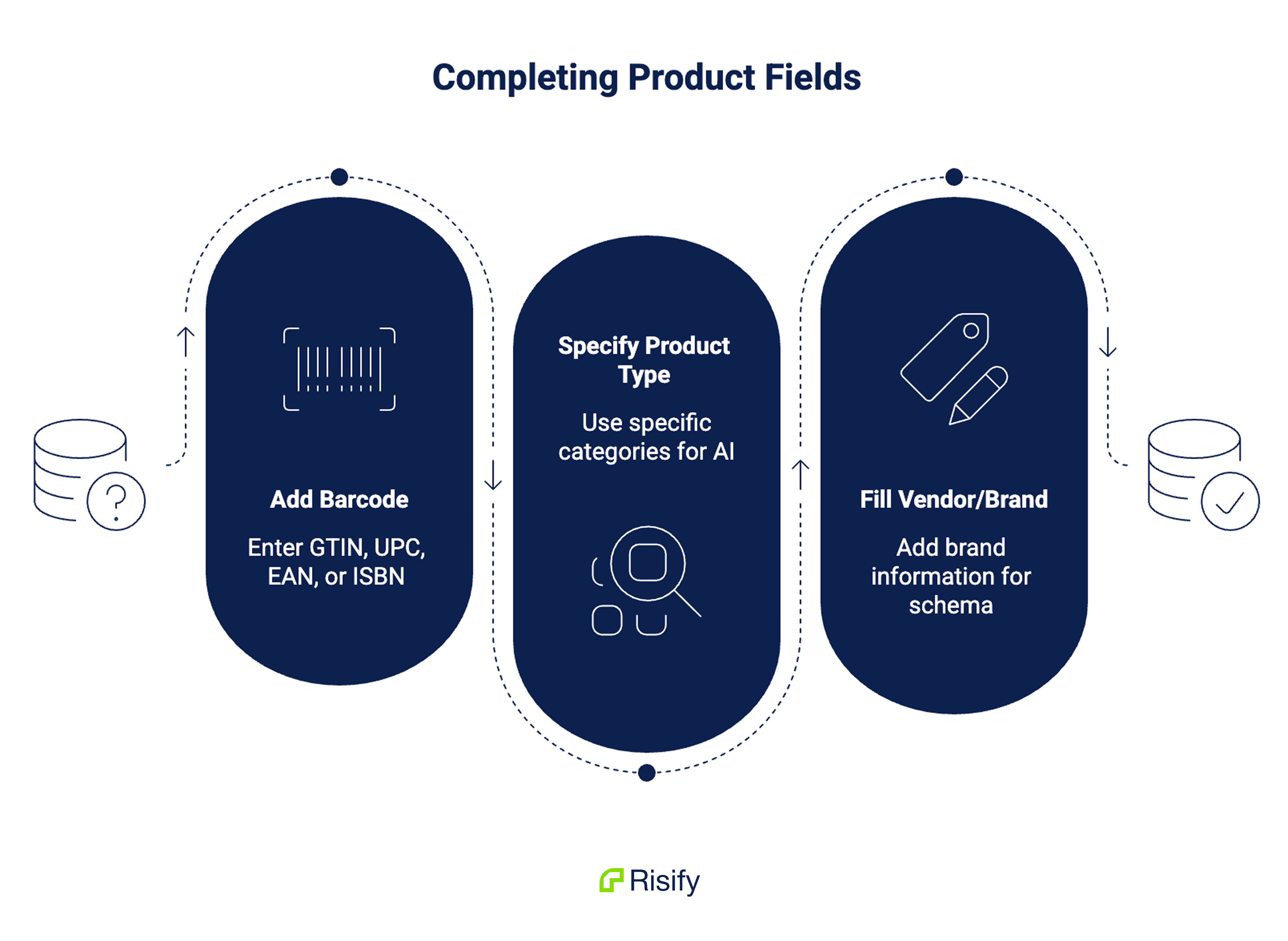
Schema pulls data from your Shopify product fields. If those fields are empty, the schema output will be incomplete.
The fields that matter most and are most commonly blank:
- Barcode (GTIN) - open each product in Shopify admin, scroll to the variant section, and enter the barcode. If you have UPC, EAN, or ISBN codes, this is where they go.
- Product type - helps AI systems categorize your product. Use specific types (“Running Shoes”) rather than generic ones (“Shoes”).
- Vendor/Brand - fill in the brand field so it appears in Product schema.
The Troubleshooter flags products with empty fields so you know which ones to update first. Start with your top-traffic products and work through the catalog.
Building FAQ Content
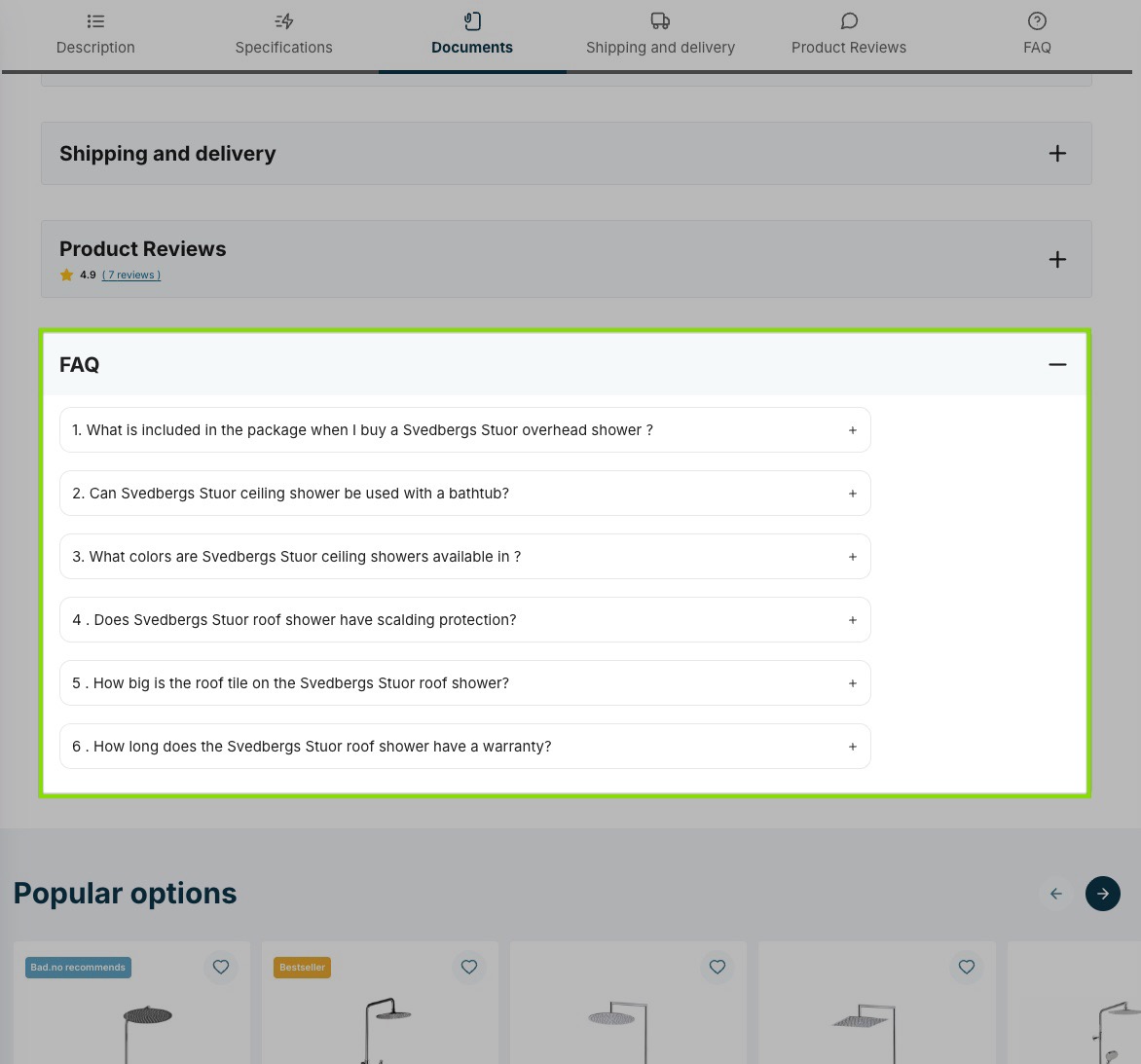
FAQ content turns your product pages into direct answer sources for AI systems. The goal is to put pre-formatted Q&A pairs on the pages where shoppers (and AI crawlers) are looking for answers.
Choosing the Right Questions
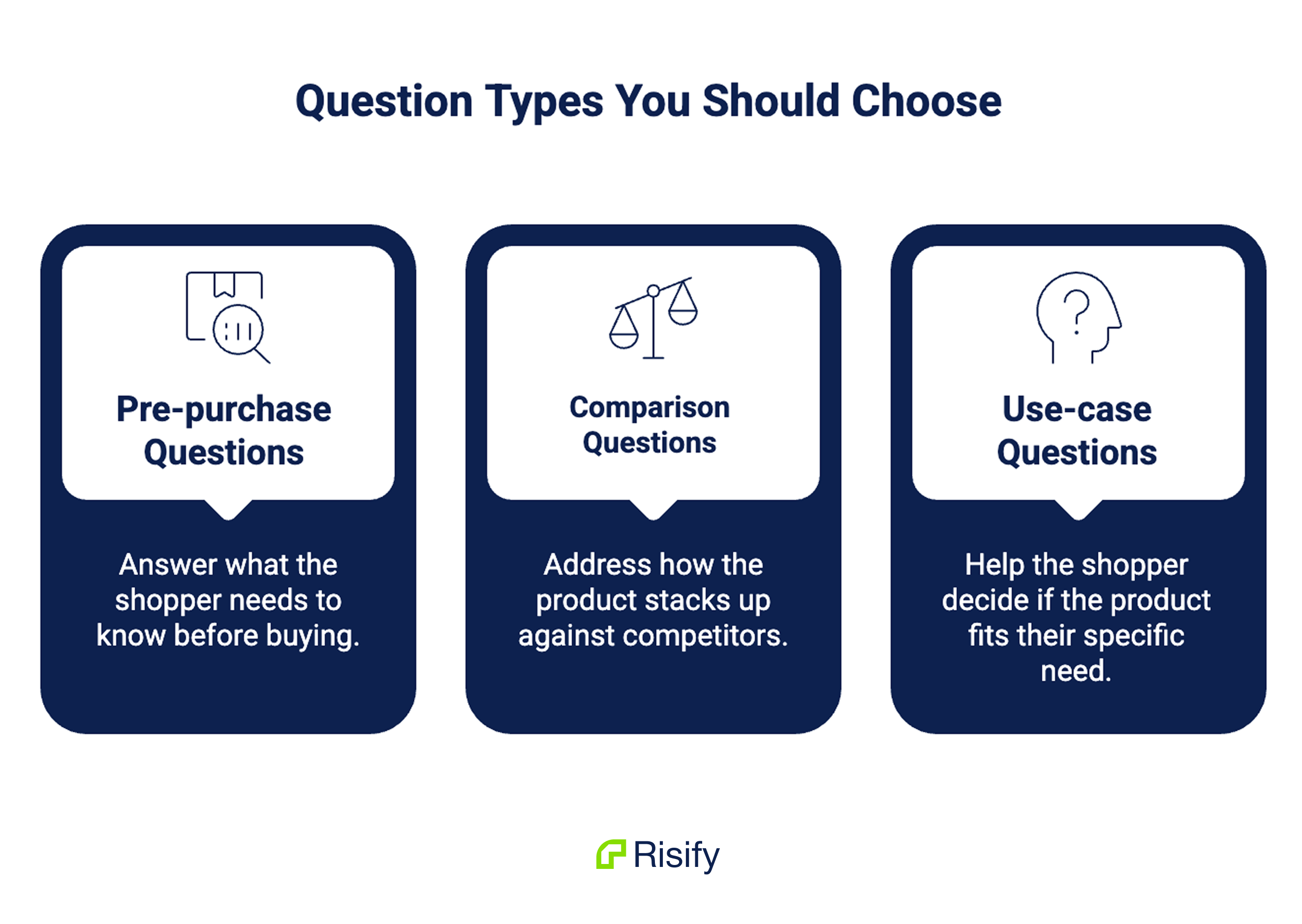
The questions you write should match the queries real shoppers type into AI tools. Three categories work best:
Pre-purchase questions answer what the shopper needs to know before buying. “Is this jacket waterproof?”, “What’s the weight capacity?”, “Does this work with iPhone and Android?”
Comparison questions address how the product stacks up. “How does this compare to [competitor product]?”, “What’s the difference between the 500ml and 750ml version?”
Use-case questions help the shopper decide if the product fits their specific need. “Can I use this for overnight camping?”, “Is this suitable for sensitive skin?”
Avoid generic questions like “What is your return policy?” on product pages. Those belong on a store-wide FAQ page. Product-level FAQs should be specific to the product.
Creating FAQs in Risify
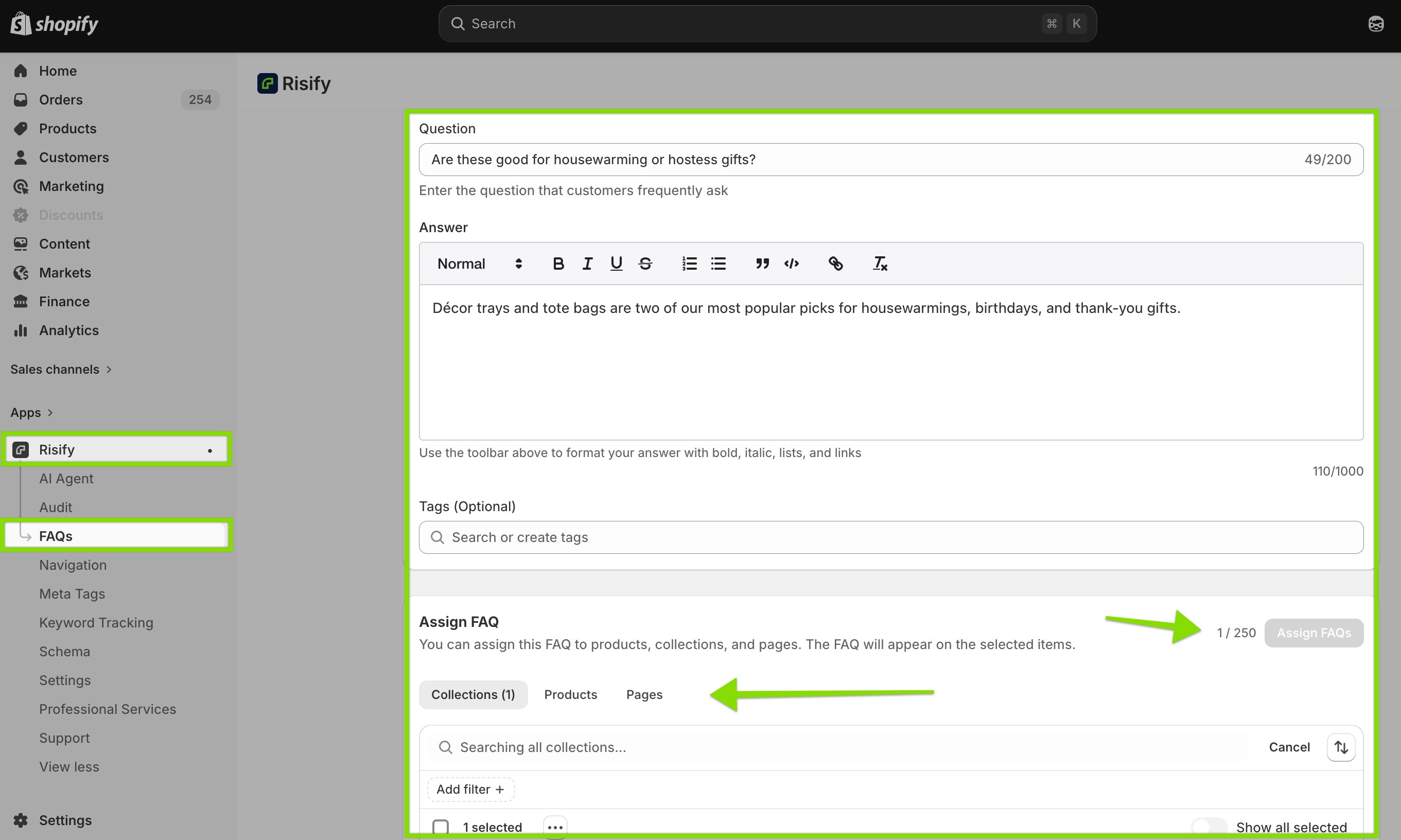
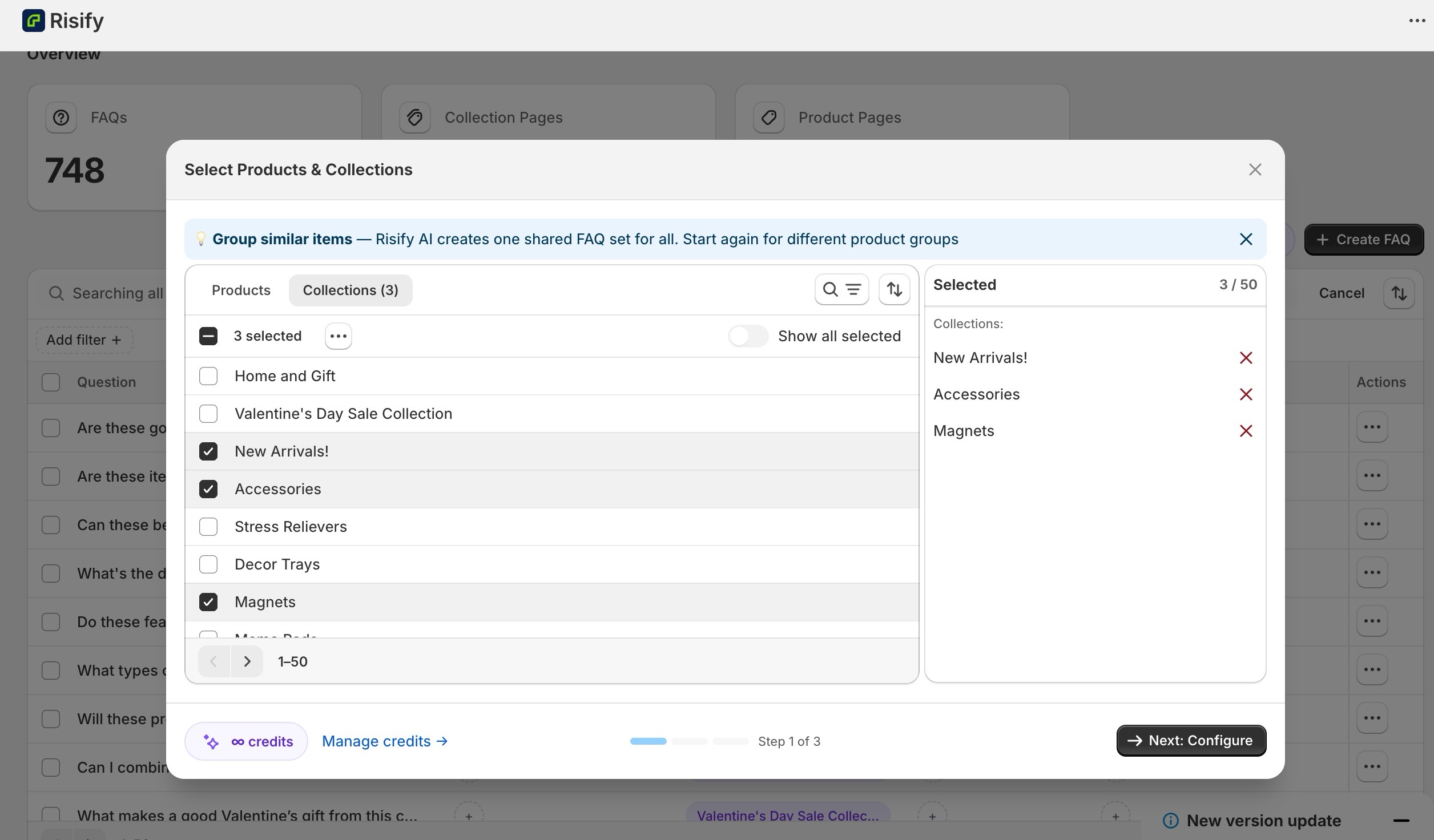
Open FAQ Management in the Risify dashboard. You have two paths:
Manual creation: Write questions and answers directly in the FAQ library. Group them by topic or product type. Assign each FAQ to the relevant products or collections.
Bulk generation with AI Content Agent: Select the products that need FAQs. The AI Content Agent reads your product data - title, description, variants, attributes - and generates relevant questions with answers. You review each one, edit as needed, and publish.
The AI-generated output gives you a starting point. The questions it generates are based on your actual product data, so they tend to be specific rather than generic. Edit the answers to match your brand voice and add details the AI might have missed.
Product-Level vs. Collection-Level FAQs
Product FAQs answer questions about a specific item. Collection FAQs answer questions about a category.
When someone asks an AI tool “What should I look for in a hiking backpack?”, a product page can’t answer that - it’s a category-level question. A collection page with FAQs like “What capacity do I need for day hikes vs. multi-day trips?” and “What’s the difference between internal and external frame packs?” can.
Assign FAQs to collections the same way you assign them to products. Every published FAQ gets FAQPage schema automatically, regardless of where it’s displayed.
Fixing Breadcrumbs
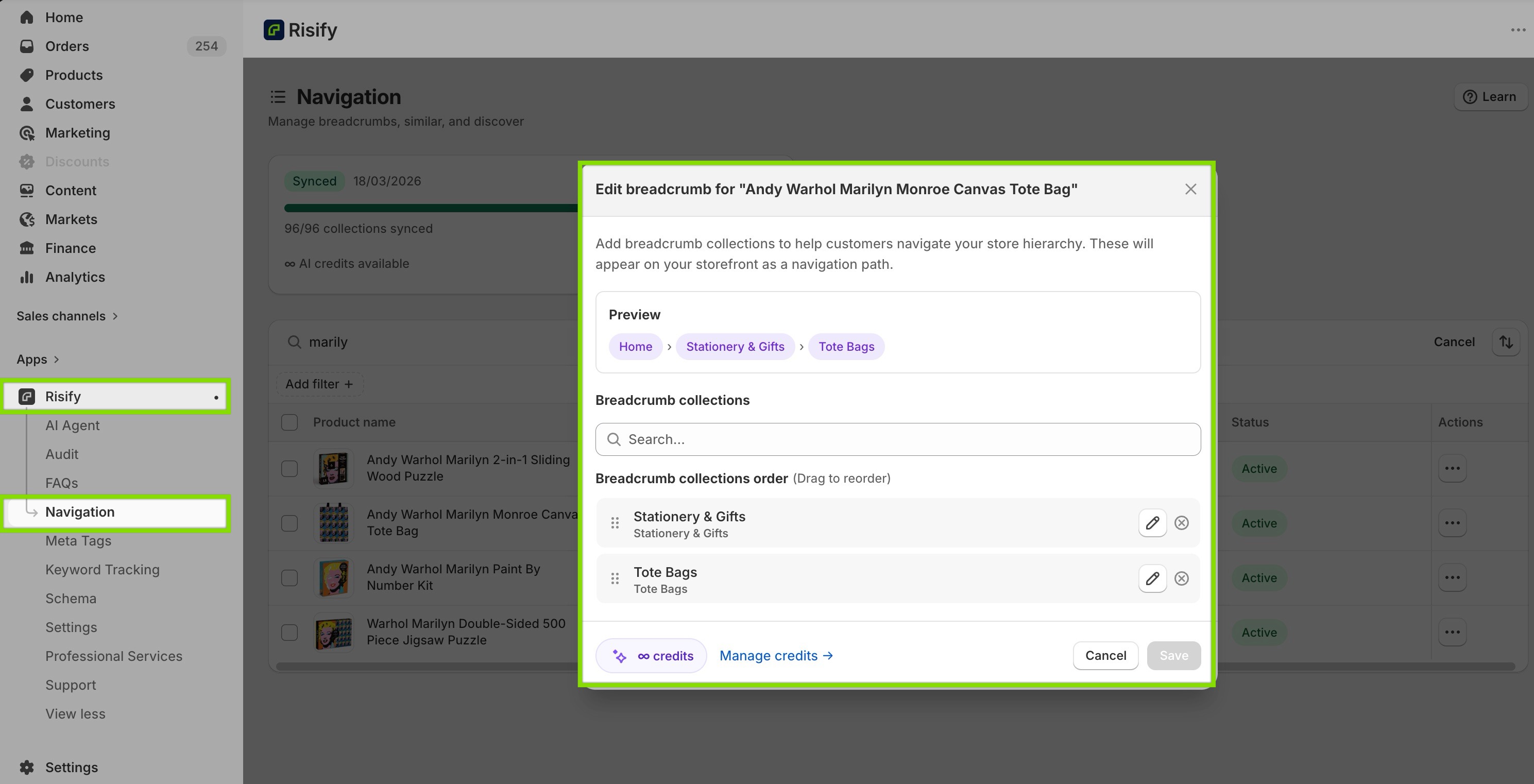
Risify’s Navigation feature lets you configure breadcrumb paths that replace Shopify’s flat, path-dependent defaults.
Setting Up Breadcrumb Paths
In the Risify dashboard, open Navigation. The breadcrumb configuration lets you:
- Configure the breadcrumb path for each product. Select an ordered list of collections that forms the product’s breadcrumb trail. If a product should show “Home > Women’s Footwear > Running Shoes,” you select those collections in that order.
- Use AI-powered suggestions. Risify can suggest breadcrumb paths based on your collection structure. The suggestions are optional - you review and approve each one before it’s applied.
- Apply breadcrumbs store-wide. Once configured, breadcrumbs appear on every product page through Shopify’s app block system. Place the breadcrumb block in your theme editor where you want it to display.
What Changes After Setup
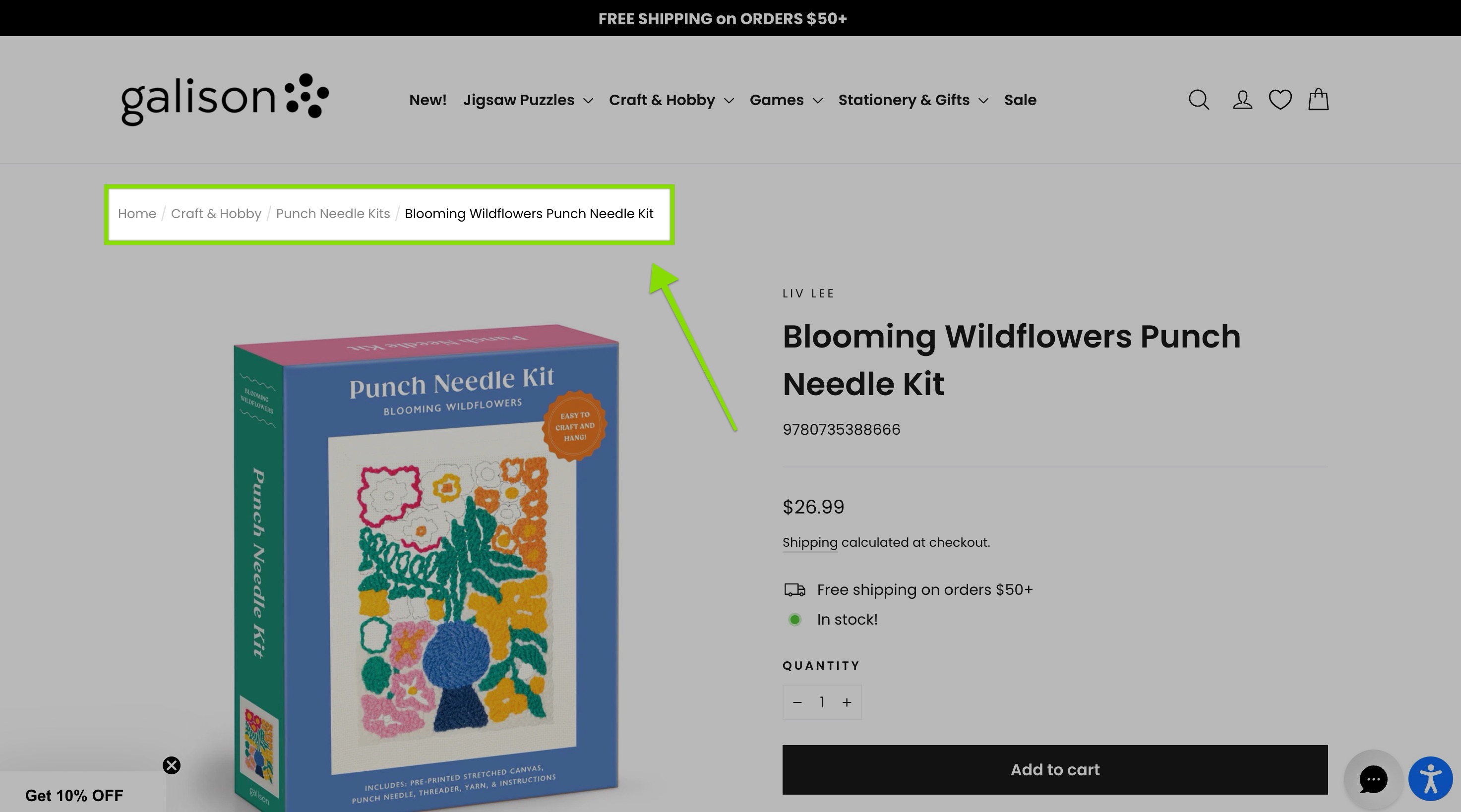
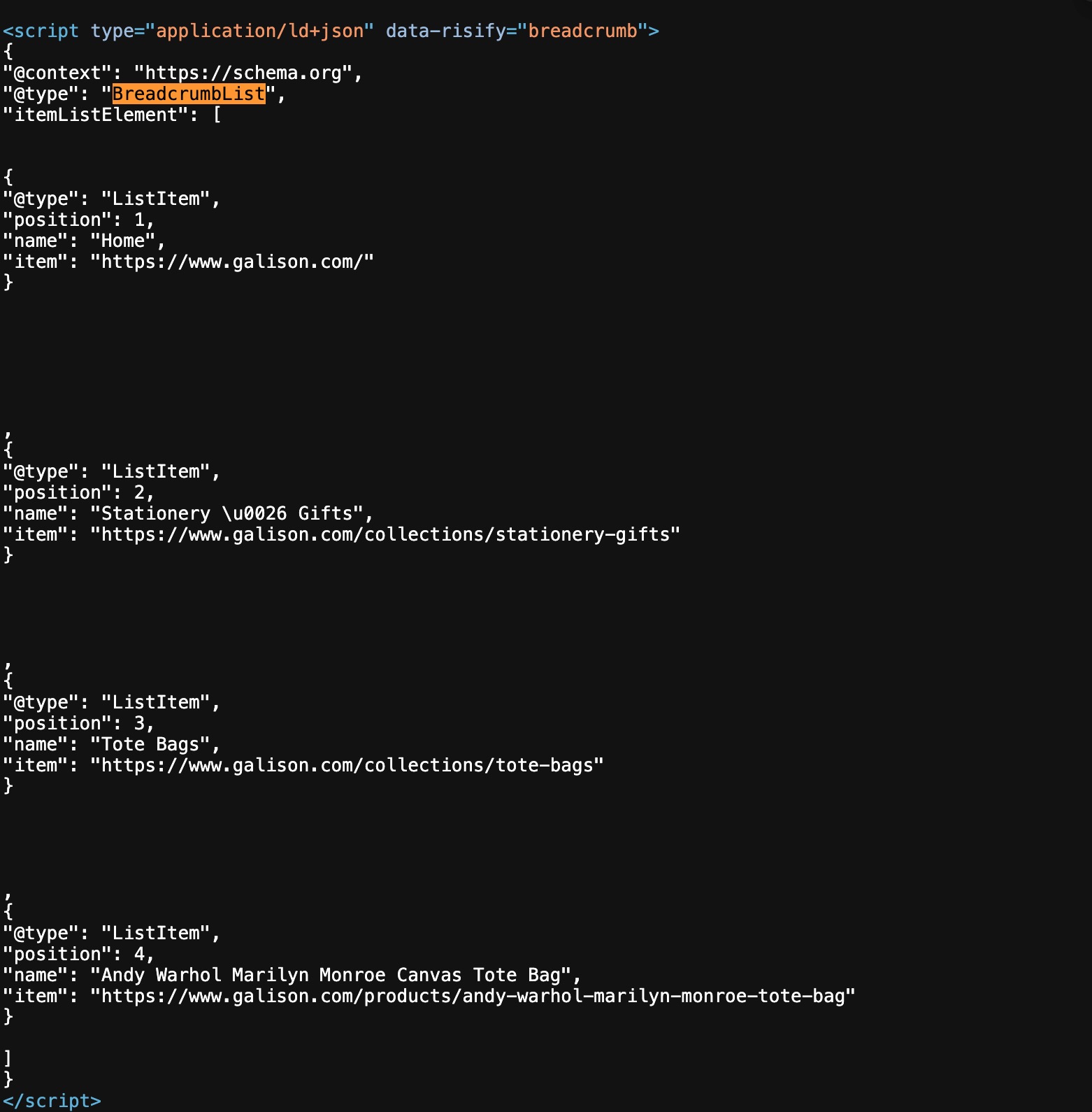
Every product page gets a visible breadcrumb trail that reflects your real catalog hierarchy. At the same time, BreadcrumbList schema is added to the page source with the same path.
AI crawlers landing on a product page now see a structured hierarchy signal: Home > Category > Subcategory > Product. That signal helps them categorize the product accurately when generating recommendations.
Breadcrumbs also generate crawlable internal links. Each level of the breadcrumb is a real HTML link that search engines follow. This improves how quickly and thoroughly your pages get discovered and indexed.
Optimizing Meta Tags
Meta tags need attention at two levels: fixing what’s missing and improving what’s generic.
Finding Missing and Problematic Meta Tags
Open Meta Tags Manager in Risify. The dashboard shows every product and collection in your store with its current meta title and meta description. You can filter to see:
- Products with no meta title or description
- Products with meta tags that are too long (truncated in search results) or too short
- Collections with missing meta (this is extremely common - most stores never write collection-level meta)
Start with collection pages. They’re often completely blank, and they serve as category-level entry points for AI systems answering broad queries.
Writing Meta Tags Manually
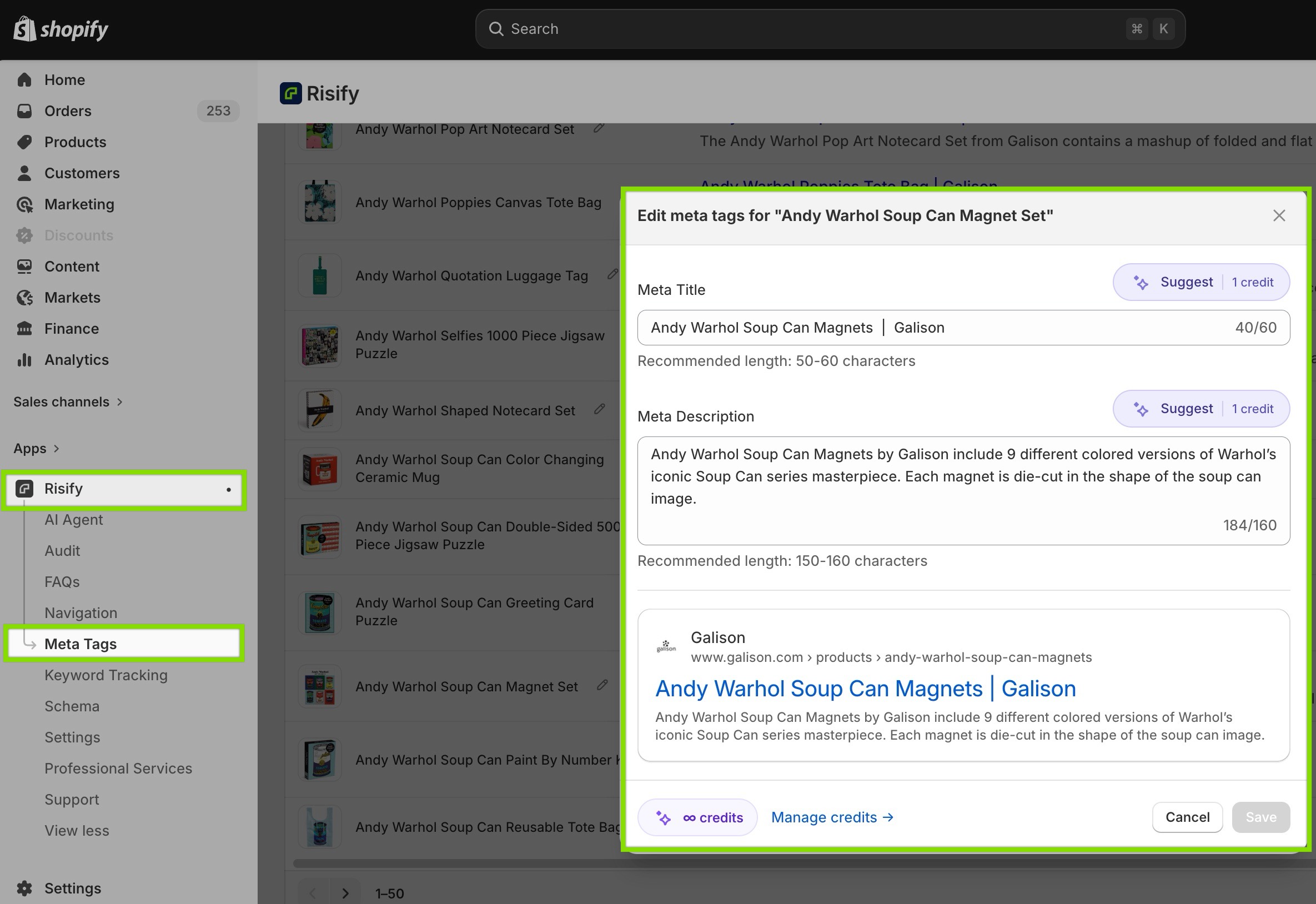
For your highest-priority pages, writing meta tags yourself gives you the most control.
Meta titles should be 50-60 characters, include the product name and key attributes, and end with your brand name. Example: “Waterproof Hiking Boots - Vibram Sole, 200g Insulation | BrandName”
Meta descriptions should be 150-160 characters and include the product’s key selling points, use cases, or differentiators. This is the text AI systems read as a page summary.
The Meta Tags Manager includes a live SERP preview that updates as you type, so you can see exactly how your title and description will appear in Google search results.
Generating Meta Tags in Bulk
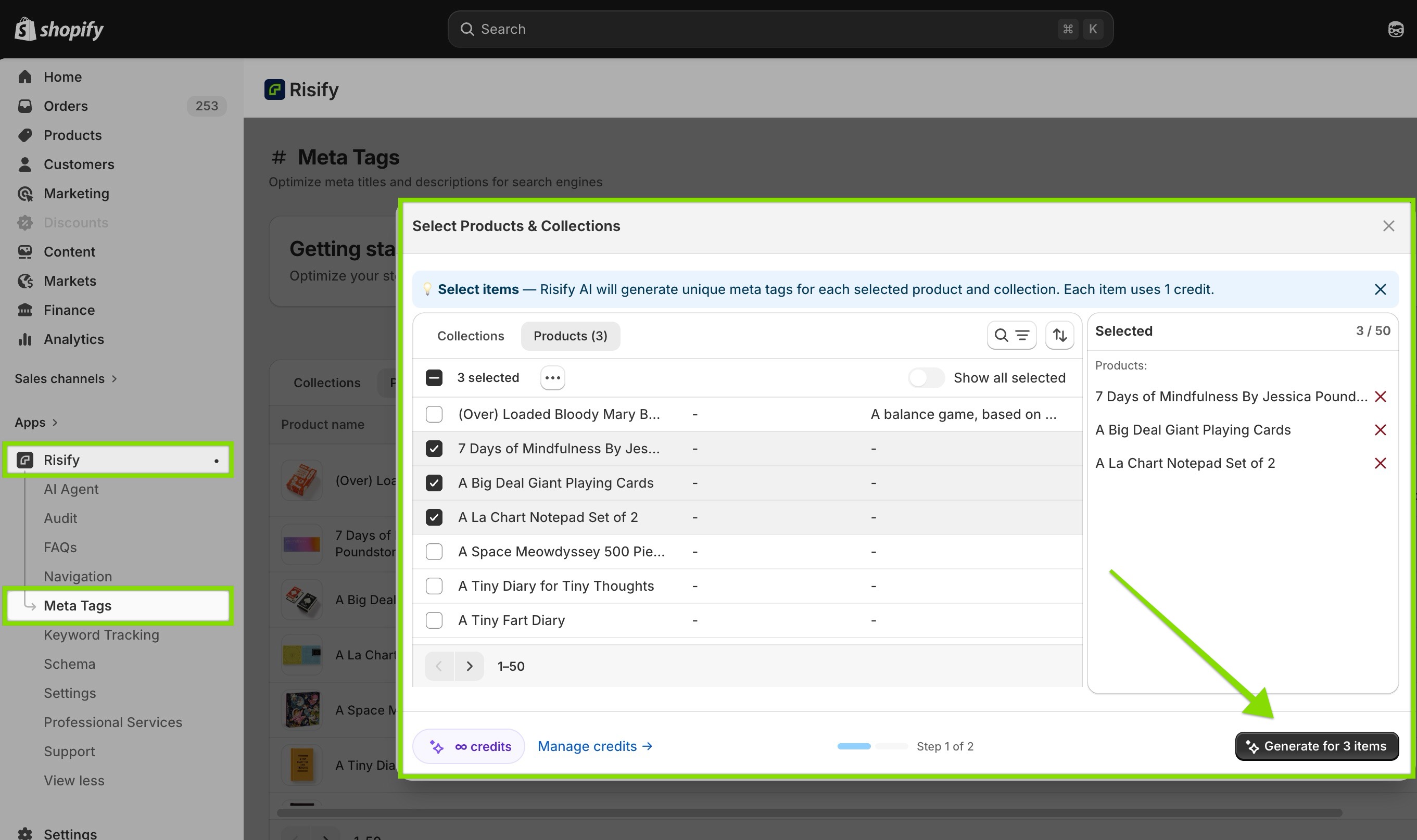
For catalogs with hundreds or thousands of products, use the AI Content Agent to generate meta tags in bulk.
Select the products that need meta tags. The AI reads each product’s title, description, and attributes, then generates an optimized title and description. You review the output, edit where needed, and publish. Changes are saved directly to your Shopify product fields - they work the same way as if you’d typed them manually in Shopify admin.
The Complete Product Page
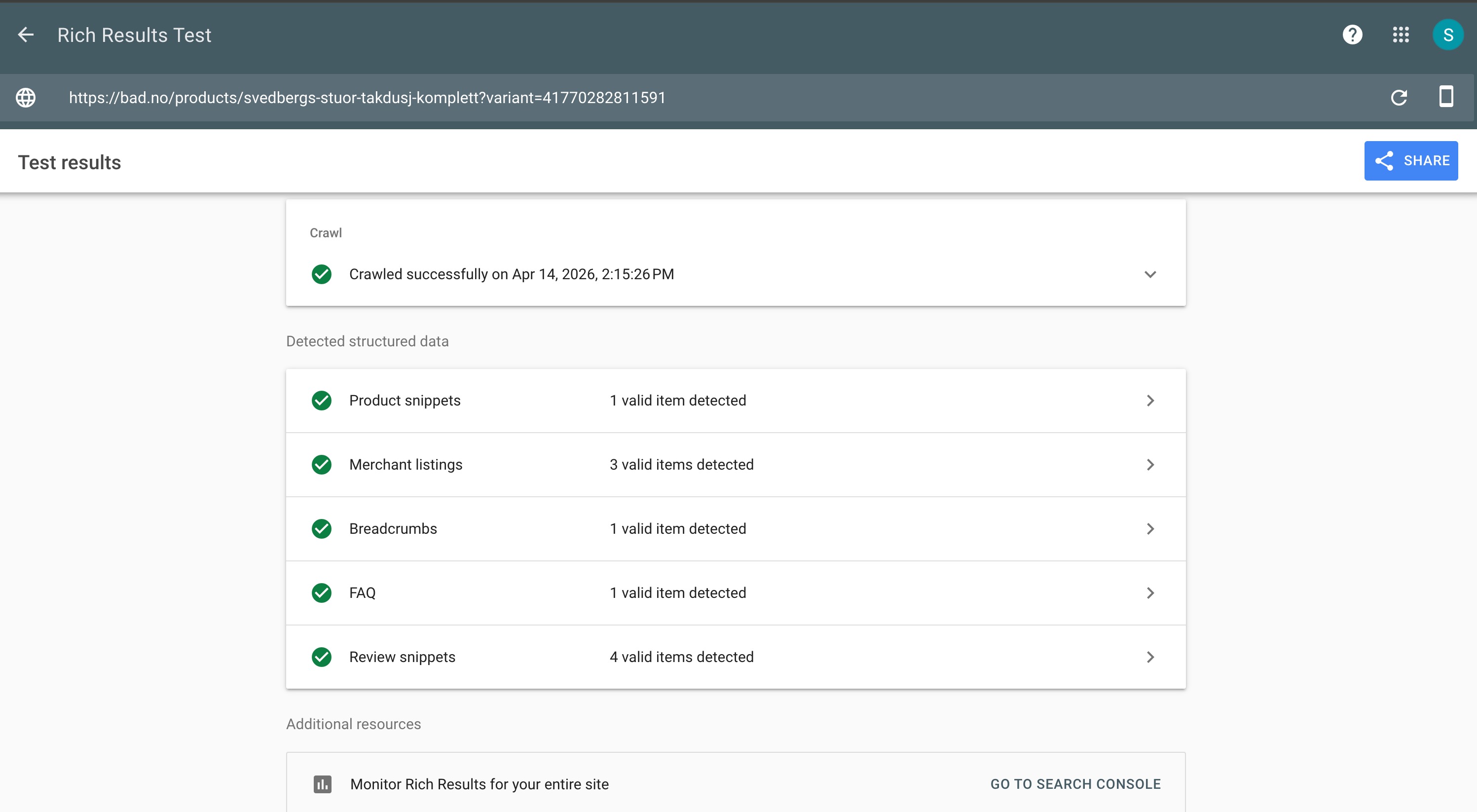
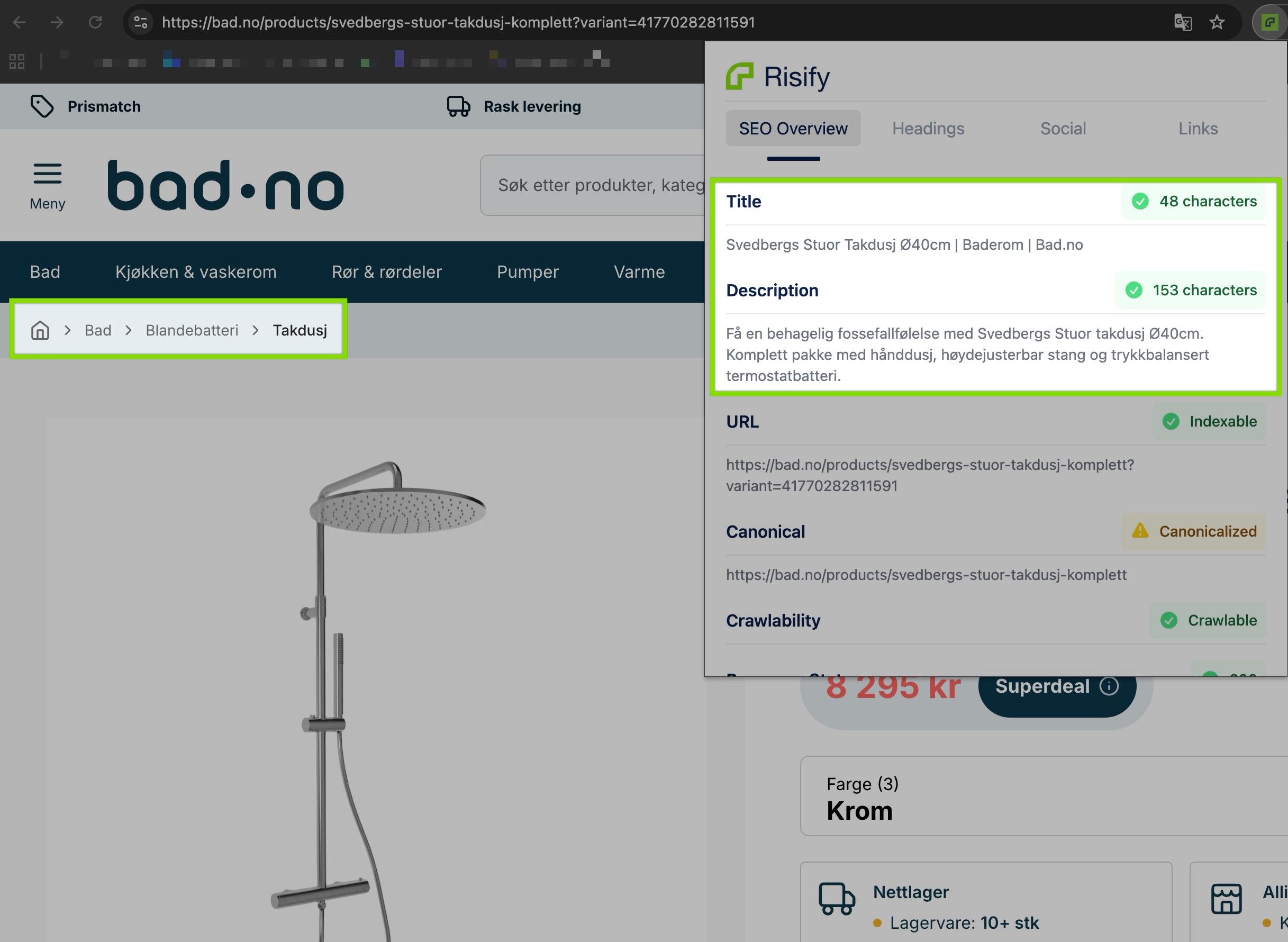
When all the layers from this guide are active on a single product page, here’s what AI crawlers find:
Schema markup - Product schema with price, availability, GTIN, reviews, images, and variants. Organization schema identifying your brand. BreadcrumbList schema showing the product’s position in your catalog. FAQPage schema wrapping the Q&A content on the page.
Meta tags - A specific, keyword-rich meta title and a description that summarizes the product’s key attributes and use cases.
FAQ content - Three to five product-specific Q&A pairs covering pre-purchase questions, comparisons, and use cases. Each pair structured with FAQPage schema.
Breadcrumbs - A fixed hierarchical path (Home > Category > Subcategory > Product Name) that gives AI systems a clear category signal.
Product attributes - GTIN, brand, availability, review count, average rating, multiple images - all populated in Shopify and pulled into the schema.
Compare that to a default Shopify product page: basic Product schema (maybe), flat breadcrumbs, auto-generated meta, no FAQs, missing GTIN and review data. The difference in what AI crawlers can extract is significant.
Every element above can be set up in Risify. Schema activation, FAQ creation, breadcrumb configuration, and meta tag management - all from one app inside your Shopify admin. Install Risify or book a demo to get started.
How do you know if it’s working?
Guide 4 covers exactly that: Measuring and Improving Your AI Visibility - how to verify your schema is valid, track your progress over time, and identify what produces the fastest results.
Summary
Activating all six schema types and running the Troubleshooter is the first and highest-impact step. Building FAQ content - both at product and collection level - gives AI systems pre-formatted answers to extract. Replacing Shopify’s flat breadcrumbs with fixed hierarchical paths provides the category signal AI systems need.
Fixing meta tags across your catalog ensures every page has an accurate summary for crawlers. When all these layers are active on a single product page, AI crawlers find a complete, structured dataset they can use to generate recommendations.

