





Guide 3 walked through the implementation - activating schema, building FAQs, fixing breadcrumbs, and optimizing meta tags. Once those changes are live on your store, the next step is confirming they’re working correctly and tracking their impact over time.
Implementing structured data without verifying it is like publishing a product page without checking if the images loaded. The work might be done, but you won’t know if it’s producing results until you check.
This guide covers how to verify, monitor, and improve your AI visibility after the initial setup.
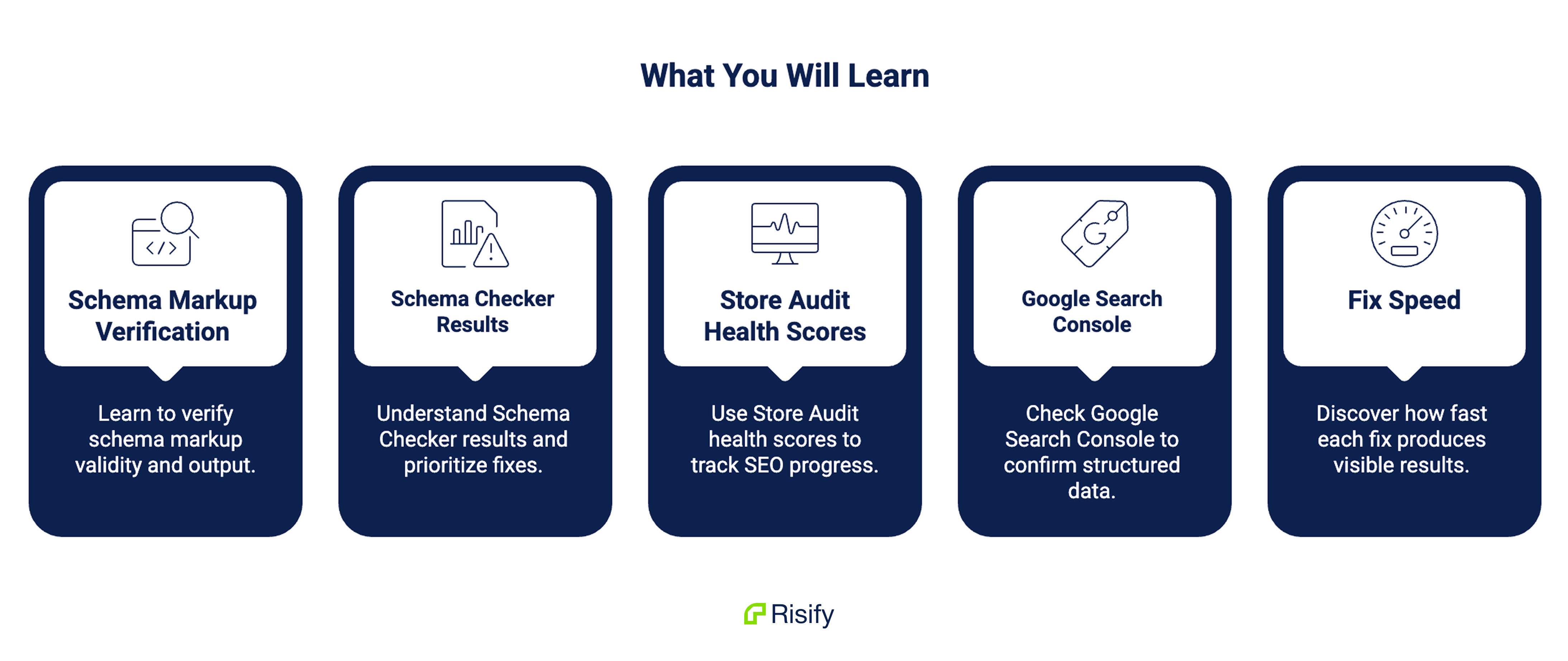
Five things you’ll learn in this guide:
- How to verify that your schema markup is valid and outputting correctly after activation
- How to read Schema Checker results in detail and prioritize what to fix next
- How to use Store Audit health scores to track your store’s SEO progress over time
- What to check in Google Search Console to confirm your structured data is working
- How fast each type of fix produces visible results
Verifying Your Schema After Activation
Activating schema types in Risify is the first step. Verifying they’re live on your actual pages is the second.
Schema can be active in your app dashboard but still fail to appear on the page if there’s a theme conflict, an app block placement issue, or a missing required field in your Shopify product data.
How to verify:
Pick three pages from your store - one product page, one collection page, and your homepage. Use Risify’s Schema Debugger to check each one.
Enable the Schema Debugger toggle in Risify’s Schema settings. This floats a debug widget on your storefront that shows the exact JSON-LD being generated on each page. Visit each page and check three things:
Are the expected schema types present? A product page should show Product, BreadcrumbList, and FAQPage schema (if you’ve published FAQs on that page). Your homepage should show Organization and WebSite schema. If a type you activated in Risify doesn’t appear in the debugger output, something is blocking it.
Are the fields populated correctly? The JSON-LD preview shows every field and its value. Check that price, availability, GTIN, and review data are present in Product schema. Check that Organization schema has your logo URL and business name.
Are there conflicts? If your theme or another app is still injecting its own schema alongside Risify’s, you may see duplicate schema types. As covered in Guide 2, conflicting schema can cause all of it to be ignored.
For external validation, use the Google Rich Results Test link in Risify - it opens Google’s validator pre-filled with your store URL. This confirms your schema meets Google’s specific requirements for rich results.
Run this verification within 24 hours of activating your schema. If everything checks out, you have a clean baseline. If issues appear, fix them before moving on.
Validating with Google’s Rich Results Test
The Schema Debugger shows what Risify is generating. Google’s Rich Results Test shows what Google’s systems actually see and whether they accept it.
Enter any page URL into the test (or use Risify’s built-in link that pre-fills your store URL). The results show:
- Which schema types Google detected on the page
- Whether each type passed or failed validation
- Specific errors or warnings for each field
Common issues the Rich Results Test catches:
- Missing required fields that the JSON-LD preview looked complete for (Google may require fields that schema.org lists as optional)
- Structured data that Google can read but won’t generate rich results for (valid markup that doesn’t meet Google’s additional quality requirements)
- Mismatch between visible page content and schema data
If the Rich Results Test shows errors, cross-reference them with the JSON-LD Preview in Risify’s Schema settings to identify which fields need correction.
Tracking Progress with SEO Audit
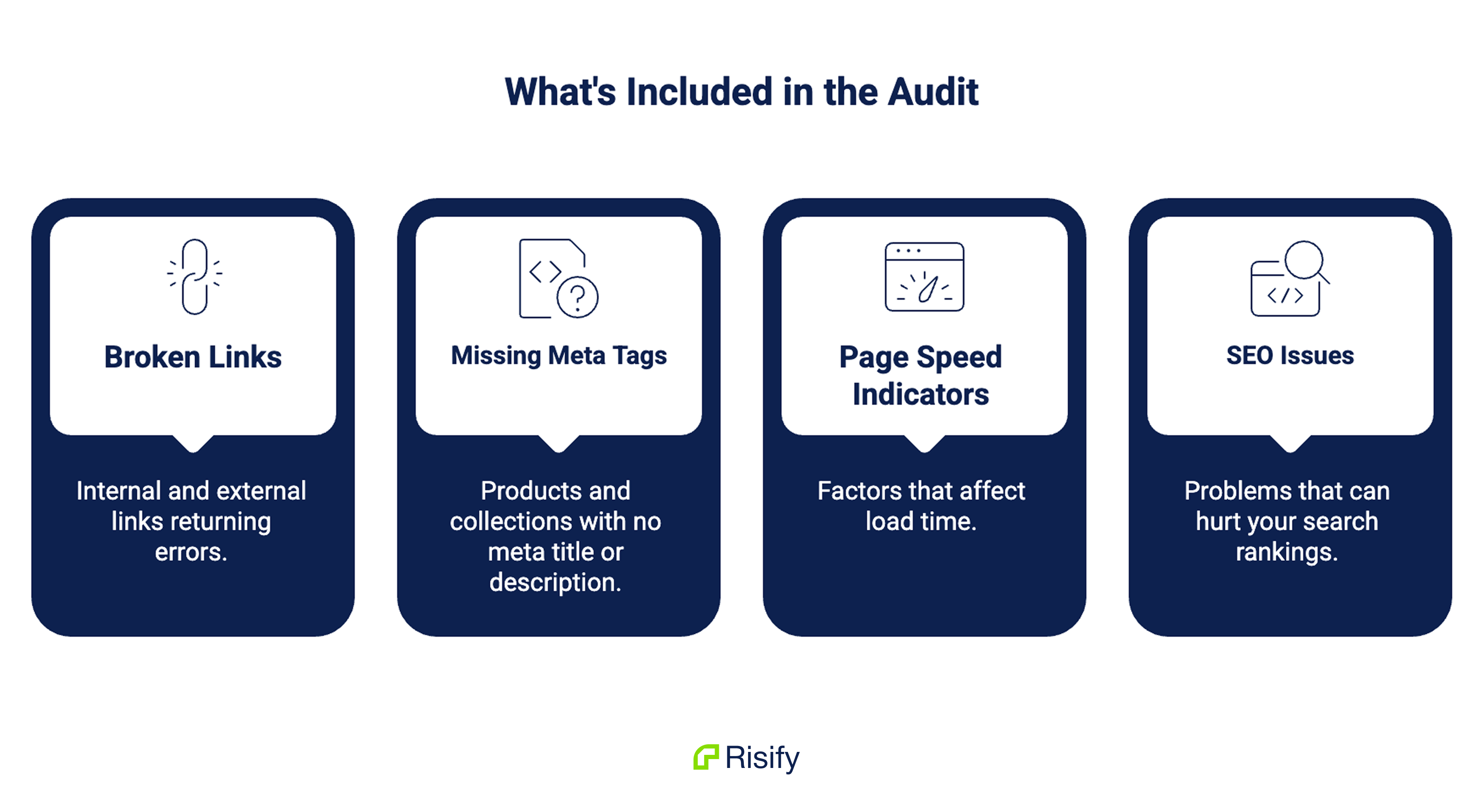
Individual page checks tell you about specific pages. Risify’s SEO Audit gives you a store-wide health score that tracks your overall SEO progress across multiple scans.
Running an Audit
Open SEO Audit in the Risify dashboard and trigger a scan. The audit checks for broken links, missing meta tags, schema errors, page speed issues, and other SEO factors across your store. Each scan produces a health score and a prioritized list of issues.
The health score is a number you can compare across scans. Run your first audit before making changes to establish a baseline. Then run follow-up audits after each round of fixes to see the score improve.
What the Audit Covers
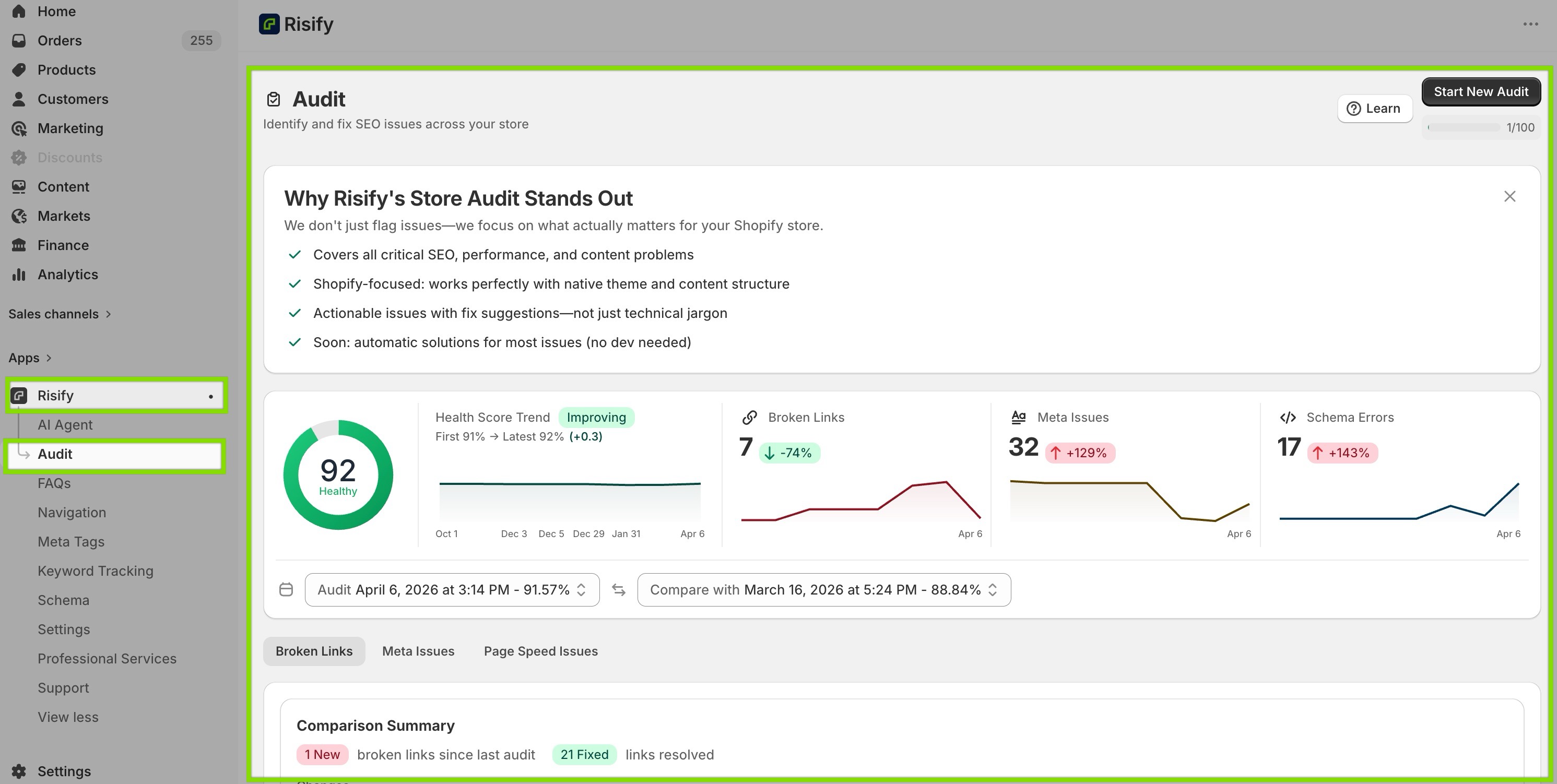
The Store Audit checks areas beyond just schema markup:
- Broken links - internal and external links returning errors, with the source page and destination URL for each one
- Missing meta tags - products and collections with no meta title or description
- Page speed indicators - factors that affect load time
- SEO issues - problems that can hurt your search rankings
Each issue is categorized by severity so you know what to fix first. Critical issues (broken links, missing meta on high-traffic pages) appear at the top.
Setting an Audit Cadence
How often you run audits depends on how actively you’re making changes:
During initial implementation (first 2-4 weeks): run an audit after each major change - after activating schema, after publishing FAQs, after fixing breadcrumbs. This lets you confirm each change improved the score.
During ongoing maintenance (monthly): run one audit per month to catch new issues before they accumulate. New products, theme updates, or app changes can introduce problems you won’t notice without scanning.
After Shopify or app updates: if Shopify releases a platform update or you install/update an app, run an audit to check that nothing broke.
Checking Google Search Console
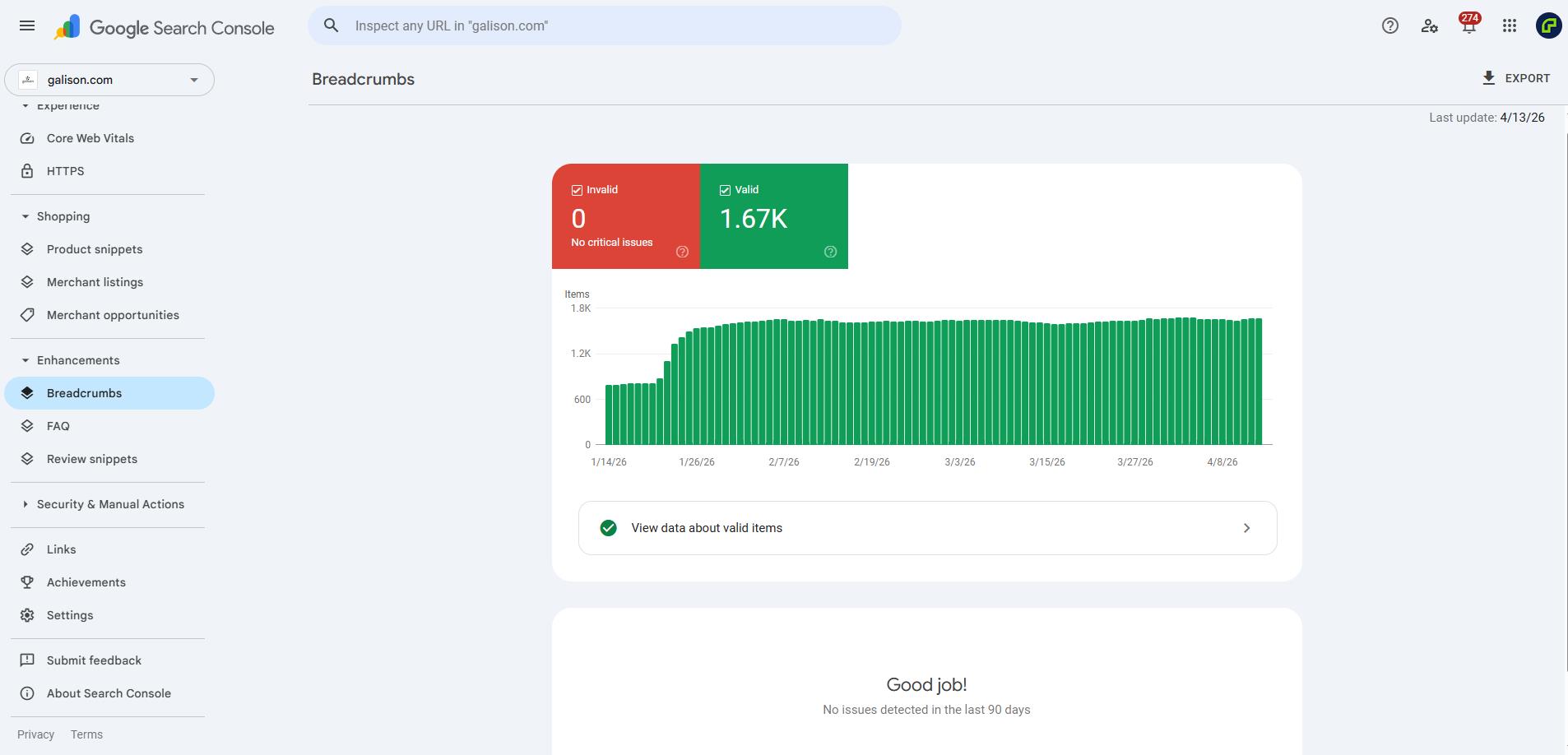
Google Search Console gives you a direct view of how Google’s systems are processing your structured data. It’s a free tool and the most reliable source for confirming your schema is working from Google’s perspective.
Enhancements Reports
In Search Console, go to the Enhancements section in the left sidebar. If your schema is active and valid, you’ll see reports for each type Google has detected:
- Product - shows how many product pages have valid Product schema, and how many have errors or warnings
- FAQ - shows pages with valid FAQPage schema
- Breadcrumbs - shows pages with valid BreadcrumbList schema
- Sitelinks search box - shows if WebSite schema is triggering the search box
Each report shows a graph of valid items over time. After activating schema through Risify, you should see these numbers start climbing within a few days as Google recrawls your pages.
If a report shows errors, click into it. Google lists the specific error type and the affected URLs. Common errors include missing required fields (which you can cross-check against your Schema Checker results) and invalid values.
Performance Report
The Performance tab shows clicks, impressions, and average position for your pages in Google search. Filter by “Search appearance” to see results specifically from rich results - these are the clicks coming from your structured data.
Track this over time. After implementing schema and FAQ content, you should see a gradual increase in rich result impressions as Google processes your new markup.
URL Inspection
For specific pages, use the URL Inspection tool. Enter a product URL and Google shows you exactly what it sees: which schema types it detected, whether they passed validation, and when it last crawled the page.
This is the most granular check available. If a product page isn’t getting rich results despite having valid schema in the Schema Checker, URL Inspection can reveal if Google hasn’t recrawled the page yet or if there’s a separate issue.
How Fast Each Fix Produces Results
You’ve done the implementation in Guide 3 and verified it in the sections above. Here’s what to expect in terms of timeline for each change.
Within Days
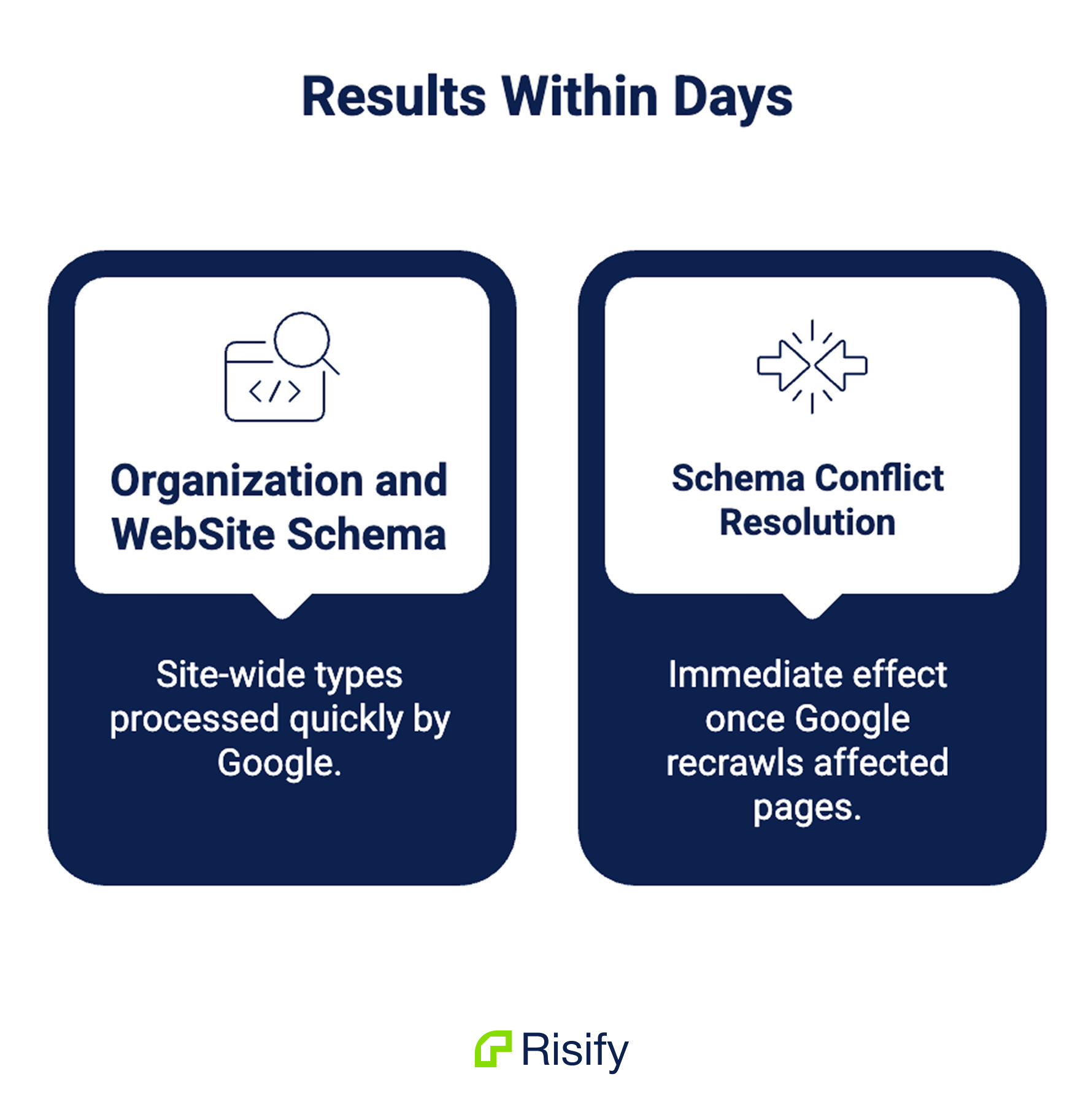
Organization and WebSite schema are site-wide types that Google processes on the next crawl. Since they apply to every page, Google picks them up quickly. You should see them appear in Search Console’s Enhancements reports within a few days.
Schema conflict resolution has an immediate effect once Google recrawls the affected pages. If conflicting markup was causing your schema to be ignored, removing the duplicates lets the valid schema work on the next crawl cycle.
Within 1-2 Weeks
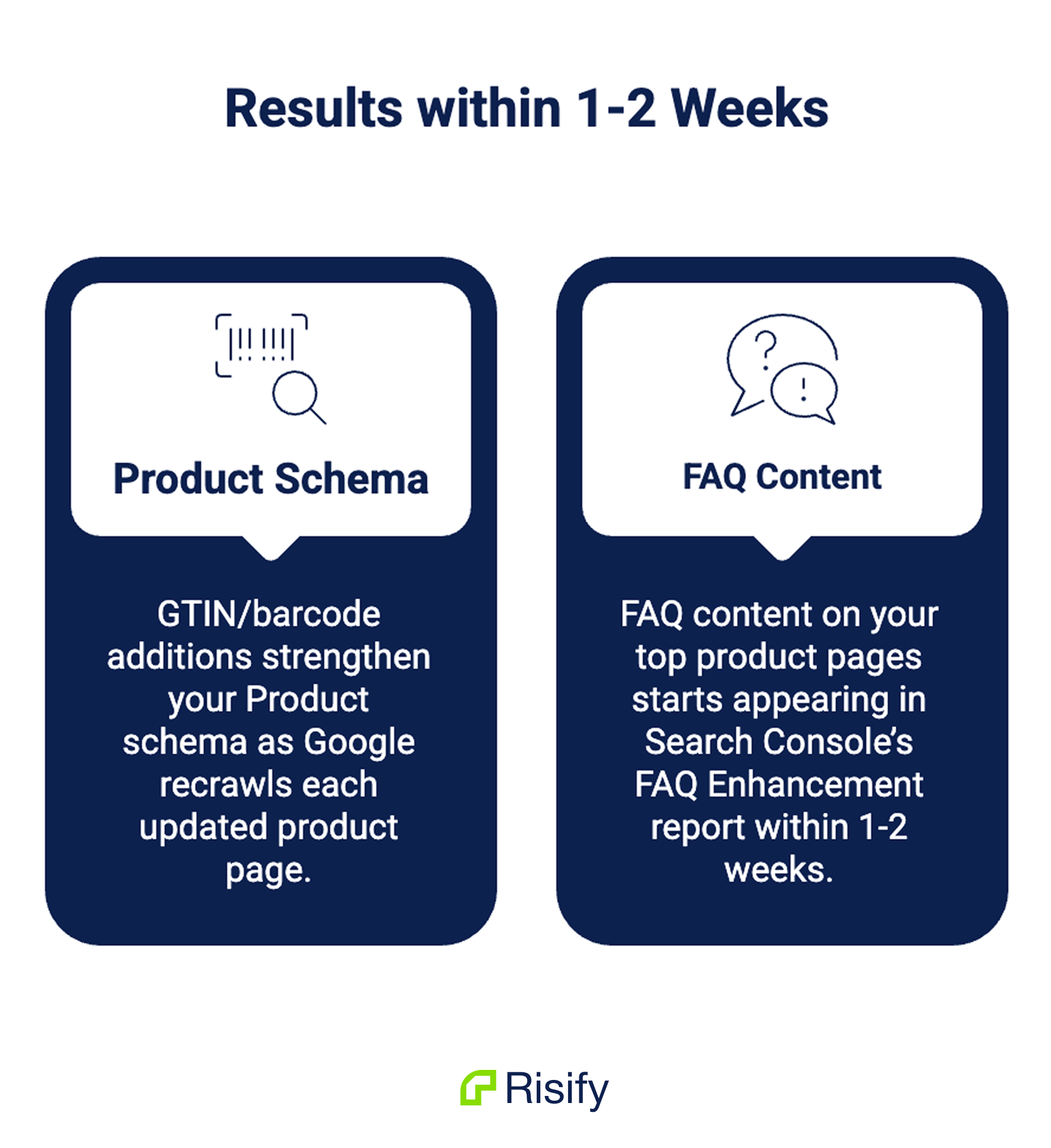
GTIN/barcode additions strengthen your Product schema as Google recrawls each updated product page. High-traffic pages get recrawled first, so start there. You can speed this up by submitting updated URLs through Search Console’s URL Inspection tool.
FAQ content on your top product pages starts appearing in Search Console’s FAQ Enhancement report within 1-2 weeks. The pages that already receive the most crawl attention will have their new FAQPage schema picked up fastest. Pick the 10 products that get the most organic traffic (check Search Console’s Performance report, sorted by clicks) and prioritize those.
Within 1-3 Months
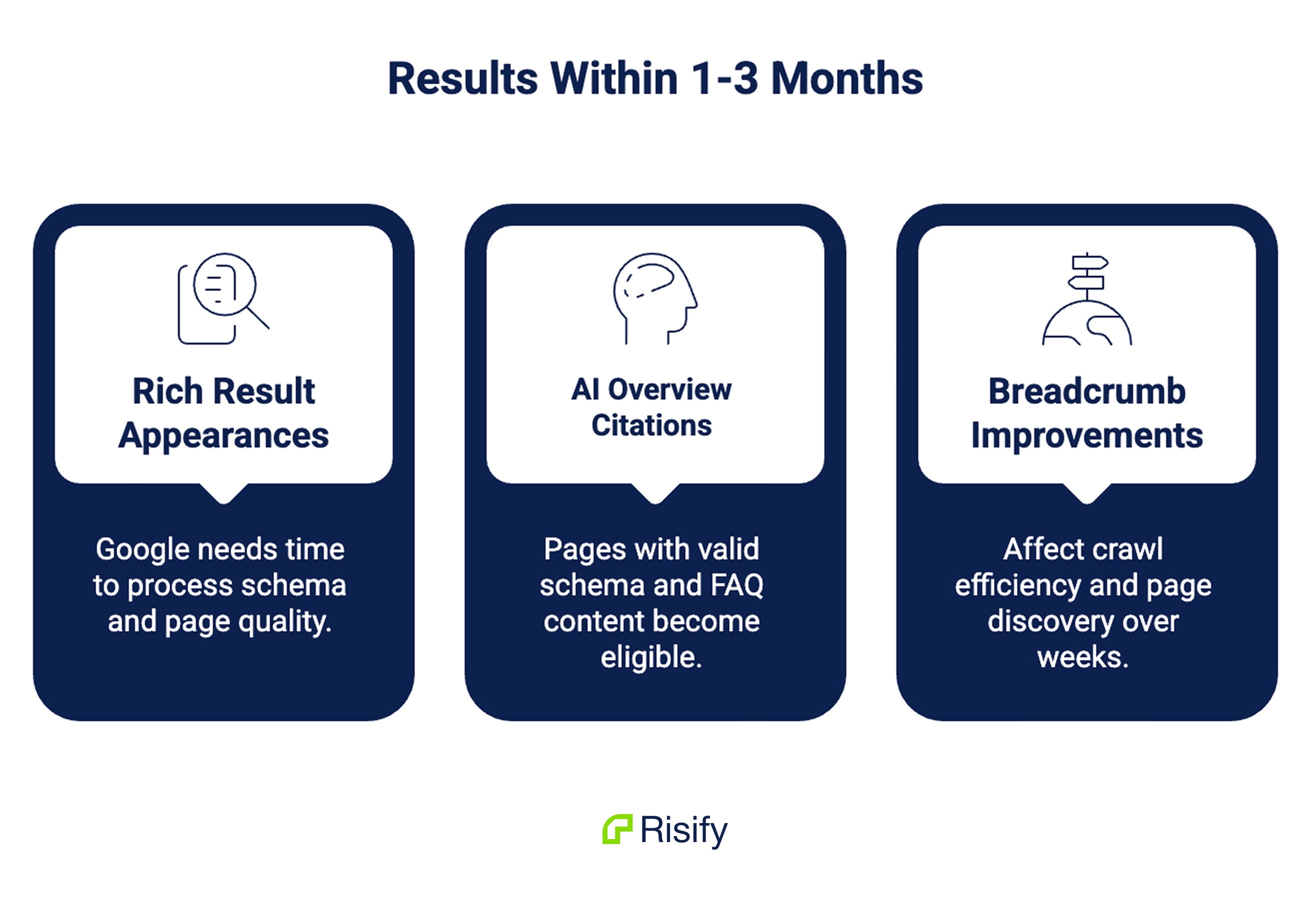
Rich result appearances in Google search take longer because Google needs to process your schema, validate it, and decide to display rich results for your pages. Valid schema is necessary but not sufficient - Google uses page quality signals alongside markup to determine rich result eligibility.
AI Overview citations follow a similar timeline. Pages with valid schema and strong FAQ content become eligible for AI Overview inclusion as Google’s systems process the new markup. The BrightEdge data from Guide 1 showed that AI Overviews pull from a wide pool - pages outside the traditional top 10 can get cited if their structured data is strong.
Breadcrumb improvements affect crawl efficiency and page discovery over weeks as search engines follow the new internal links. The impact compounds as more pages get discovered and indexed through the improved link structure.
Ongoing
Meta tag improvements affect click-through rates gradually as Google re-indexes pages with new titles and descriptions. Since meta tags influence which queries your pages appear for, changes in impressions and clicks may take weeks to stabilize.
AI tool visibility (ChatGPT, Perplexity, Gemini) doesn’t have a predictable timeline because these systems recrawl at their own pace and don’t provide transparency into their processes. The structured data you’ve implemented is available to them whenever they next visit your pages.
Building a Long-Term Monitoring Routine
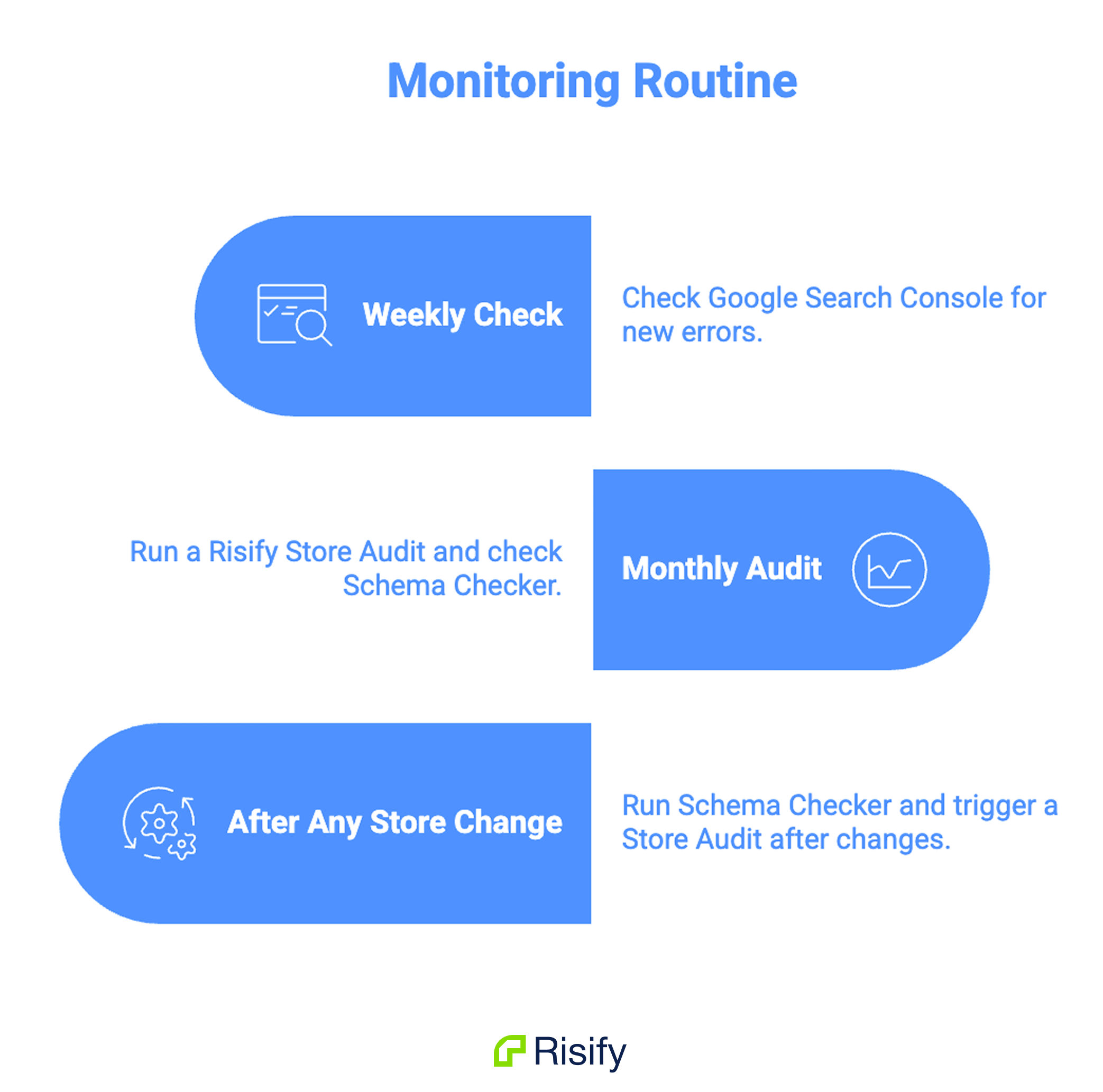
The fixes from this guidebook are a foundation, not a one-time project. Your store changes over time - new products, updated collections, theme modifications, app updates - and each change can affect your structured data.
A practical monitoring routine:
Weekly (5 minutes): Check Google Search Console for new errors in the Enhancements reports. If new errors appear, investigate and fix before they affect more pages.
Monthly (30 minutes): Run a Risify Store Audit. Compare the health score to the previous month. Check the Schema Checker on 5-10 product pages to spot any new issues. Review your meta tag coverage for new products you’ve added.
After any store change: If you add a new collection, install or update an app, change your theme, or do a major product data update, run the Schema Checker on a few affected pages and trigger a Store Audit to catch anything that broke.
Risify keeps your structured data current as your store grows. Schema stays active across new products automatically. The Store Audit catches issues before they accumulate. The Schema Checker at risify.net is free to use anytime. Install Risify or book a demo to set up your store’s AI visibility foundation.
What Comes Next
This is the final guide in the AI Visibility for Shopify guidebook. Over the four guides, we covered how AI shopping tools work, what data they need from your store and where Shopify falls short, how to fix those gaps, and how to measure your progress.
If you want to go deeper on specific topics covered in this guidebook, the next guidebooks in this series will help:
- Schema Markup for Shopify - a detailed guide to each schema type, implementation specifics, rich results, and troubleshooting at a granular level
- Store Structure and Navigation for Shopify - breadcrumbs, internal linking, collection hierarchy, and navigation patterns for stores of all sizes
- SEO Content for Shopify - FAQ strategy, meta tag management, AI content generation, and content management across large catalogs
Each guidebook builds on the foundation from this one and goes deeper into a specific area.
Summary
After implementing structured data, verify it’s working by running your key pages through the Schema Checker at risify.net. Check for correct schema types, validation errors, and conflicts. Use Risify’s Store Audit to track your store-wide health score across multiple scans.
Confirm your markup with Google Search Console’s Enhancements reports. Organization/WebSite schema and conflict resolution show results within days. GTIN additions and FAQ content on top pages take 1-2 weeks. Rich results and AI Overview citations develop over 1-3 months.
Build a monitoring routine - weekly Search Console checks, monthly audits, and verification after any store change.

