




Most Shopify stores look navigable from the homepage.
The gaps show up two clicks later: a product page whose breadcrumb skips the collection, a collection page that ends at the product grid, a product with no visible answers to the questions a shopper asks before buying.
Shoppers feel these gaps as friction. Search engines and AI tools read them as missing context.
The Shopify Navigation & Page Checker is a free tool that reads a sample of your store and reports on six areas: breadcrumbs, collection structure, product-page dead ends, collection-page dead ends, collection content and FAQ coverage.
This post explains what each area means, why it matters for shoppers, search and AI, and how to fix what fails.
Why use a checker instead of clicking through your store?
Because the gaps don’t show from where you sit.
You know your catalog, so you reach every page by habit. A shopper arriving from Google on a /products/ URL doesn’t, and neither does a crawler. The checker reads your store the way they do: it starts at the homepage, follows links, and reports what it could and couldn’t reach.
Three things make the gaps hard to find by hand:
- Shopify’s admin shows no navigation issues. Products and collections look fine in the admin whether or not they link to anything. There’s no field for “this product has no way onward.”
- The URL hides the problem. Most themes show a full breadcrumb when you click through a collection and a flat one on the canonical /products/ URL. You only see the broken version if you test the URL Google indexes.
- Most SEO audit tools don’t check this. They flag broken links, missing meta tags and slow pages. They don’t tell you whether a collection page ends at the grid or whether a product page answers a single shopper question.
The report gives you four things you don’t get from a manual look: a score you can re-run after changes, findings labelled by severity so you know what to fix first, the exact URLs affected so you can verify each one yourself, and two fix paths per finding, one for your theme and one with Risify.
It takes a minute, it’s free, and it asks for no email.
What does the Shopify Navigation & Page Checker check?
It runs 16 checks across six areas on up to 15 pages: your homepage, up to 7 collection pages and up to 7 product pages.
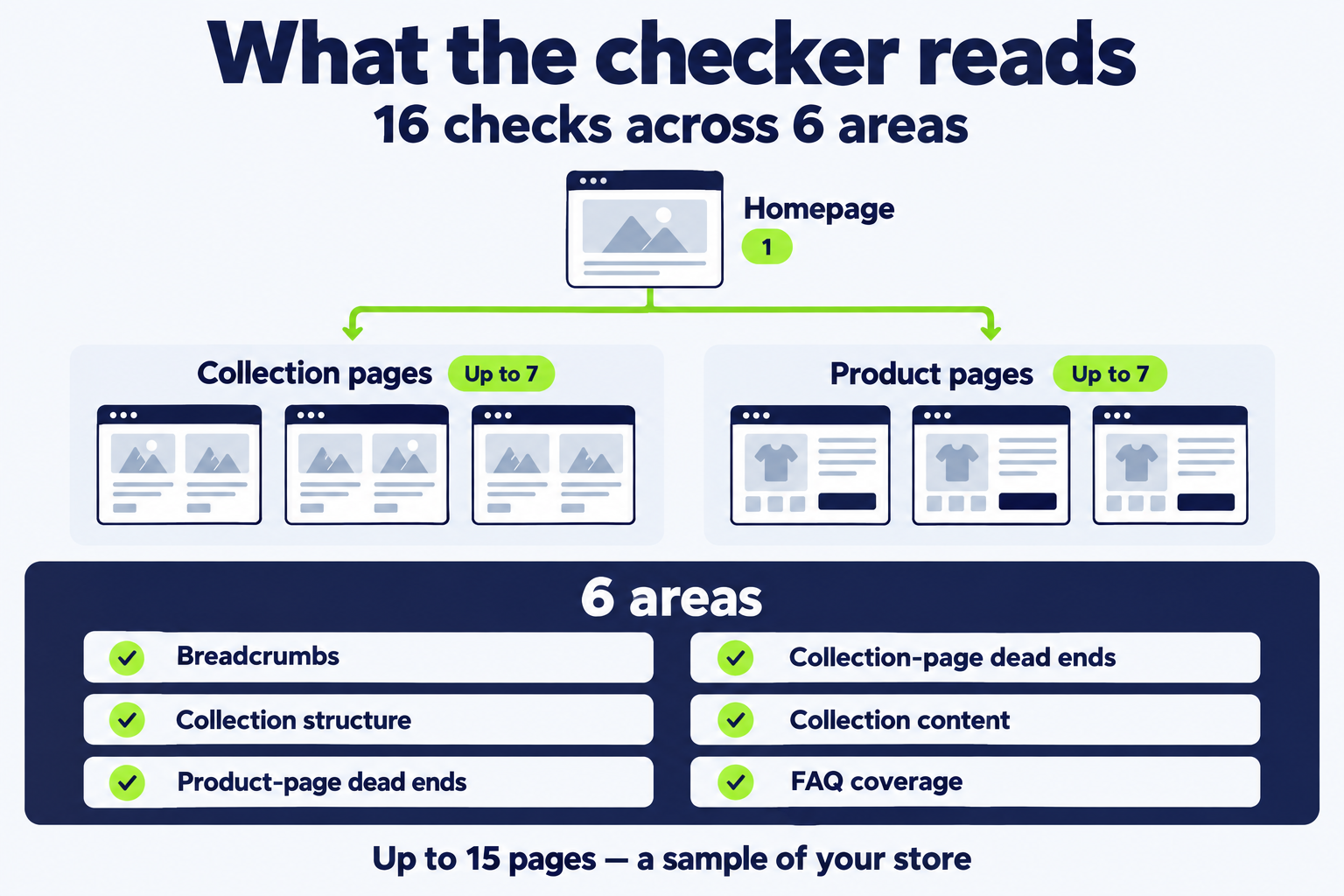
The crawl starts at your homepage, follows links up to three levels deep, and adds pages from your sitemap when links don’t reach enough of them. The result is a score out of 100 and a prioritised list of what to fix.
The score has two parts. 60 points come from coverage: each check earns points for the share of sampled pages that pass. 40 points come from quality: how well the features you do have are built. Each failed check carries one of three labels:
- Critical: a way through your catalog is missing. Shoppers who land on these pages can’t reach the rest.
- Warning: the path exists but is weak or inconsistent, so some shoppers and crawlers won’t follow it.
- Suggestion: not a gap, but it would help shoppers discover more. Suggestions don’t count toward the projected score.
Every finding lists the affected pages, explains why it matters, and gives two fix paths: one with Risify and one done manually in your theme. The report is just as useful either way.
What the tool doesn’t judge
The checker samples 15 pages, so a page it didn’t read isn’t in the report. It doesn’t rate your design, your copy or your prices. For FAQs, it checks whether questions and answers are visible on the page, not whether the answers are good. It’s free, needs no email, and counts toward the same daily limit as the other Risify Tools. If a store was audited in the last 24 hours, you’ll see that report instead.
Breadcrumbs: do your pages show a linked trail back through the catalog?
Breadcrumbs should show a consistent, linked path from Home through a collection to the product on every product and collection page, including when a shopper lands directly on the /products/ URL. If the trail reads Home › Product with no collection in between, the page is cut off from its category.
This is the most common critical finding, and it has a specific cause on Shopify. Many themes build the breadcrumb from the URL. Open a product at /collections/sofas/products/corner-sofa and the trail shows the collection. Open the same product at /products/corner-sofa, which is the URL Shopify marks as canonical and the one Google indexes, and the collection disappears.
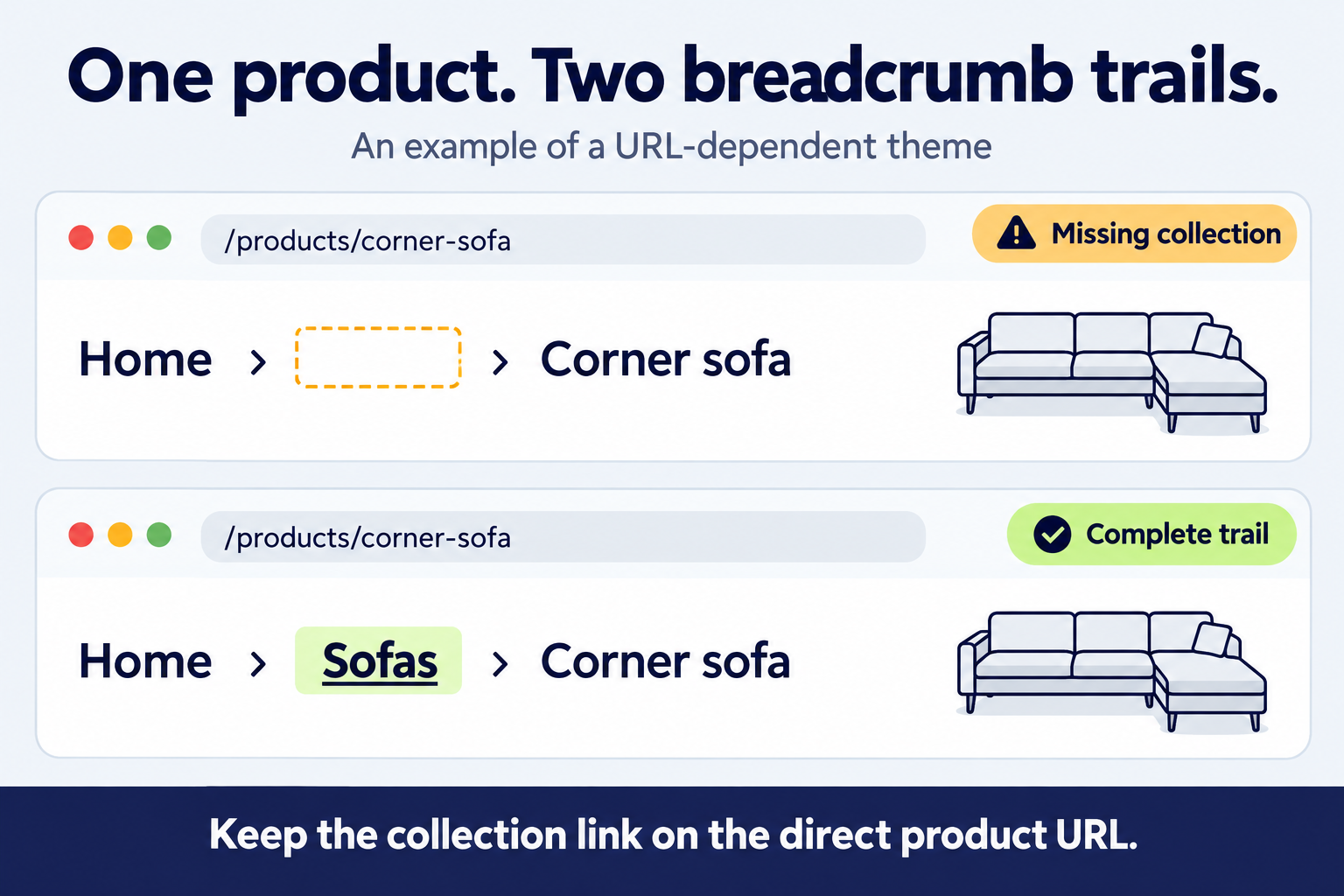
Why it matters: a shopper on a flat breadcrumb has no step back to the product’s collection. Search engines and AI crawlers get less context about which category the product belongs to, which weakens how the page is understood within your catalog. Google uses BreadcrumbList structured data to read a page’s position in your site hierarchy, and that markup is only as good as the visible trail it describes.
How to fix it manually:
- Compare the two product URLs. If only the /collections/ version shows the collection, your theme builds the trail from the URL.
- Add a collection fallback. In Online Store > Themes > Edit code, open the breadcrumb snippet and use the product’s first collection when the URL has none. Place it between the Home link and the product title.
- Put every product in a collection. A product in no collection can only ever show Home › Product.
Common mistakes: checking the trail only after clicking through a collection, adding the collection as plain text rather than a link, and linking the level to /collections/all, which isn’t a category.
With Risify: set each product’s breadcrumb path in the Navigation tab, so its trail links through a collection at its /products/ address too, with matching BreadcrumbList schema. Setup guide: Risify Breadcrumbs.
Collection structure: does your homepage link to collections, and do collections link to each other?
Collection structure passes when your homepage links to your collections and each collection page links to at least one other collection from its own content. Links in the header, footer and menus don’t count for the second check, because every page shares them and they say nothing about how collections relate.
Why it matters: the homepage is where most crawls and many shopper visits begin. If collections are only reachable through the menu, or only through pagination, deep parts of the catalog become hard to reach. Collection-to-collection links in page content tell shoppers and crawlers which categories sit next to each other.
How to fix it manually: add a Collection list section to your homepage with your main collections. On collection templates, add a Collection list or Rich text section that links to related collections. The links need to be real HTML links in the page body, not in a drawer or menu.
With Risify: the Similar (Collection Menu) block shows linked tiles of related collections on each collection page, configured per collection in the admin and placed through the Theme Editor. Setup guide: Risify Similar.
Product-page dead ends: can a shopper keep browsing from a product?
A product page passes when it links on to collections and related searches. The checker looks for at least three links to collections or collection views (such as tag pages) from the page content or breadcrumb, or a related-searches block. The built-in All products, vendor and type listings don’t count.
Why it matters: a shopper who lands on a product from search and decides it isn’t quite right has two options on a dead-end page: the back button or leaving. Search engines and AI crawlers also find fewer paths from your product pages into related parts of your catalog.
How to fix it manually:
- Add a Collection list section to your product template with at least three related collections.
- Or add a Custom Liquid block that lists the collections each product belongs to. This only reaches three links for products in three or more collections.
- For stores with distinct product types, create an alternate product template per type with its own related collections.
Common mistakes: counting All products or vendor pages as related collections, linking one collection several times with sort or page parameters, and putting the related links in the footer or a menu drawer.
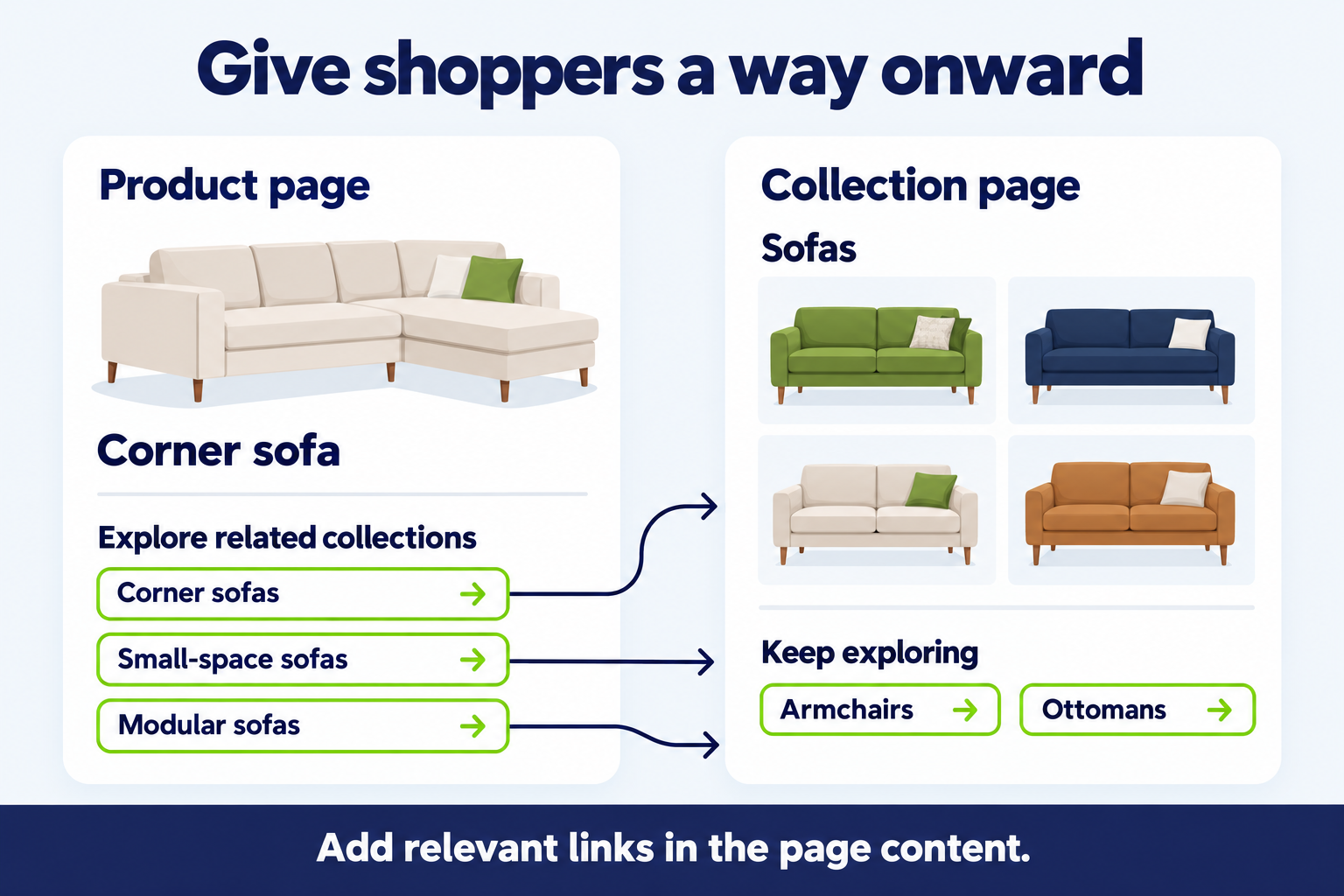
With Risify: add the Discover and Similar blocks to your product template and choose each product’s related searches and similar collections. Each one is a crawlable link. Setup guide: Risify Discover.
Collection-page dead ends: does the collection offer a way onward beyond the grid?
A collection page passes when it links to related collections from its own content and offers at least one way to keep browsing beyond the product grid. A collection page that is a heading, a grid and a footer is a dead end for anyone who scrolled through without finding a match.
Why it matters: collection pages rank for research-phase queries. The shopper who arrives is still deciding, not buying. A row of related collections above or below the grid gives them a sideways move instead of an exit.
How to fix it manually: add a Collection list section to your collection template, or a text block with links to neighbouring collections. Many stores place it right under the hero so visitors see their options before scrolling; others put it below the grid to catch shoppers who reached the end.
With Risify: Discover adds a row of clickable related searches to collection pages. Similar adds a visual menu of sibling collections. Both are configured per collection and can be generated with the AI Generator at scale.
Collection content: do your collection pages describe what they hold?
The check passes when each collection page has a description of more than 100 words. A collection with a title and a grid gives search engines and AI systems almost nothing to work with beyond the product names.
Why it matters: collection pages are the pages most likely to be cited for category-level questions such as “what’s the difference between X and Y” or “how do I choose.” A description that explains what the collection contains, who it’s for and how the options differ gives those systems something to extract.
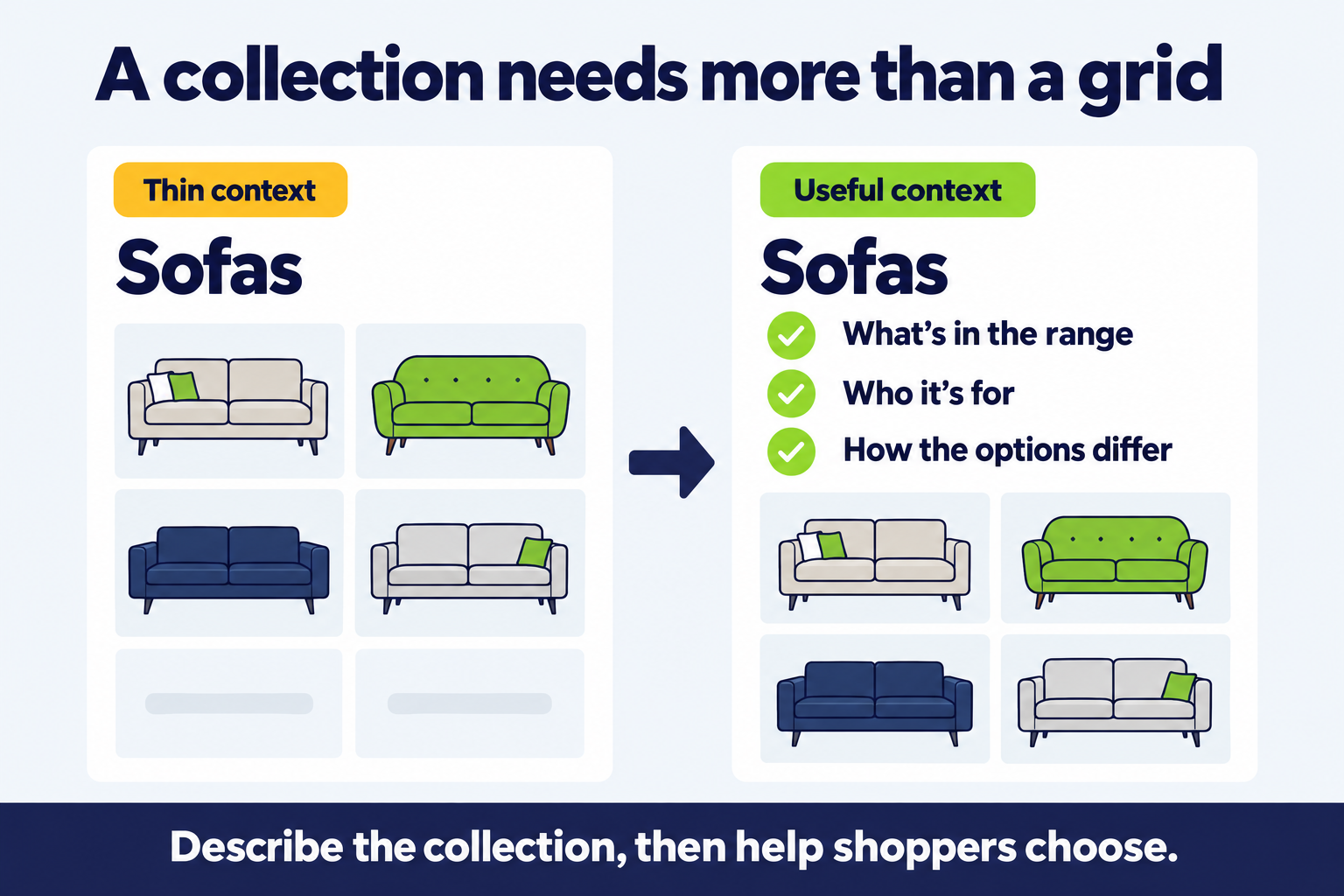
How to fix it manually: write the description in Shopify under Products > Collections. Aim for a few paragraphs that describe the range, the use cases and the differences between options, rather than a single line of keywords. On most themes the description can be placed above or below the grid through the Theme Editor.
With Risify: the Catalogue workspace shows which collections have thin or missing descriptions, and the AI Content Agent can draft descriptions in a consistent structure across many collections for you to review and edit.
FAQ coverage: do your product and collection pages answer shoppers’ questions on the page?
The check looks for a visible FAQ on product and collection pages: questions phrased as questions, with answers, present in the page content. FAQ structured data on its own doesn’t count, because FAQPage schema with no visible questions is markup for content that isn’t there.
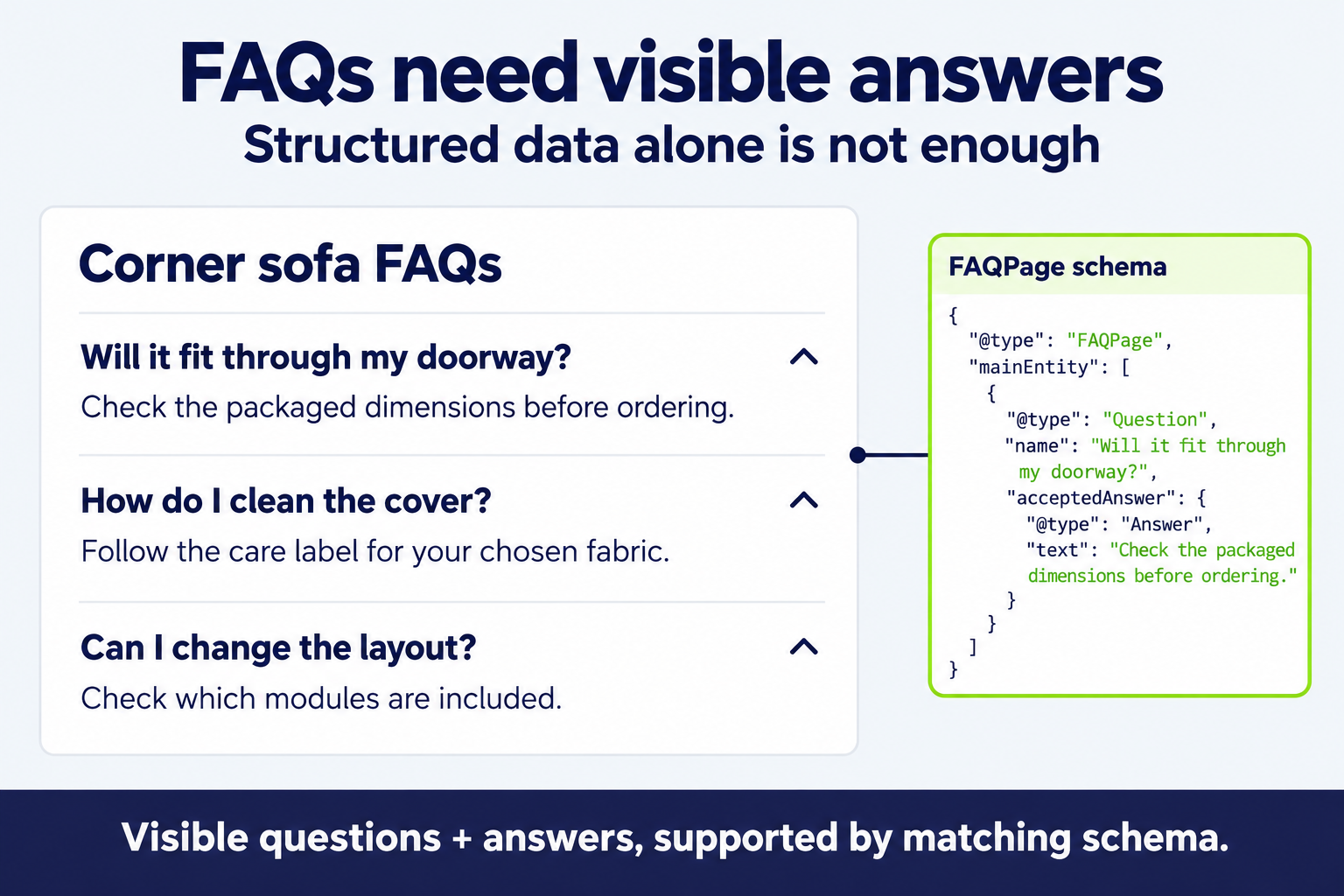
Why FAQs matter: AI assistants such as ChatGPT, Perplexity and Google’s AI Mode build answers from question-and-answer pairs they can extract. A product page that states its sizing, materials, compatibility and return terms as explicit Q&A gives those systems a clean source to cite. Collection pages carry the category-level questions: “which is right for a small apartment,” “what’s the difference between these two types.” Google limited FAQ rich results in 2023 and stopped showing them altogether in May 2026, but it says it still reads FAQPage structured data to understand pages. The dropdown in Google results is gone; the question-and-answer content on the page is what search engines and AI surfaces now draw on.
How to fix it manually:
- Choose the questions. List what shoppers ask before buying each product type: fit, materials, care, compatibility. Phrase each one as a question.
- Store answers per product. In Settings > Metafields and metaobjects > Products, add a Rich text metafield for each answer and fill it in per product.
- Add FAQ rows to the template. In the Theme Editor, add a Collapsible content section headed Frequently asked questions, type each question as a row heading, and connect each row’s content to its metafield.
Common mistakes: titling accordion rows “Shipping” or “Materials” instead of phrasing them as questions, adding FAQPage schema without showing the questions on the page, and showing only store-wide shipping and returns questions with nothing about the product itself.
With Risify: create FAQs once in a central library, assign them to any products, collections or pages, and display them on the page with matching FAQPage schema. The visible content and the structured data come from the same source, so they can’t drift apart. Setup guide: Risify FAQs.
How to use the results
Run the checker, then work through the findings in the order the report lists them: critical first, then warnings, then suggestions.
Within each, start with the check that affects the most pages. The report names the affected URLs, so you can open one, confirm the finding yourself, and apply the fix to the template rather than page by page.
Re-run after you’ve made changes. If a store was checked in the last 24 hours you’ll see the existing report, so wait a day or use the Re-analyze option on the report page.
Run the Shopify Navigation & Page Checker
Frequently asked questions
What does the Navigation & Page Checker look at?
It runs 16 checks in six areas: breadcrumbs, collection structure, product-page dead ends, collection-page dead ends, collection content and FAQ coverage. Together they show whether shoppers can follow a path from your homepage to a product and back, and whether the pages it reads offer a next step.
How many pages does it look at?
Up to 15: your homepage and up to 7 product and 7 collection pages. The crawl follows links from your homepage, up to three levels deep, and adds pages from your sitemap when links don’t reach enough of them. The results describe that sample, not every page in your store.
What doesn’t it judge?
It doesn’t rate your design, your copy or your prices. For FAQs, it checks whether questions and answers are on the page, not whether the answers are good.
Is it free, and do I need an email?
It’s free, and you don’t need to enter an email. It counts toward the same daily limit as the other Risify Tools. If the store was audited in the last 24 hours, you’ll see that report instead, and it doesn’t count toward your limit.
How does this relate to Risify?
Risify is a Shopify app that builds the structure this checker looks for: hierarchical breadcrumbs, collection menus, related searches, similar-product blocks and a central FAQ manager, all with matching structured data. Each finding in the report names the Risify feature that fixes it, so you can see the path from problem to fix. You can also fix everything in your theme by hand; the report is just as useful either way.