




If your Shopify store has reviews but no star ratings show up under your product listings in Google, the reviews themselves aren’t usually the problem. The issue is almost always in how that review data reaches Google: whether it’s in a format Google can read, whether it’s there at crawl time, and whether other markup on the same page is getting in the way.
This piece walks through the five most common causes, how to identify which one is yours, and what an actual fix looks like.
Key takeaways
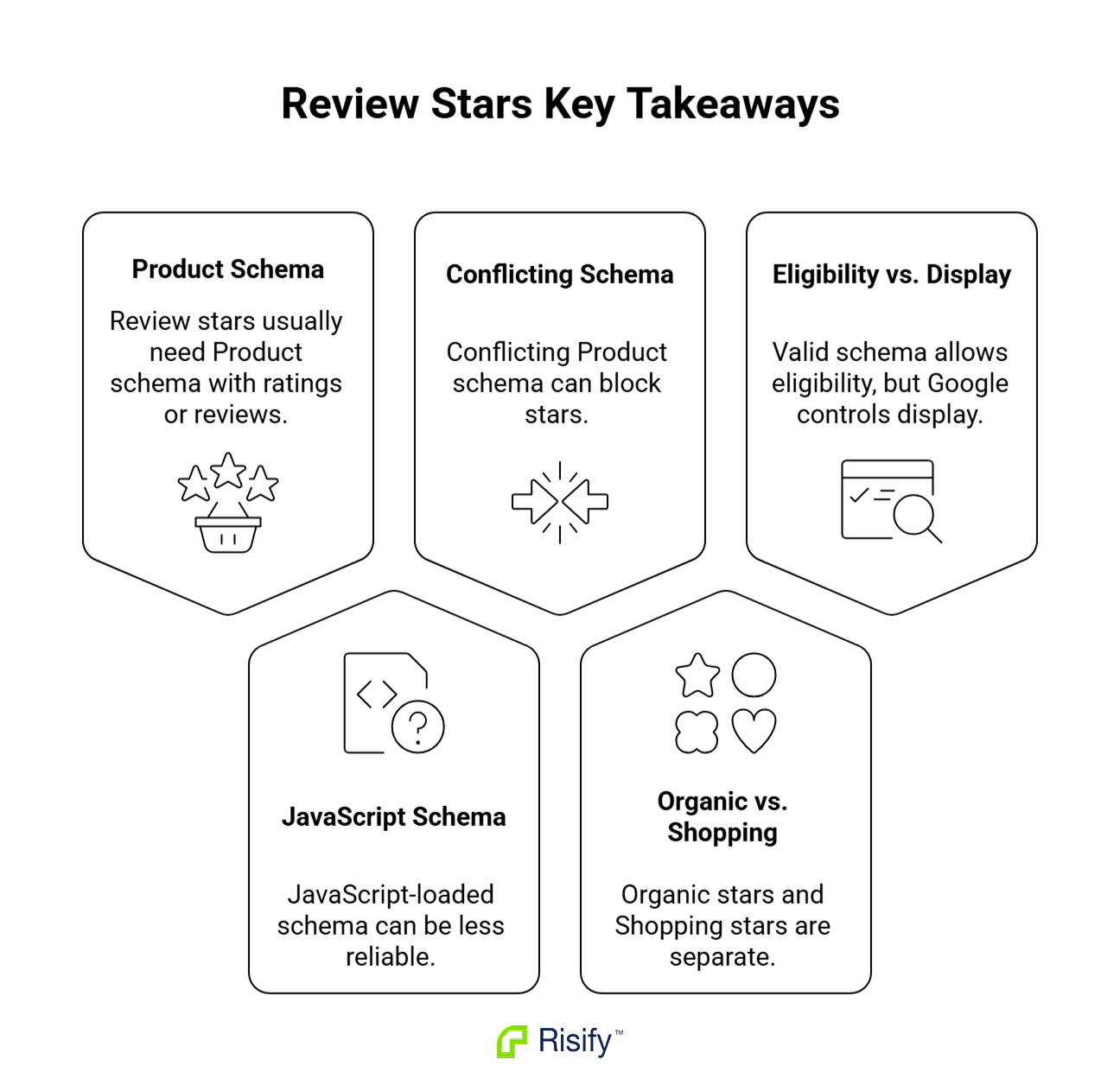
- On Shopify product pages, organic review stars usually depend on Product structured data that includes aggregateRating or valid review markup, most commonly in JSON-LD.
- A common cause of missing stars is structured data that’s only generated by JavaScript after the page loads. Google can process JavaScript-generated schema, but it’s generally less reliable for fast-changing product data than schema in the initial HTML.
- Another common cause is duplicate or conflicting Product entities on the same page from theme, app, and SEO-tool outputs with mismatched data.
- Organic search stars and Google Shopping stars are separate systems. This piece covers organic. Shopping stars come from the Google Merchant Center Product Ratings program, which is a different process.
- Even with valid schema, rich result display is at Google’s discretion. Correct markup is the prerequisite, not the trigger.
What Star Ratings in Google Actually Come From
Star ratings in organic Google results come from Product structured data on the page itself. The relevant piece is aggregateRating, a property inside Product schema that tells Google the average score and the number of reviews. Google supports JSON-LD, Microdata, and RDFa as structured data formats; JSON-LD is the most common on Shopify and the format Google recommends.
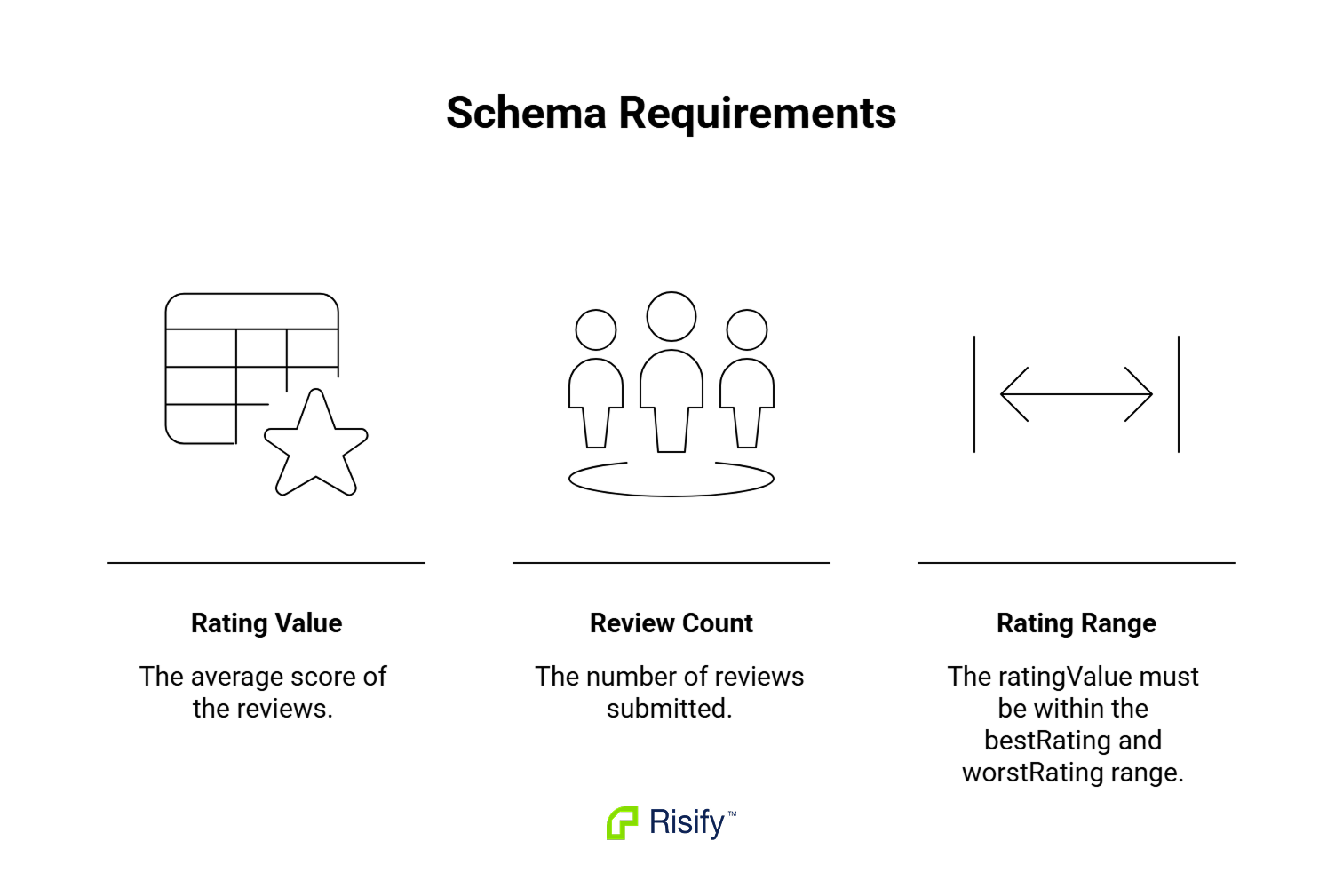
The schema needs a few minimum fields to be eligible:
- ratingValue (the average score)
- reviewCount or ratingCount (the number of reviews)
- A ratingValue that sits inside the stated bestRating and worstRating range
Visible content on the page should match what’s in the schema. Google cross-references both. A schema claiming 247 reviews on a page that visibly shows zero is a quality signal pointing the wrong direction.
One scope note before going further: organic search stars and the stars you see in Google Shopping ads and free product listings come from two different systems. This piece covers organic. The Shopping side is a separate setup, covered briefly toward the end.
Why Reviews Don’t Show: Five Common Causes
Most stores with missing stars hit one of five issues. Match your symptom to the cause first, then move to the fix.
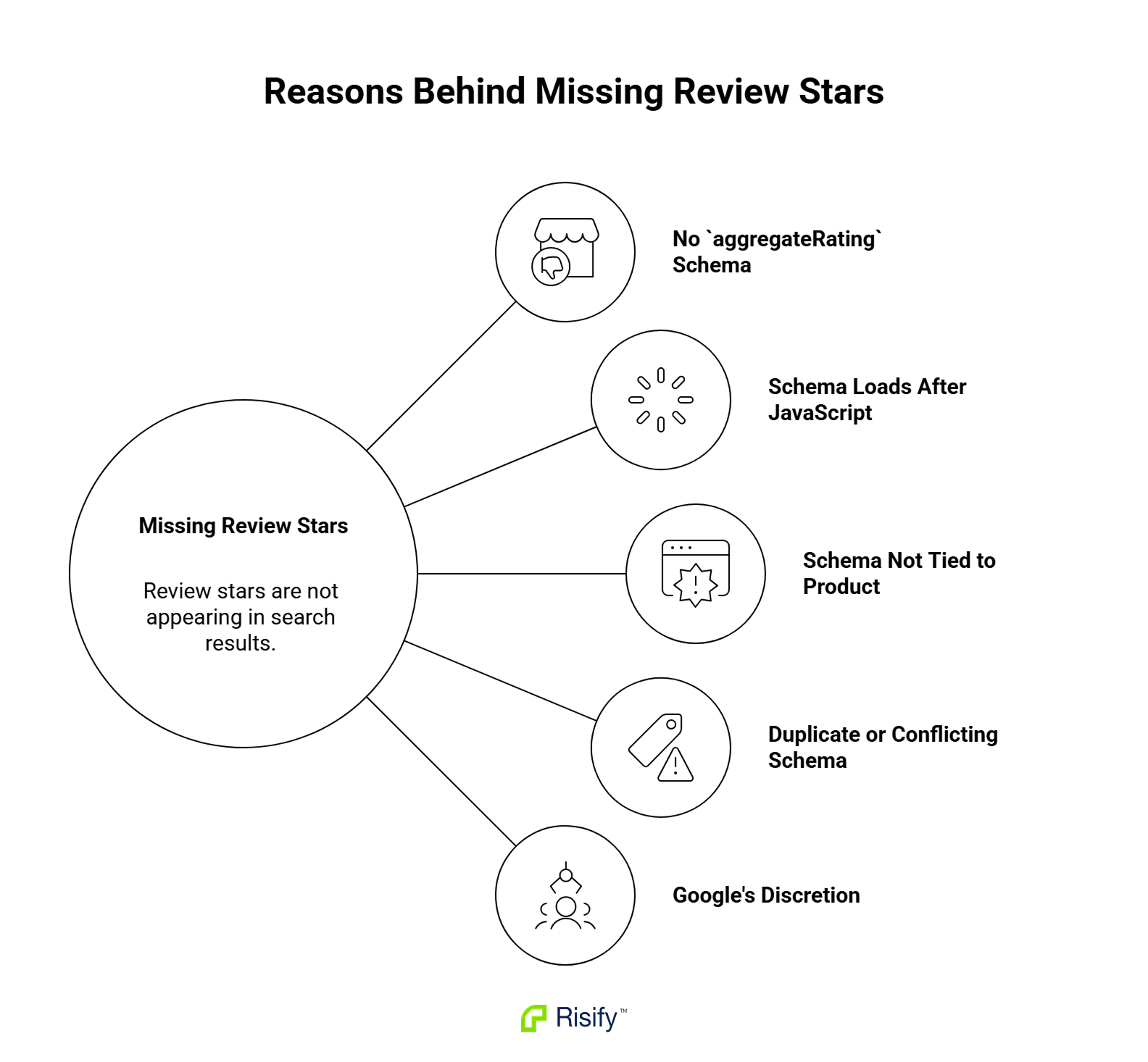
Cause 1: No aggregateRating schema at all
Symptom: the review widget renders on the page, but the rating data isn’t in the schema.
Why it happens: older themes that pre-date Online Store 2.0, or themes with a built-in review section that displays stars visually but emits no structured data behind them. Google sees a star icon, not a rating it can parse.
How to check: view source on a product page (Ctrl+U or Cmd+U) and search for aggregateRating. If it’s not there at all, this is your cause.
Cause 2: Rating schema only present after JavaScript renders
Symptom: aggregateRating shows up when you inspect the rendered DOM in DevTools, but it’s not in the raw HTML.
Why it happens: most third-party review apps (Loox, Judge.me, Stamped, Yotpo, reviews.io) inject schema through a widget that runs after page load. Review data is fetched from the app’s external servers, then written into the page once that fetch completes.
Why it matters: server-rendered schema is generally more dependable because it’s present without waiting for JavaScript to run. Google can process JavaScript-generated structured data, but dynamically generated Product markup can be less reliable, especially for fast-changing product data like price and availability. The rendering pass adds time and introduces failure points (fetch errors, rate limits, dependencies on the widget’s CDN).
How to check: use the Rich Results Test to see what Google can detect after rendering the page. Separately, view source (or curl the URL) to check whether aggregateRating is already in the initial HTML. If it appears only in the rendered version, this is your cause.
Cause 3: aggregateRating not properly connected to the Product entity
Symptom: the schema validates in Rich Results Test, but Google still doesn’t show stars.
Why it happens: a review app outputs aggregateRating as a standalone schema block, rather than nesting it inside the Product entity or referencing it through @id in a structured graph. Google sees both pieces, but the connection between them isn’t clear.
Why it matters: aggregateRating should be nested inside the Product entity, or clearly referenced from it. When it appears as an unrelated standalone object, Google may not treat it as the rating for the product on the page.
How to check: in Rich Results Test, look at the parsed Product structure. The rating should appear as a property of the Product. If it sits in a separate block with no clear reference back, that’s the issue.
Cause 4: Duplicate or conflicting Product entities
Symptom: view source on a product page shows “@type”:”Product” two or three times.
Why it happens: your theme may output one Product block, a review app may add another, and an SEO app may add a third. Each block describes the same product, but with different data: different prices, different availability, sometimes different ratings.
Why it matters: multiple Product blocks aren’t automatically a problem. The issue is duplicate or conflicting entities describing the same product with mismatched data. When that happens, Google may ignore parts of the markup or become less confident about showing rich results.
How to check: view source and count the Product blocks. More than one is worth investigating. Compare the price, availability, and rating fields across blocks. If they disagree with each other or with what’s visible on the page, that’s the conflict to resolve.
Cause 5: Valid schema, but Google hasn’t decided to show stars yet
Symptom: Rich Results Test validates the schema, Search Console reports no errors, and stars still don’t appear in the SERP.
Why it happens: Google decides per-page whether to show rich results based on quality, trust, and policy signals. Correct schema is the prerequisite, not the trigger.
How to check: in Search Console, look at the relevant structured data reports (Product snippets or Merchant listings, depending on what Google detects on your pages). If products show as valid but stars aren’t appearing, schema isn’t the bottleneck. Content depth, site quality, and time are the levers.
The Fix: Server-Side Structured Data
For the first three causes (no schema, JS-only schema, mis-wired AggregateRating), the direction of the fix is the same. aggregateRating should be in the HTML Shopify sends on the first byte, not generated by a widget that loads after the page renders.
Why server-side rendering is more reliable
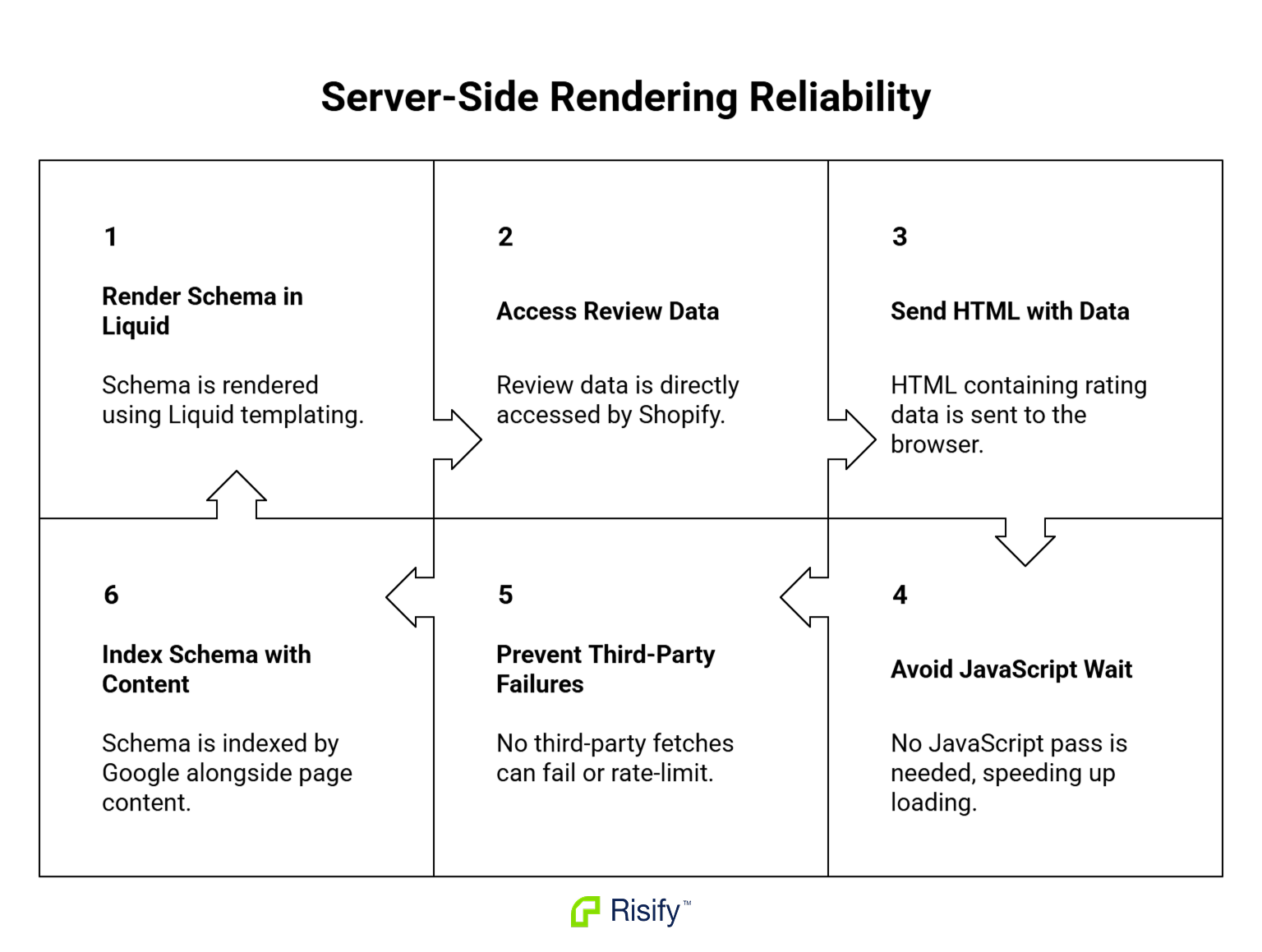
Server-side means the schema is rendered in Liquid, Shopify’s templating layer, using review data that’s accessible to Shopify directly. The HTML that goes out on the first byte already contains the rating data, so:
- There’s no JavaScript pass to wait on.
- There’s no third-party fetch that can fail or rate-limit.
- The schema reaches Google’s index at the same time as the rest of the page content.
This approach only works when the review data lives somewhere Shopify can read at render time. Two paths get you there:
- Shopify’s standard product review metafields: platform-standard fields such as reviews.rating and reviews.rating_count that, when populated by a supported review app or integration, can be referenced by themes for server-side output.
- External providers that expose data server-side: some review apps make their data available through Shopify-readable channels (metafields, metaobjects, server-side APIs) instead of only via a JavaScript widget.
If your reviews live entirely on a third-party server with no Shopify-accessible mirror, the JavaScript widget is the only output path the app has. Switching the schema source to something Shopify can render server-side is the only real fix in that case.
For Cause 4 (conflicting Product entities), the fix is different: identify each source of Product schema on the page, decide which one is the authoritative version, and turn off the others. This is usually a matter of disabling schema output in apps that duplicate what your primary schema source is already producing.
How Risify handles this
Risify outputs Product schema with aggregateRating server-side in supported setups. The review data is read from Shopify’s standard product review metafields where those are populated, with fallback to a configured review provider where the integration supports it. The schema is in the page HTML at first render, not injected by JavaScript.
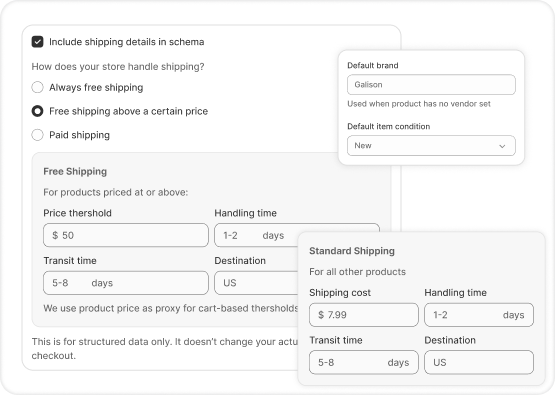
For the conflict cause specifically, Risify detects duplicate Product schema from your theme and other apps and shows what’s coming from where. Instead of running view source on every product page to find the duplicates, you see the sources in one place and decide what to disable.
Individual review items (the review array, beyond just aggregateRating) depend on what the integrated review provider exposes. Some providers make full review records available; others emit aggregate only.
A Note on Google Shopping vs Organic Search
Two different systems, two different setups:
- Organic search stars (this article’s focus): come from page-level Product structured data with aggregateRating. Google reads them directly from your HTML.
- Google Shopping stars (in Shopping ads and free product listings): come from the Google Merchant Center Product Ratings program. Separate process, separate eligibility rules.
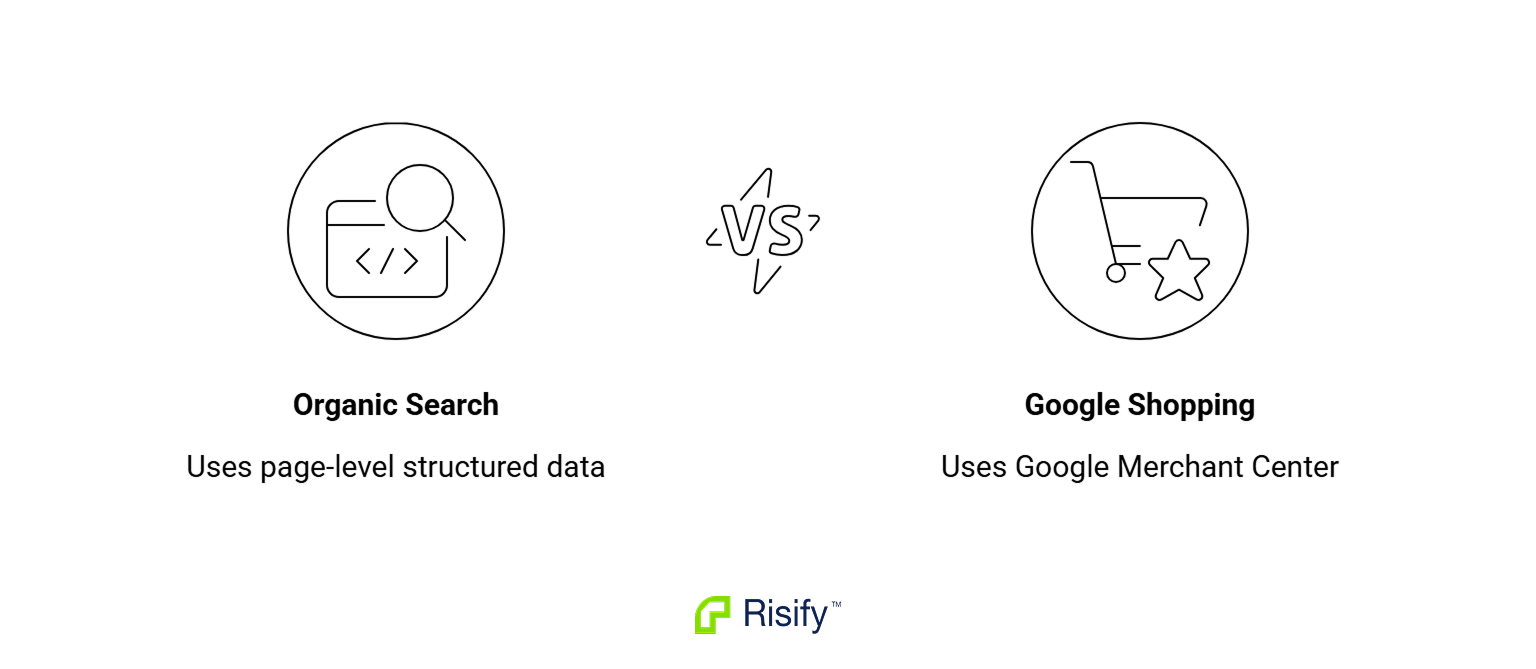
For Shopping stars, Google’s documentation lays out the requirements:
- At least 50 reviews across all products to participate in the program.
- Reviews submitted either through a supported reviews aggregator or via a product review feed uploaded directly to Merchant Center.
- Consistent product identifiers across your product feed and review feed. GTIN is the most reliable match key. SKU, Brand + MPN, and product URL work as fallbacks but match less reliably.
- A complete and accurate review feed uploaded monthly to maintain eligibility.
Fixing your page schema doesn’t populate the Shopping ratings feed automatically. The two systems run independently, and most stores need both set up correctly to show stars everywhere customers see their products.
How Long After Fixing Does It Take?
After deploying correct server-side schema, Google needs to recrawl and reprocess the page. This can take from several days to several weeks, depending on crawl frequency, and rich result display is still not guaranteed at the end of it.
A few things shorten the wait or help confirm progress:
- Submit affected URLs for re-indexing in Search Console, especially after large schema changes.
- Validate the schema itself with the Rich Results Test before waiting for the SERP to catch up.confirmation that Google sees your updated markup.
- Watch the Product snippets and Merchant listings reports in Search Console for index-level
How to Add Server-Side Review Schema to Your Shopify Store
Doing this manually means editing your theme’s Liquid templates to read from Shopify’s standard product review metafields, outputting Product schema with nested aggregateRating on every product page, and maintaining that code through theme updates and platform changes.
Then identifying and disabling the duplicate Product schema from any other apps that are competing with the markup you just added.
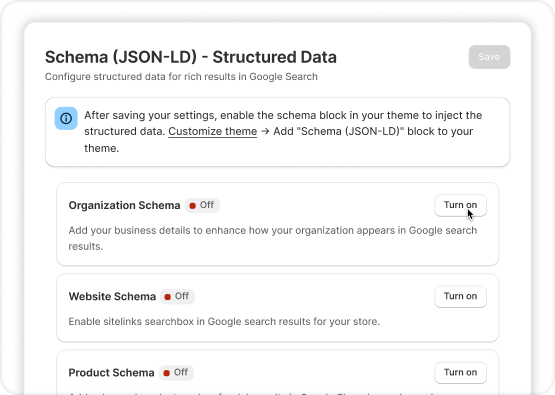
Risify does this from the Shopify admin. The Product schema output runs server-side from Shopify’s standard product review metafields where those are populated, with a configured review provider as fallback. The conflict detection surfaces every source of Product schema across your store, so mismatches get resolved in one place instead of through view source on product pages.
Install Risify from the Shopify App Store to apply server-side review schema across your full catalog.
Get all technical foundations set up for better AI search visibility
Risify improves product discovery with clear navigation, centralized FAQs, and smart suggestions, making your store easier for AI tools like ChatGPT and Gemini to understand.

- Navigation and internal linking
- Reusable FAQs and structured content
- Valid schema markup for AI and search visibility
- AI-powered FAQ and metadata generation
- Store audits to see exactly what to fix