


A new Shopify theme can look finished and still break how shoppers and search engines move through the store. Before you publish it, test the same pages in the live theme and the draft for three things: products, paths and signals. Then run the same checks on the public store after launch.
Key takeaways
- Test five fixed URLs in both themes: a parent collection, a child collection, a product with variants, a second collection on the same template and a key page on a different template.
- Check three things on each: products (the same items appear and the selected variant reaches the cart), paths (a shopper on a phone can go from parent to child to product and back) and signals (title, canonical URL and breadcrumb data still describe the page).
- App blocks and app embeds are set per theme. On a different theme, add them and turn them on again; after an update of the same theme, check what carried over.
- Hold the launch for broken purchase, broken required navigation or wrong page identity, then repeat the checks on the public store.
Before you start: pick five test URLs
Use the same short list of public URLs for every check, and write down what you expect before you open the draft. For a lighting store, the list looks like this:
| Page | What the team expects to find |
|---|---|
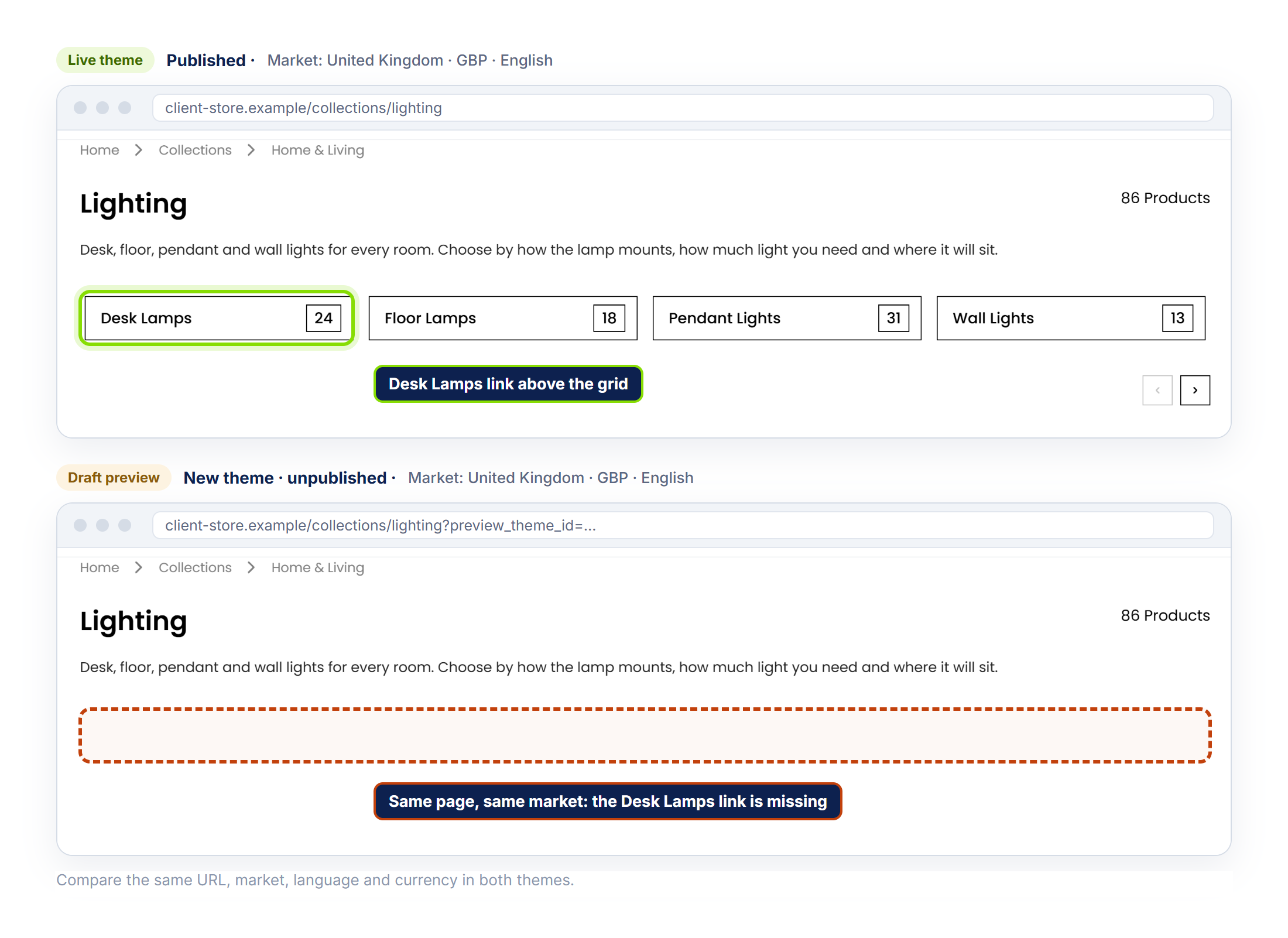
/collections/lighting (parent) | A Desk Lamps link above the product grid |
/collections/desk-lamps (child) | The Reed Clamp Lamp in the grid, opening the right product |
/products/reed-clamp-lamp (two or more variants) | The Black finish can be added to the cart; the breadcrumb leads back to Desk Lamps |
| A second collection on the same template | Its own links, not a copy of the first collection’s |
| A key entry page on a different template | The page a campaign or an AI answer already sends shoppers to |
Then set up the comparison:
- Open the live store in one window.
- Open the draft from Online Store → Themes, using Preview on the draft theme.
- Choose the same market, language and currency in both windows.
- After following a link in the draft, check that the preview bar still shows the draft theme.
- Write down the live theme’s name and who is allowed to republish it.
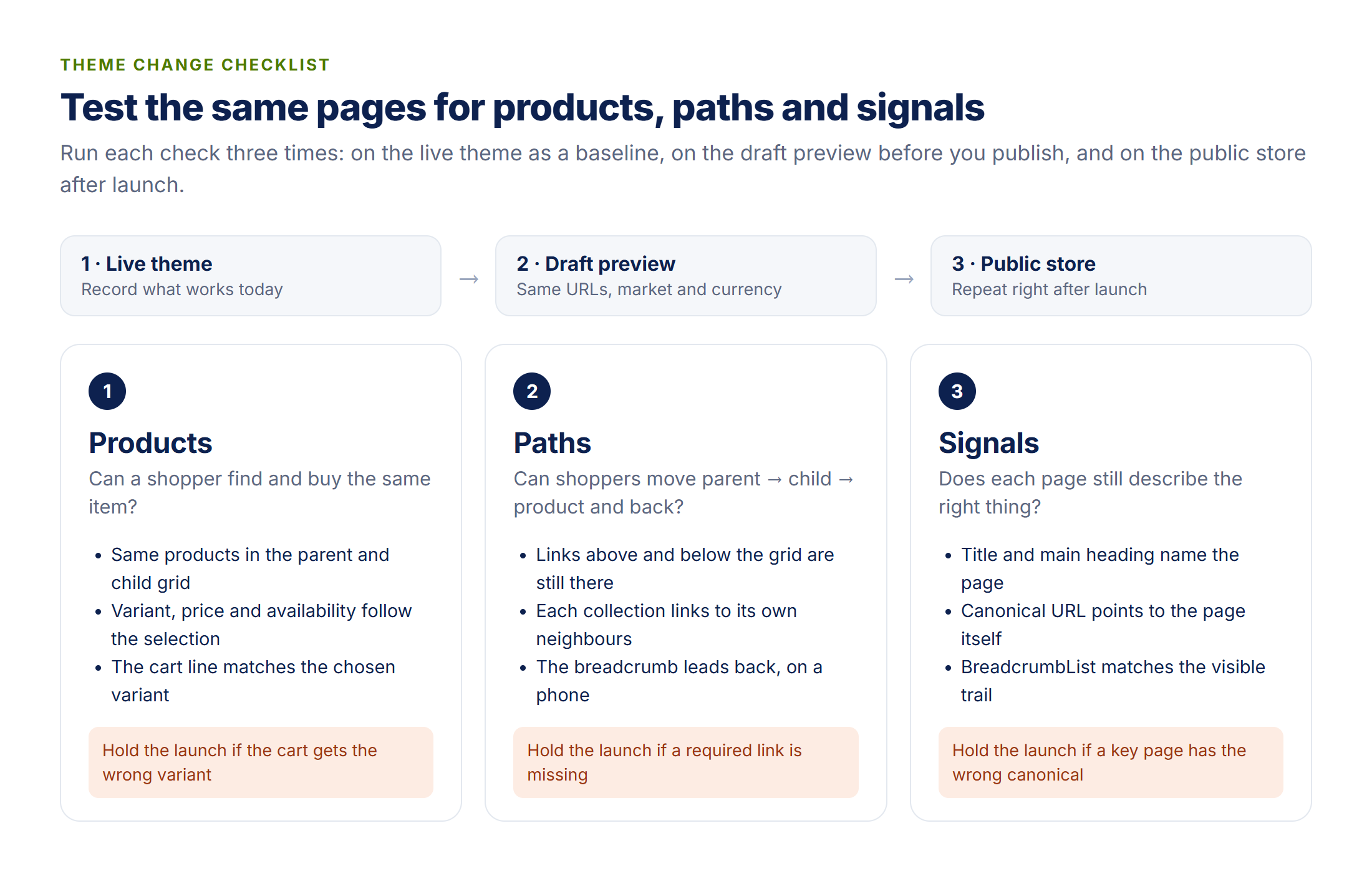
Careful with shared records. Menus, products, collections and pages belong to the store, not the theme, so editing one that the live theme uses changes what customers see right away. To test a different menu, select a separate menu in the draft’s header. Shopify: switching themes
Step 1 · Products: can a shopper find and buy the same item?
The catalog decides which products belong to a collection. The theme decides which of them shoppers see, and whether the right variant reaches the cart.
- Open the parent and child collections with the same filters and sort order in both themes.
- Find a product you know belongs there. If the parent uses the child as a product source, pick one that comes from the child. Shopify: collection sources
- On the product page, select the same available variant in both themes. Read its price and availability.
- Add it to the cart and compare the cart line with your selection.
- Check one sold-out option, then repeat the check on a phone.
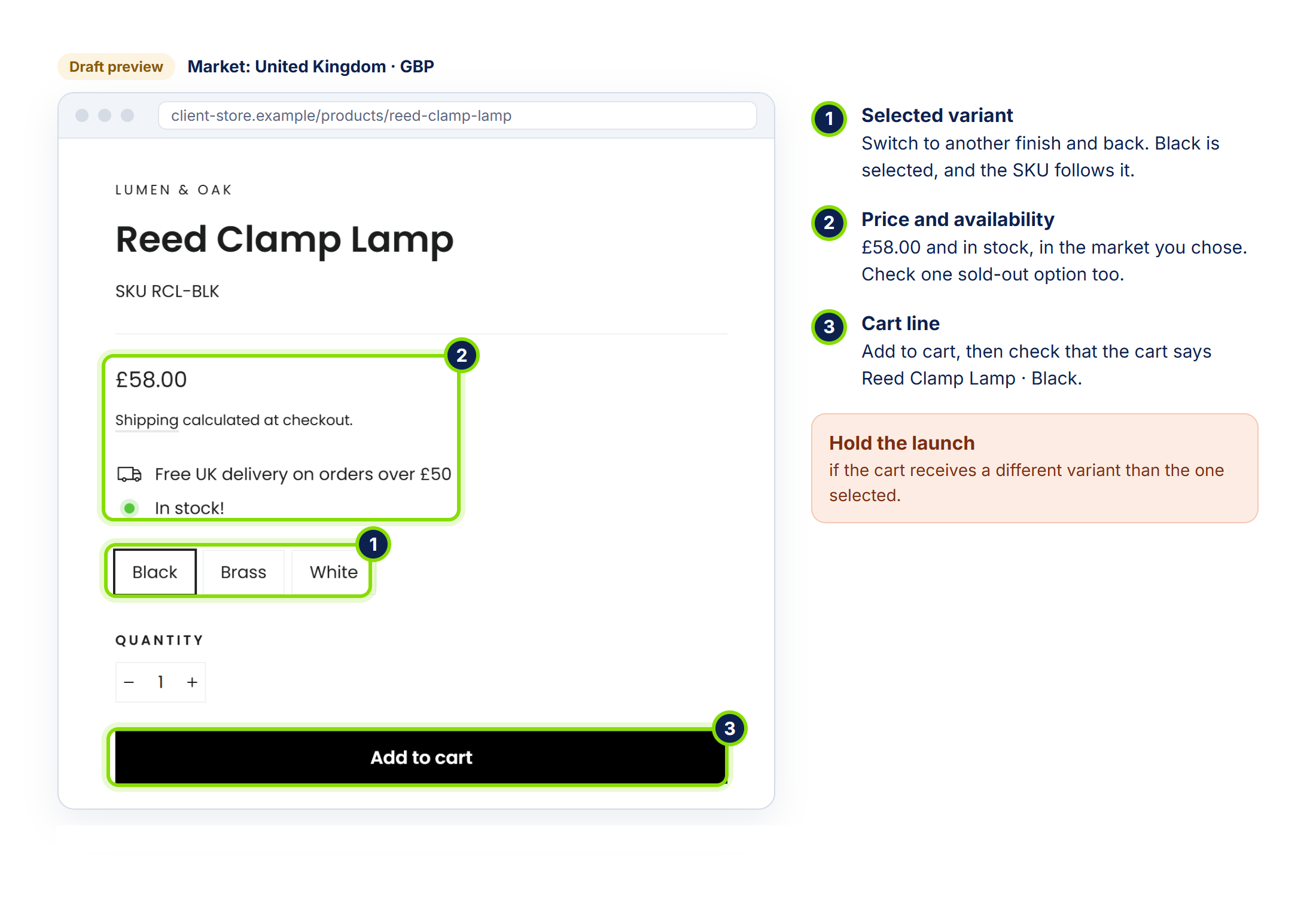
Hold the launch if:
- an expected product is missing with the same filters and sort order
- an available variant can’t be selected
- the cart receives a different variant than the one selected
If only the first row of the grid looks different, check sorting, stock and market settings before you blame the theme.
Step 2 · Paths: can shoppers still move through the catalog?
This is the check clients skip. They add a lamp to the cart and sign off, while the Desk Lamps link on the Lighting collection has quietly disappeared.
Walk the route on a phone, starting from the parent collection’s URL rather than from the menu:
- Open the parent collection directly on a phone. Leave the menu closed.
- Tap the link to the child collection.
- Open a product.
- Use the breadcrumb to go back to the child collection.
- Repeat the route once through the mobile menu.
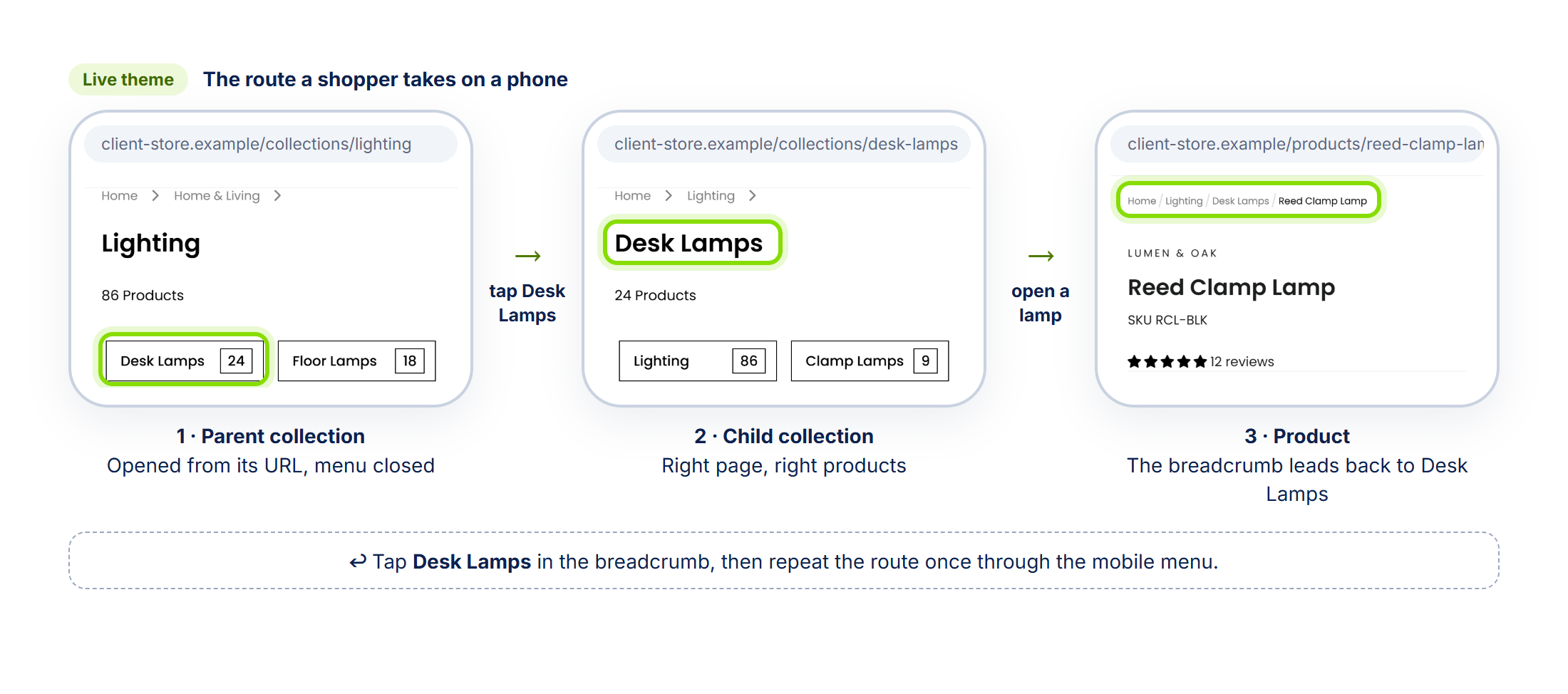
Compare each screen with the live theme. Then open a second collection on the same template: its links should lead to its own neighbours, because a fixed collection list puts the same links on every page that uses the template. Shopify collection navigation
When a link disappears: check the menu, then the app blocks
- The header route fails: check which menu the draft’s header uses.
- A link in the page body fails: check the template, the block and the destination saved for that page.
App blocks and app embeds are set per theme. On a different theme, add the app blocks to the templates that need them and turn the app embeds on again. If you updated your existing theme instead, check what carried over before adding anything twice. Shopify: apps in themes · Shopify: theme updates
For a store that uses Risify, check three blocks:
- Similar on the collection template: the related collection links above the grid
- Discover on the collection template: the related links below the grid
- Breadcrumbs on the collection and product templates
The links are saved in the store’s metafields, so pages that have them show them again once the blocks are in place. Test a collection with saved Similar or Discover links and open each one. Check the breadcrumb on a collection URL and on a direct product URL. Risify: Similar setup
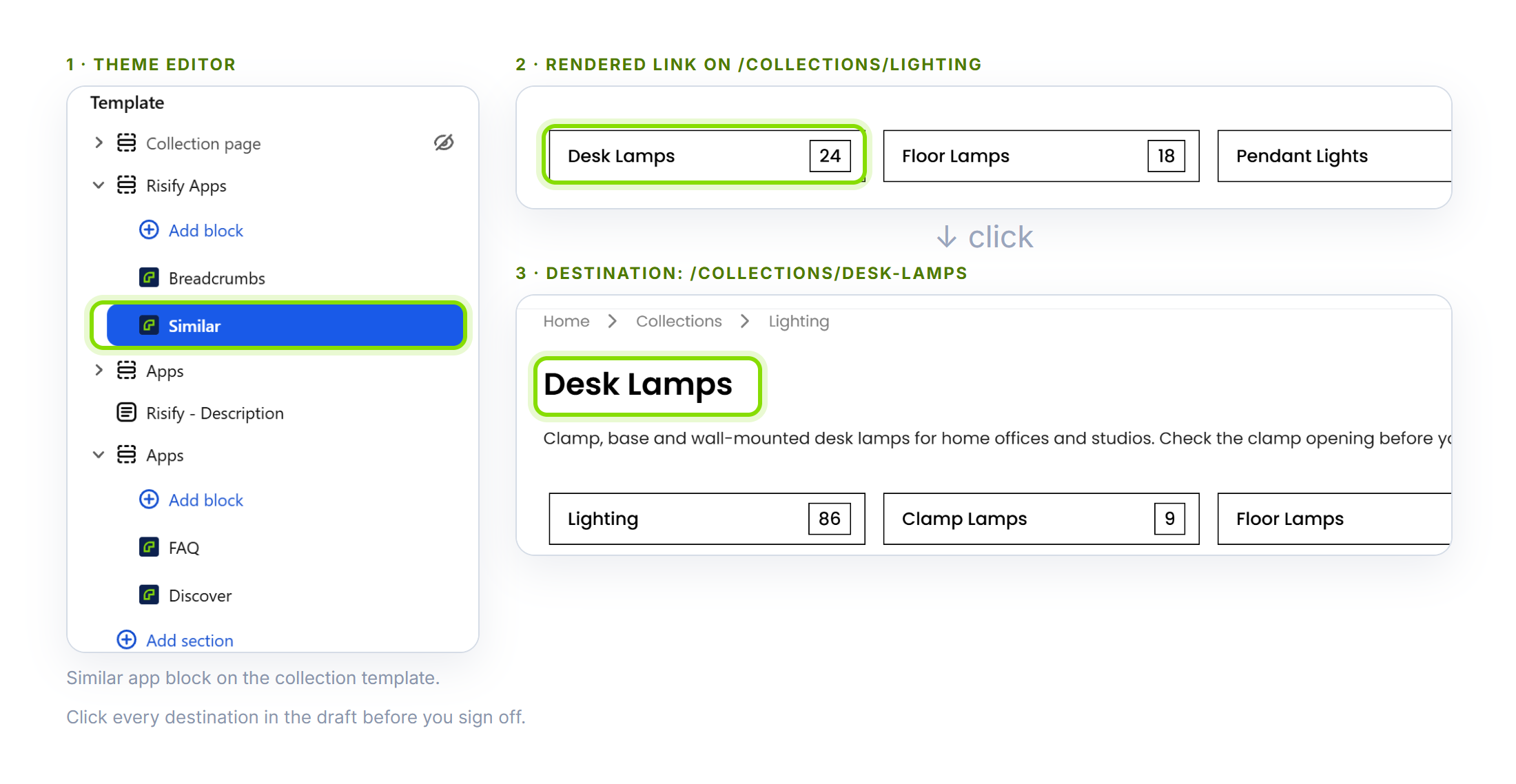
Hold the launch if a required link returns an error, opens the wrong collection or is missing where the client expects it. Restore it in the draft, then walk the route again from the parent URL.
Step 3 · Signals: does each page still describe the right thing?
Check one collection URL and one product URL that you open directly. Compare what the page shows with what its head and structured data say.
| Check | What to compare | Needs attention when… |
|---|---|---|
| Page identity | Browser title, main heading, meta description | Several collections share one generic title, or the heading names another collection |
| Canonical URL | The canonical link in the page head | A product points to the homepage, a preview address or another product |
| Indexing | Any noindex directive | A page meant for search carries noindex after launch |
| Breadcrumb | Visible trail, its links and the BreadcrumbList items | The trail says Desk Lamps but the data names a sale collection, or a direct visit loses the parent |
| Product offer | Displayed variant, price, currency and availability against the Product markup | The theme and an app output different offers for the same product |
How to check:
- Open the page and your browser’s inspector. Find
<title>and<link rel="canonical">in the head. - On the direct product URL, compare the visible trail and its links with the
BreadcrumbListitems. - After launch, test the public URL in Google’s Rich Results Test for supported result types, such as Product and Breadcrumb. Use the Schema Markup Validator or the free Shopify Schema Checker for general schema.
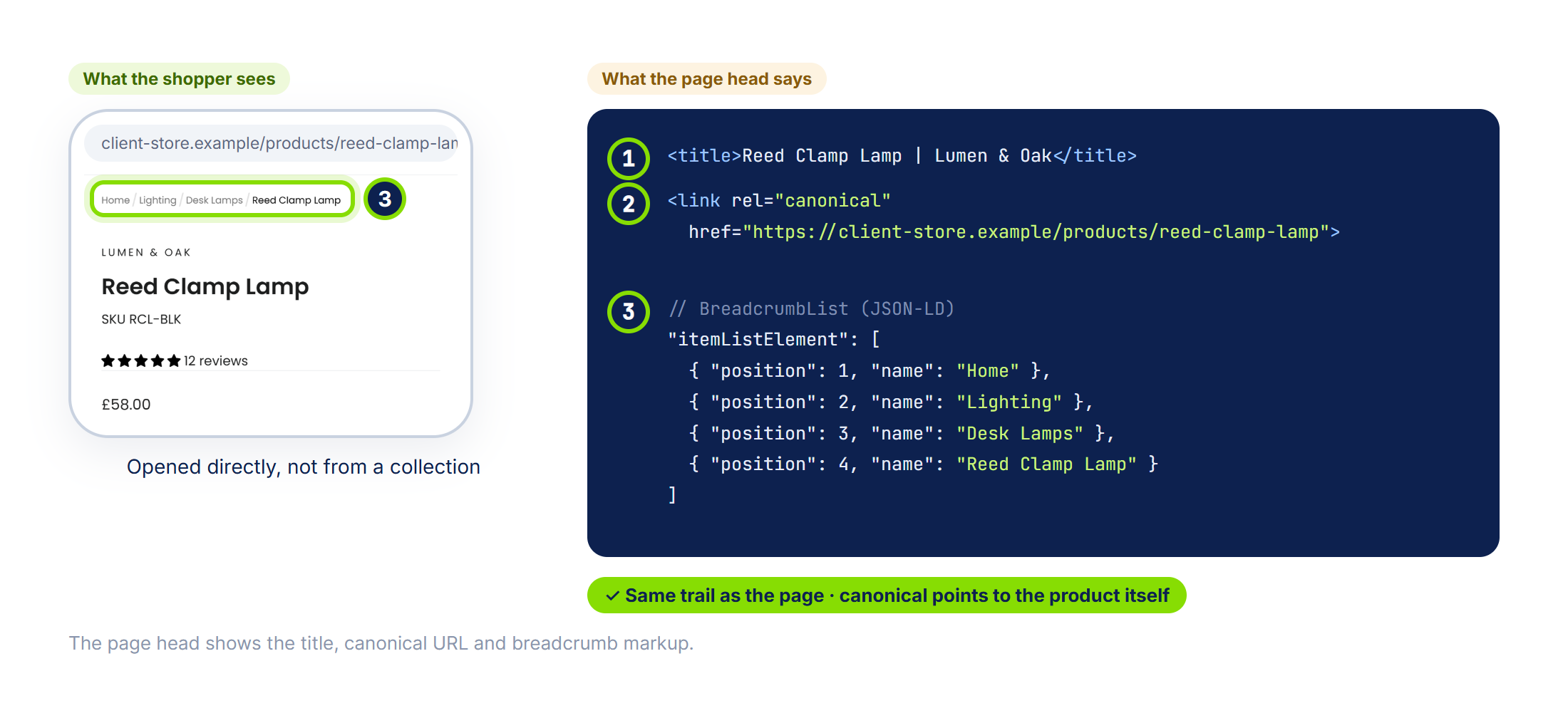
If a template shows FAQs, check that any FAQ markup matches the visible text. Google stopped showing FAQ rich results on May 7, 2026, so the visible answer is what matters. Google Search updates
Step 4 · Record the decision, then publish
Put every finding in one sign-off table with an owner. Publish only when purchase, required navigation and page identity pass.
| Page and test | Live baseline | Draft preview | Decision and owner | After launch |
|---|---|---|---|---|
| Lighting → Desk Lamps on a phone | Link opens Desk Lamps | Link missing above the grid | Hold. Theme lead restores the block and retests. | Pending |
| Reed Clamp Lamp, Black variant | Black reaches the cart | Black reaches the cart | Pass. Merchandiser signs off. | Pending |
| Direct product URL: canonical and breadcrumb | Record URL and trail | Record URL and trail | Pass or issue, with owner | Pending |
The first two rows are examples. Replace them with what you find on the client’s store, and leave the last column open until someone has checked the public URL.
Before you press Publish:
- Fix and retest every failure in purchase, required navigation or page identity.
- Give smaller copy and spacing issues an owner and a date.
- Agree on a rollback. The previous theme stays under Online Store → Themes → Draft themes and can be published again. Shopify: publishing themes
Roll back if the public theme sends the wrong variant to the cart or points key products at the wrong canonical, and you can’t verify a fix within the launch window. The release owner republishes the previous theme from Draft themes, and you repeat the same tests. Rolling back the theme doesn’t undo menu or catalog edits, so restore those separately.
After launch: check the public store
Run the checks again on the published theme, in a fresh browser window.
- Open the public parent, child and product URLs.
- Repeat the phone route and the cart check.
- Check the canonical URL on the product.
- Check one key URL with URL Inspection in Search Console. Test live URL shows the page Google can fetch now; a passing live test doesn’t guarantee indexing. Google: URL Inspection
- Run the free Shopify Navigation & Page Checker on the public store. It checks breadcrumbs, collection links and FAQs on up to 15 pages.
- Open any launch-critical URL the checker didn’t reach yourself.
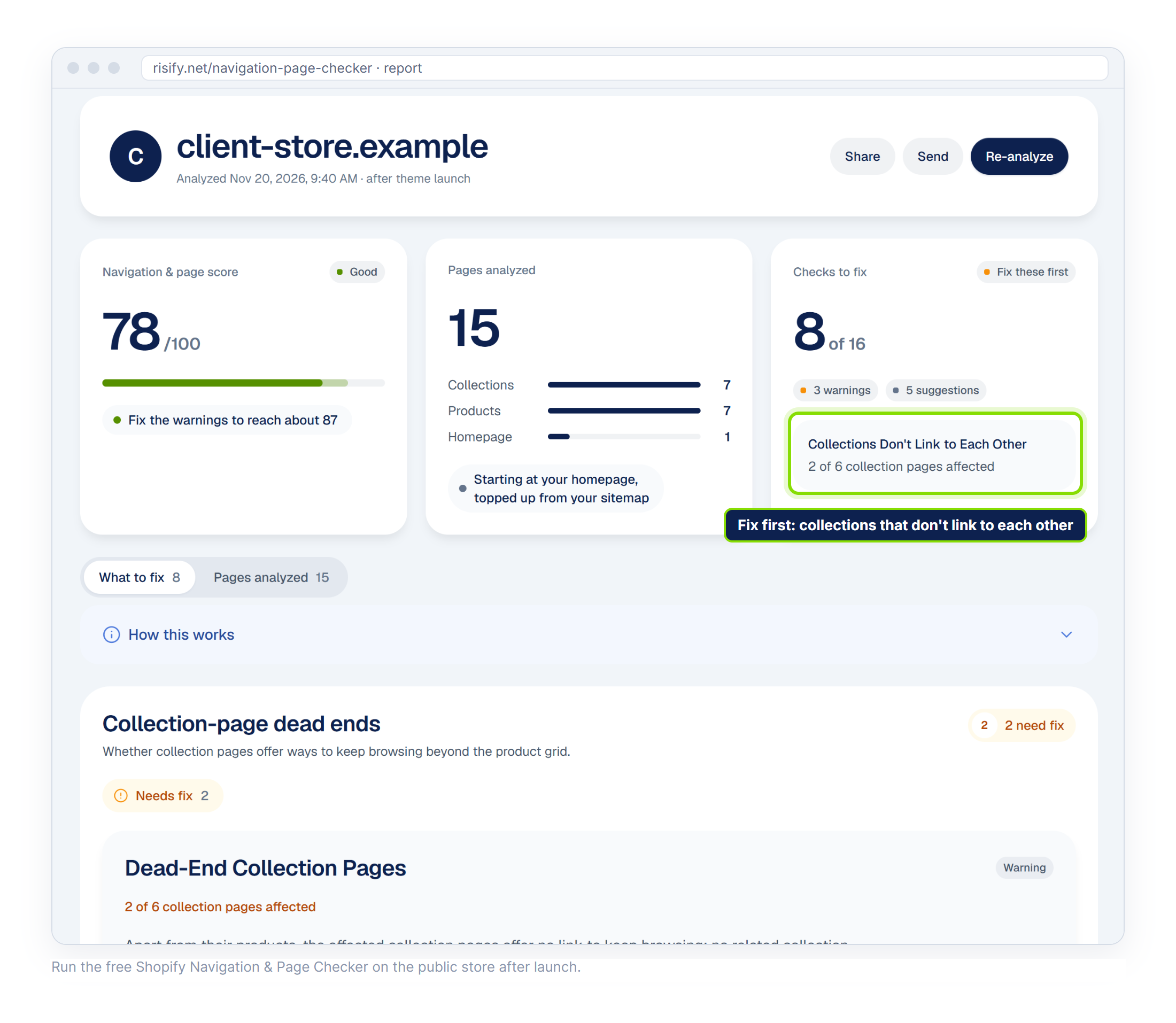
Hand the client the completed sign-off table, the checker report and the owner of every open item.