


Improving your Shopify store’s SEO involves a lot of moving parts.
But unless you can see whether those changes are actually moving your rankings, it is hard to know what is working and what is not.
That is where keyword tracking fits in.
Risify is built around centralizing the work of improving organic growth for Shopify stores. Keyword tracking is one part of that picture.
Let’s explore how you can use it.
Key Takeaways:
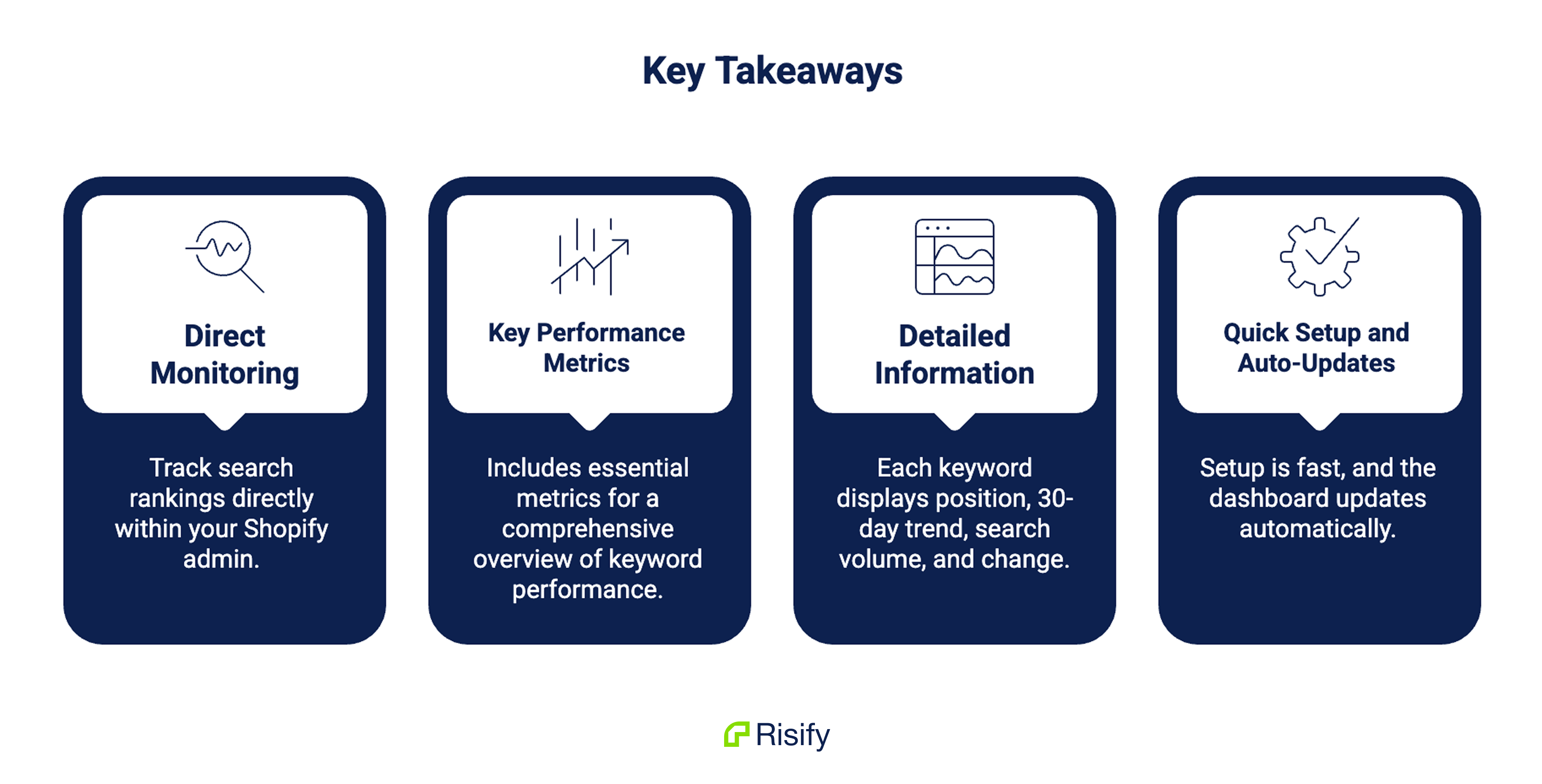
- Keyword tracking in Risify lets you monitor search rankings directly inside your Shopify admin
- It includes key metrics so you can have an overview of how your keywords are performing
- Each keyword shows its position, 30-day trend, search volume, change, and more
- Setup takes only a few minutes, and the dashboard updates automatically
What You Can See in Keyword Tracking with Risify
Once you have your keywords set up, the Keyword Tracking dashboard gives you both a high-level view and per-keyword detail.
Overview Metrics at a Glance
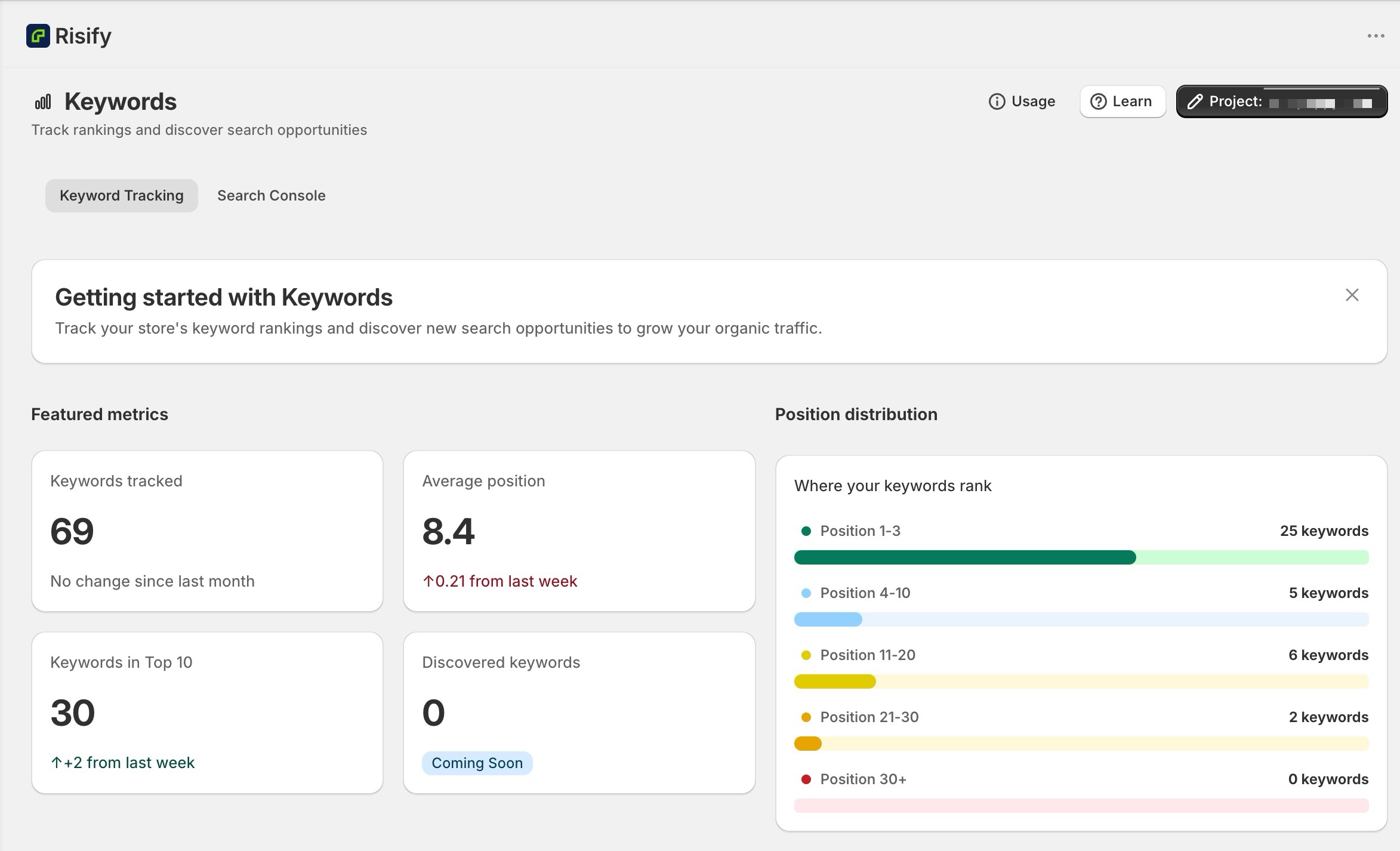
At the top of the dashboard, Risify surfaces four key numbers:
1. Keywords Tracked
It shows the total count of keywords you are currently monitoring.
More keywords give you a broader picture of visibility, but relevance matters more than volume. Tracking 30 well-chosen keywords tells you more than tracking 300 loosely related ones.
2. Average Position
It is the mean search ranking across all your tracked keywords.
A lower number means better overall visibility. When this number drops after a round of SEO improvements, it is a clear signal that your work is having an effect.
You can also see the performance change compared to last week.
3. Keywords in Top 10
It tells you how many of your keywords appear on the first page of Google.
This is one of the most practical indicators of SEO progress, since the majority of search clicks happen within those first ten results. Watching this number grow over time is a meaningful measure of momentum.
4. Position Distribution
It is a visual breakdown of where your keywords currently sit across search result pages.
It helps you spot patterns quickly: how many keywords are performing well, how many are just outside page one, and which ones need more attention.
Individual Keyword Details
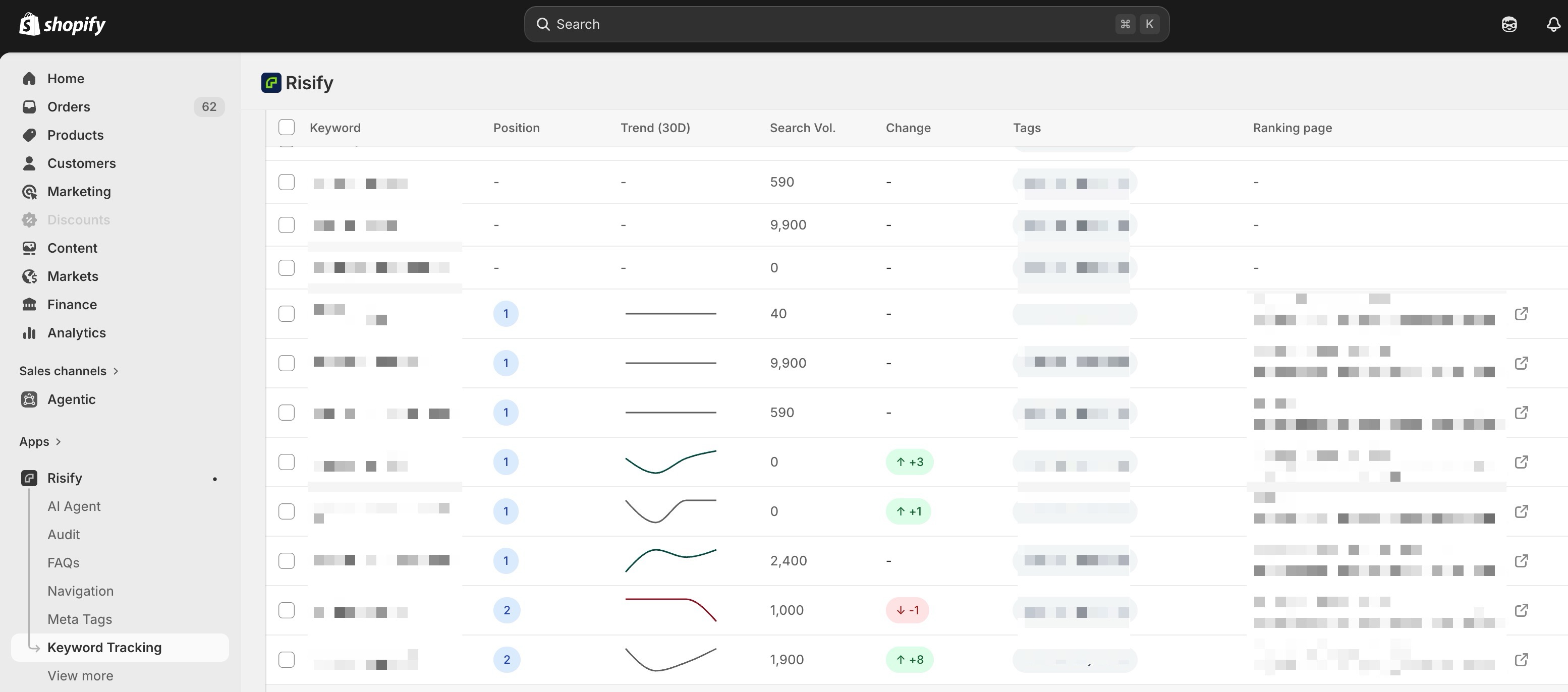
Below the overview, each tracked keyword shows a full row of data:
- Current ranking position is displayed as a number next to the keyword, so you can see at a glance where each term sits in search results.
- A trend sparkline gives you a small visual graph of how that keyword has moved over time. This is useful for spotting keywords that are steadily climbing versus ones that are fluctuating or declining.
- Search volume is shown for each keyword, which helps you put position data in context. A keyword ranking at position 2 with a volume of 9,900 carries a very different weight than one with a volume of 40.
- Position change is shown with color-coded indicators, green for gains and red for drops, with the exact number of positions moved. This makes it easy to scan your list and spot meaningful shifts quickly.
- Tags appear inline on each row. If you have organized your keywords into groups, you can see the tag label directly without having to filter or open a separate view.
- The ranking URL is shown with a direct link, so you can open the exact page that is currently ranking for that keyword with one click.
That combination of trend, volume, and movement data per keyword is what makes the list genuinely useful rather than just a static ranking snapshot.
Tags are especially worth setting up from the start. If you organize keywords by collection, product type, or campaign, filtering becomes much easier as your list grows.
You can isolate, say, all keywords tagged as “outdoor furniture” and see how that category is trending separately from the rest of your store.
Setting Up Keyword Tracking for Your Shopify Store
Setup is straightforward and takes only a few minutes inside your Shopify admin.
Creating a Project
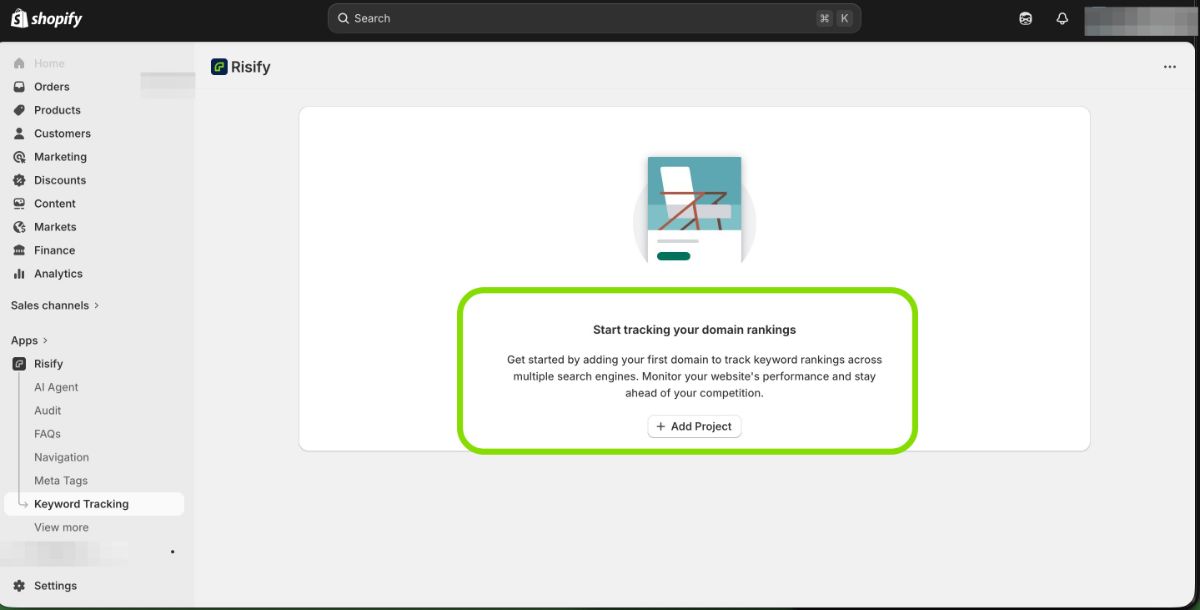
From the Risify app, navigate to Keyword Tracking in the left-hand menu. If it is your first time, you will see a prompt to create a new project.
When creating a project, you define:
- A project name to help you identify it later (for example, “Main Store US” or “Brand UK Mobile”)
- The domain you want to track
- The target country and language
- The device type: desktop or mobile
If you want to track both desktop and mobile rankings separately, you can create two projects for the same domain. Each project runs independently with its own set of metrics.
Adding and Tagging Your Keywords
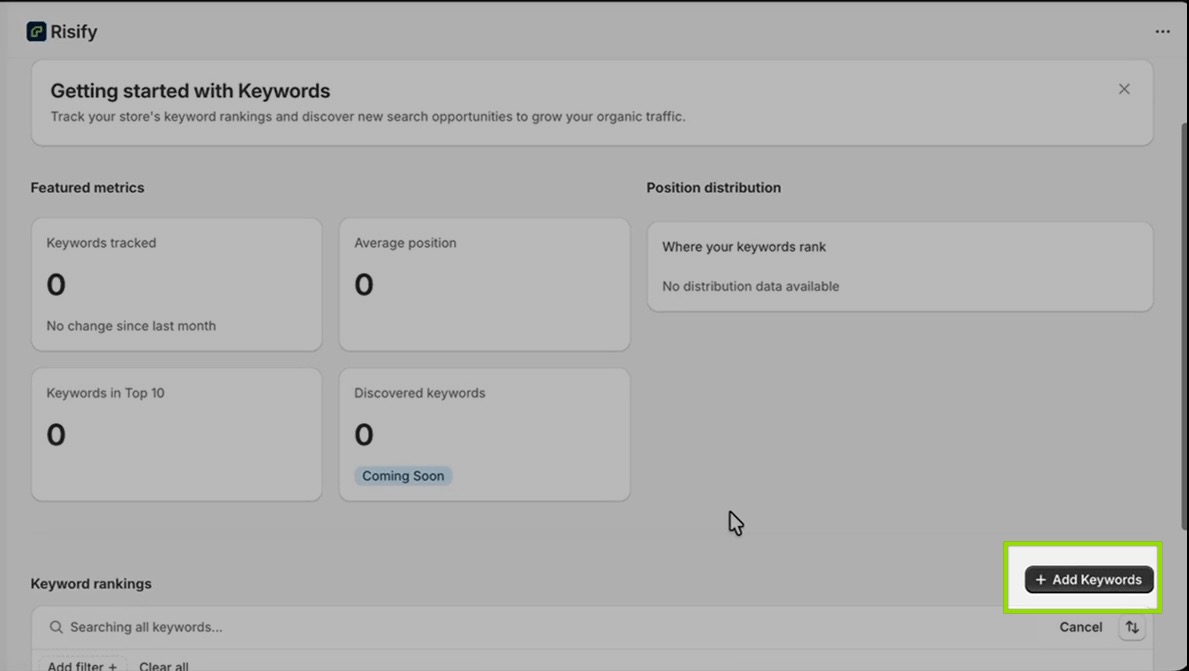
After creating your project, click Add Keywords. You can type or paste keywords directly, one per line, which makes it easy to add a batch at once.
At this stage, you can also assign tags to help organize your list from the start. Tags are optional, but they make filtering significantly easier once you have more than a handful of keywords.
Once saved, Risify begins checking positions automatically. The dashboard fills with data after the first check completes, and updates continue on a regular schedule without any manual input needed.
For a detailed step-by-step walkthrough of the full setup, you can refer to the Risify Keyword Tracking guide.
How to Read and Use the Keyword Data
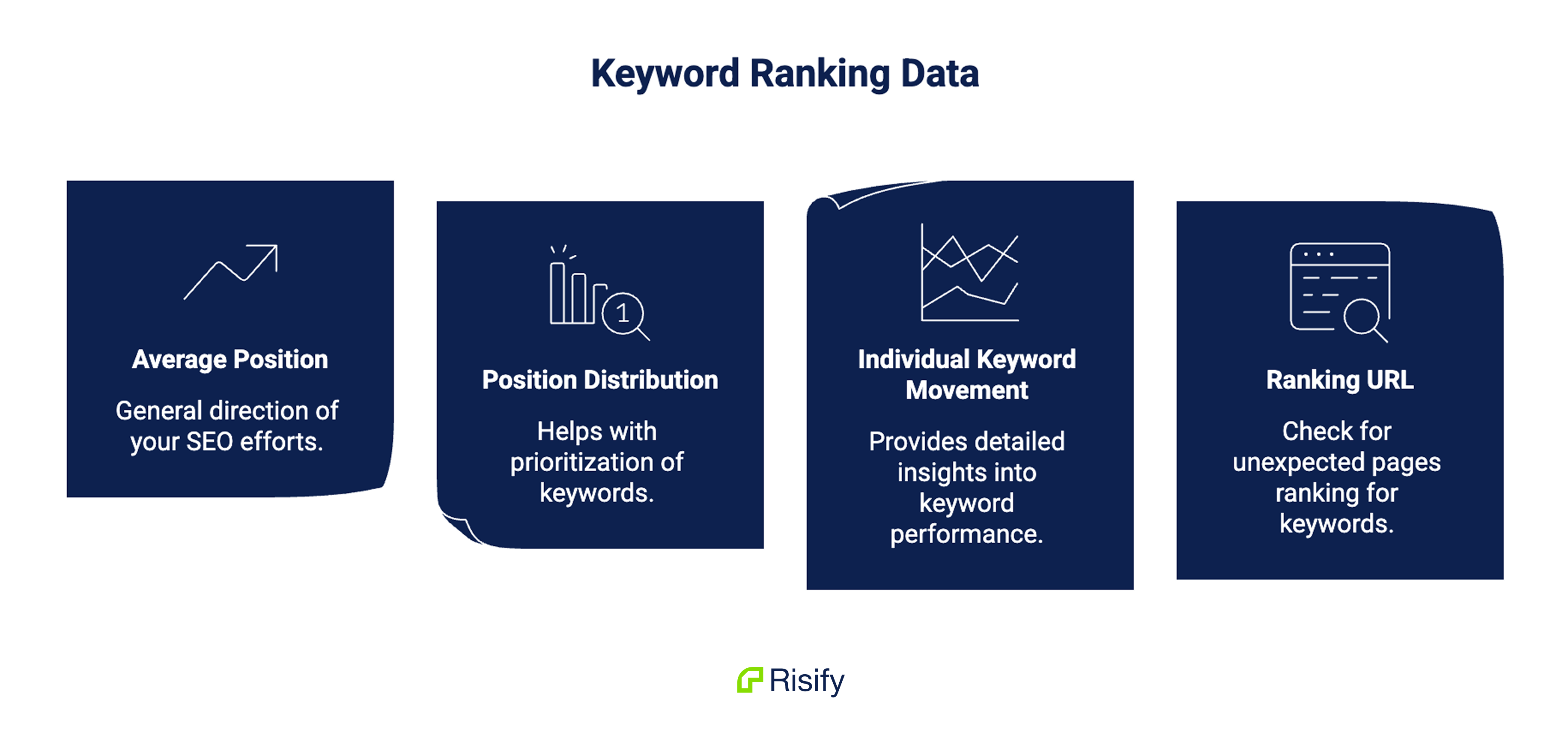
Ranking data is most useful when you treat it as a feedback signal rather than a scorecard.
Your average position tells you the general direction things are moving. If it improves steadily over weeks, your SEO work is having an effect.
If it rises or stalls, something on your store may have changed, whether that is a theme update, a new app affecting page speed, or content that shifted after an edit.
The position distribution view helps with prioritization.
Keywords clustered just outside the top 10 are often the most actionable.
Those pages are already visible to Google, they just need a closer look at what might be holding them back.
For collection pages specifically, improvements to structure and navigation can make a meaningful difference.
Individual keyword movement is where the detail lives. A keyword that drops suddenly is worth investigating.
A keyword that climbs steadily after a page update confirms that the change worked.
Over time, patterns emerge across your catalog that help you understand which types of pages respond well to which types of improvements.
The ranking URL column is also worth checking regularly. If an unexpected page is ranking for a keyword you care about, that is a signal worth acting on.
It might mean two pages are competing for the same term, or that the page you intended to rank is not the one Google finds most relevant.
Used consistently, keyword tracking turns SEO from a set of tasks into a measurable process.
If you want to go deeper on the structural side of what drives ranking movement, How Structured Data Impacts AI Visibility is a good next read.
Conclusion
Having ranking data inside the same dashboard where you manage your store means one less tool to open, one less context switch, and a clearer picture of whether the work you are doing is actually moving the needle.
If you are already using Risify, the feature is ready to use.
Setting up your first project takes just a few minutes, and the data starts coming in automatically from there.